MICROSOFT SHARE POINT
Edited by Riccardo Dominici
MICROSOFT 365 APPLICATIONS FOR WORK COURSES - Tell your friends about them, they're very cheap
SEARCH ENGINE AND COURSE CARDS ON
MICROSOFT 365 APPLICATIONS
1. THE POTENTIAL OF THE APPLICATION
b) Efficient content organization
c) Smart and controlled sharing
d) Accessibility from any device
f) Facilitating collaboration between team members
g) Platform customization and adaptability..
h) Security, reliability and compliance
i) Sustainability and economic benefits
j) Practical examples of using SharePoint Online
2. INTERACTIONS WITH OTHER MICROSOFT 365 APPS
a) SharePoint Online and Microsoft Teams Integration
b) SharepPint Online and One Drive Integration
c) SharePoint Online and Outlook Integration
d) SharePoint Online and Office Integration
a) The SharePoint Administrator
f) Additional Considerations and Best Practices
4. EXAMPLES OF USE IN THE COMPANY
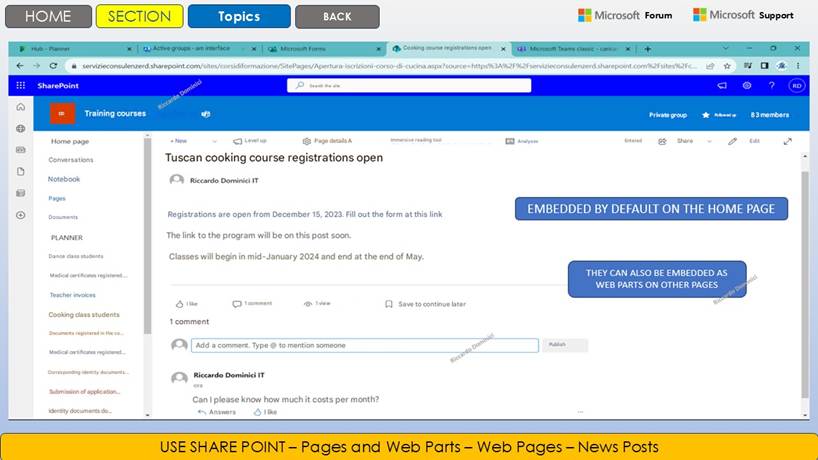
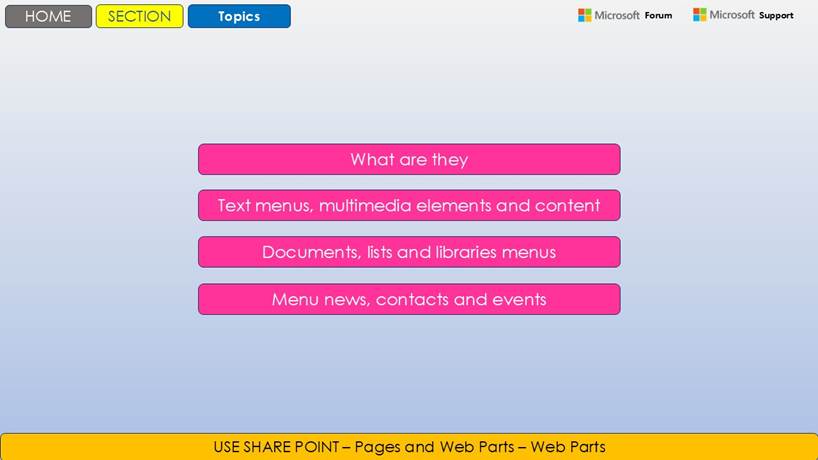
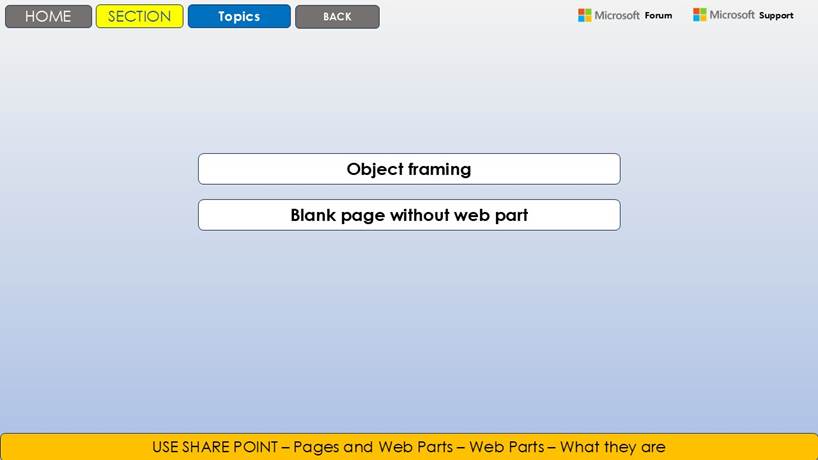
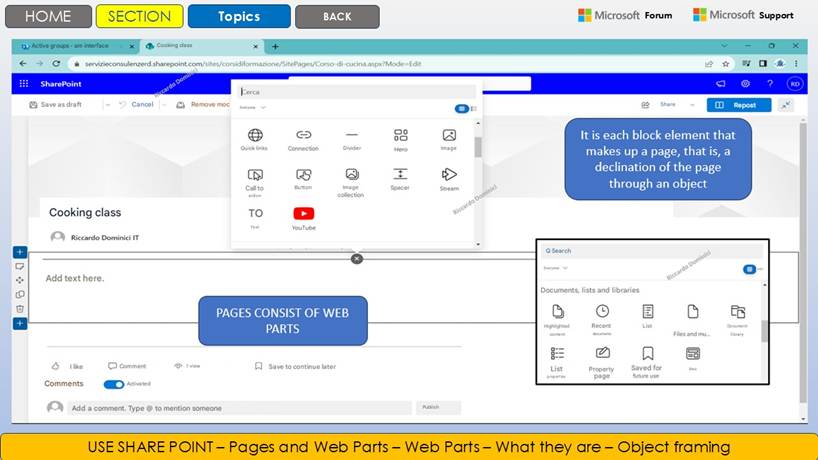
5. ILLUSTRATIVE POWER POINT SLIDES. Commented screenshots
a) Introduction to Microsoft Share Point Online (30 Slides)
b) Working with Lists (15 Slides)
c) Working with Document Libraries (20 Slides)
d) Common Features for Lists and Document Libraries (28 Slides)
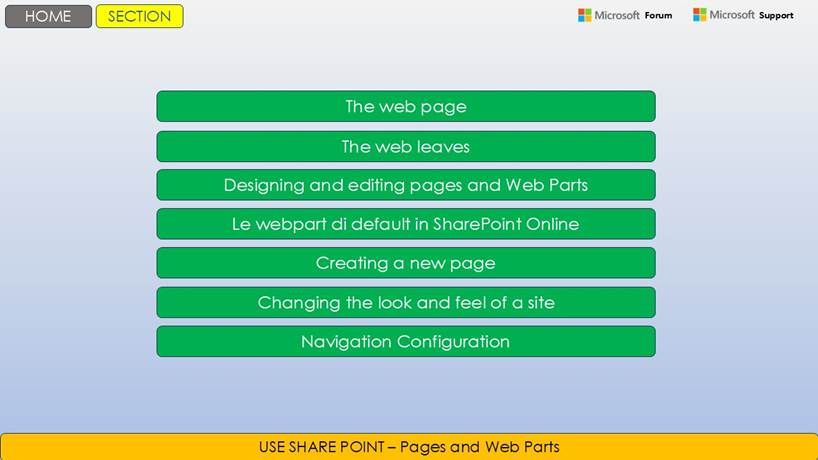
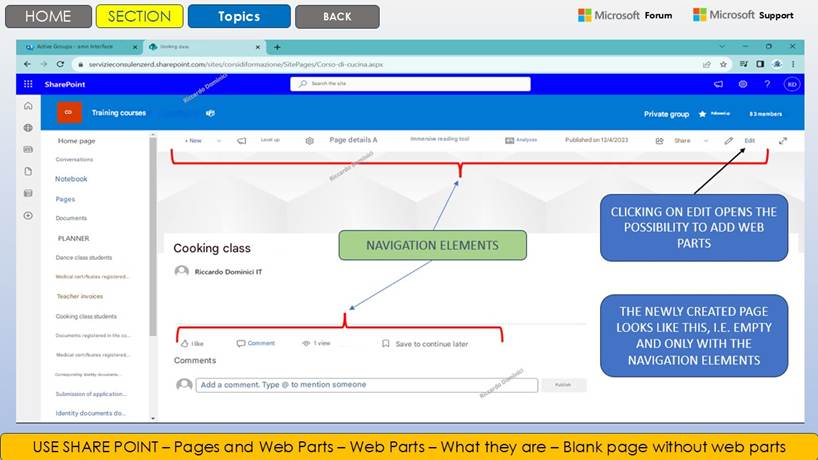
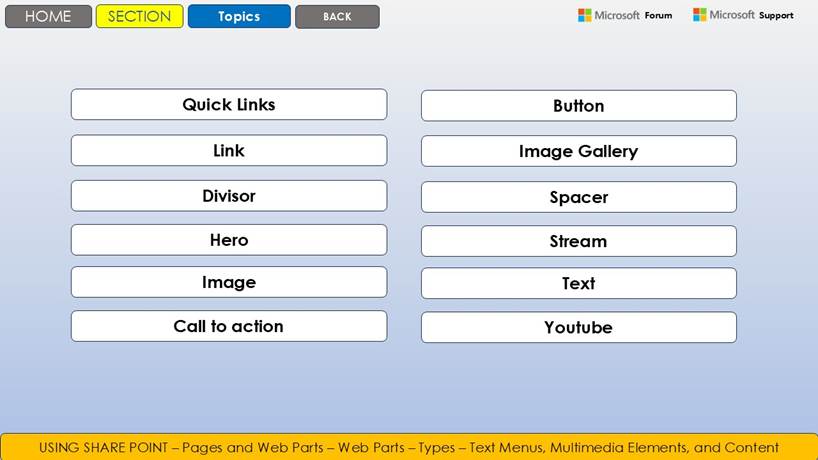
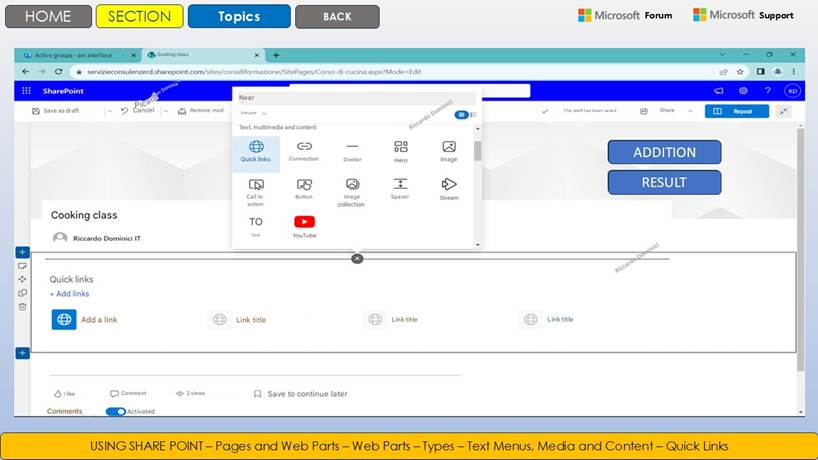
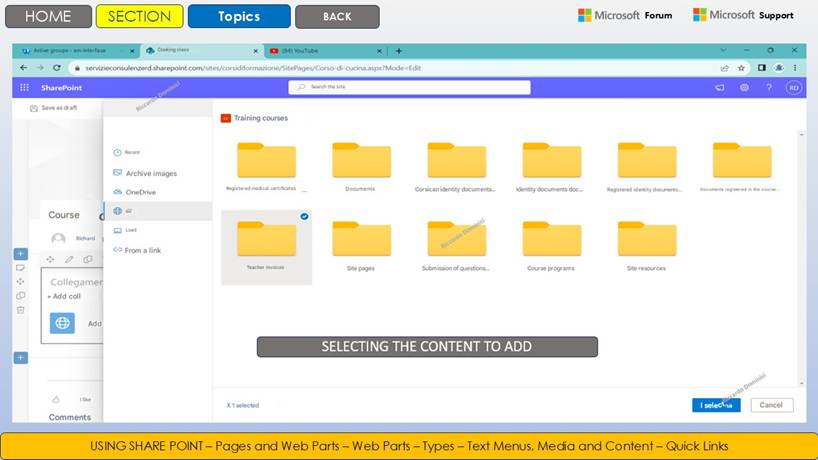
e) The Site's Pages and Web Parts (79 Slides)
f) The Permit System: Who Can Do What (46 Slides)
g) Navigation and Search (5 Slides)
6. LEARNING PLAN. 4 months (16 weeks - 1 hour a day)
b) Weekly Self-Assessment Template
c) 100 Review Questions, 10 for each module, and correct answers
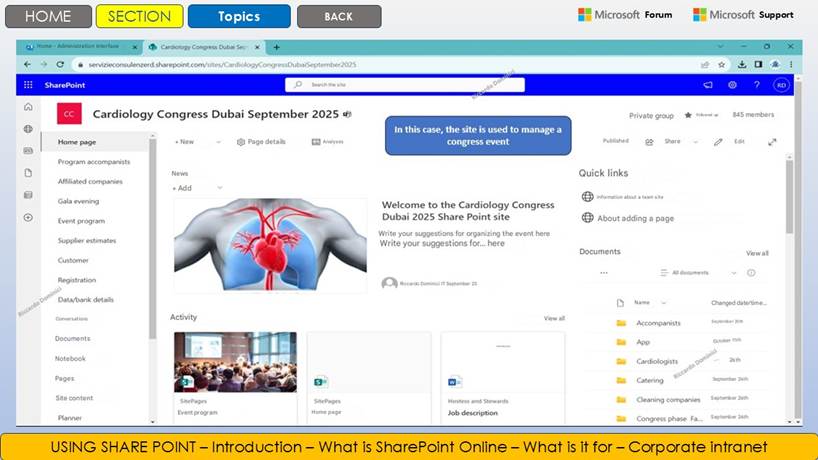
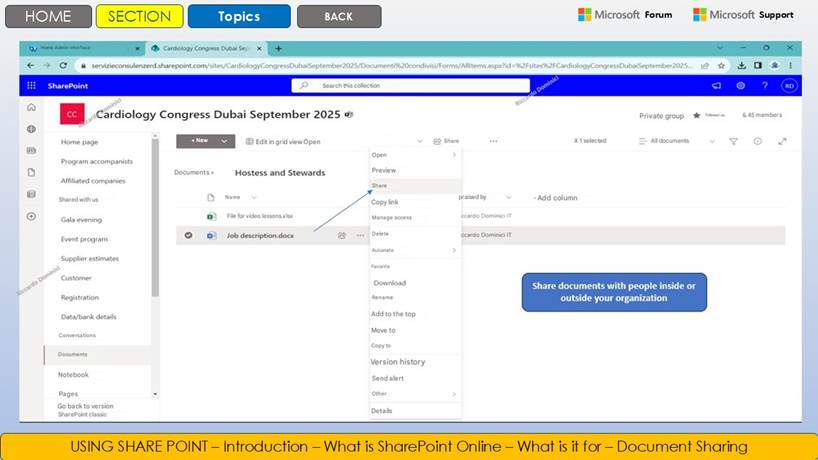
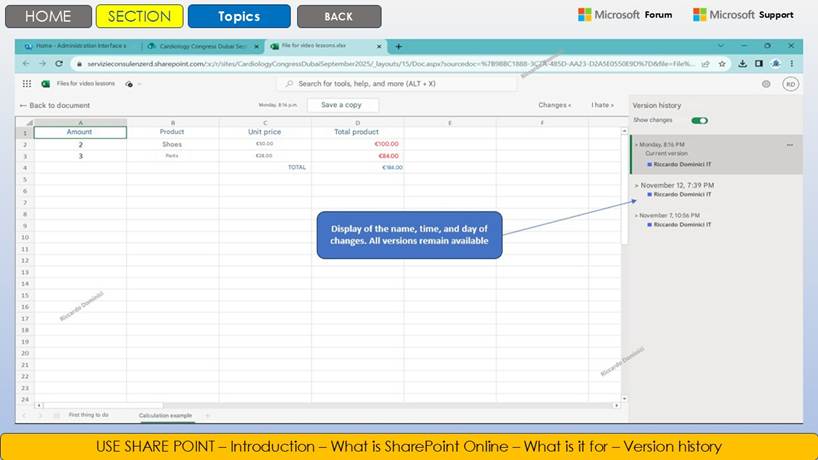
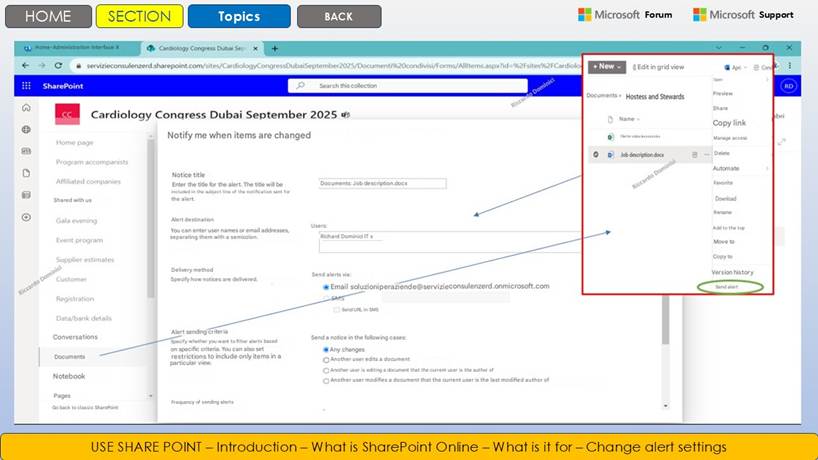
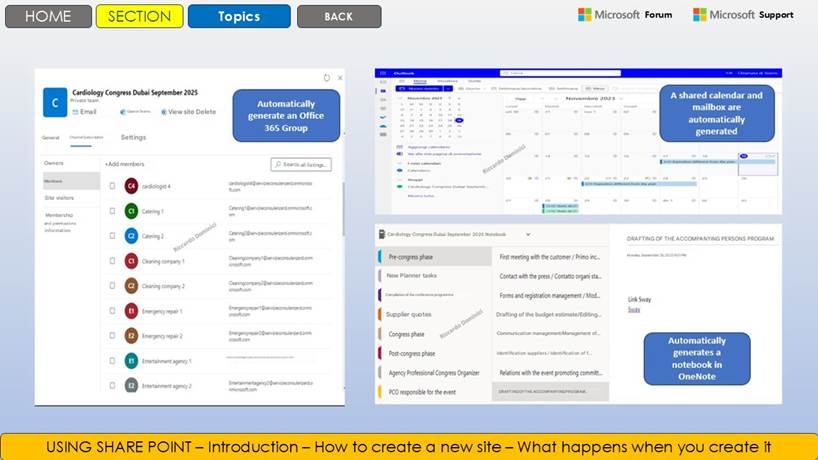
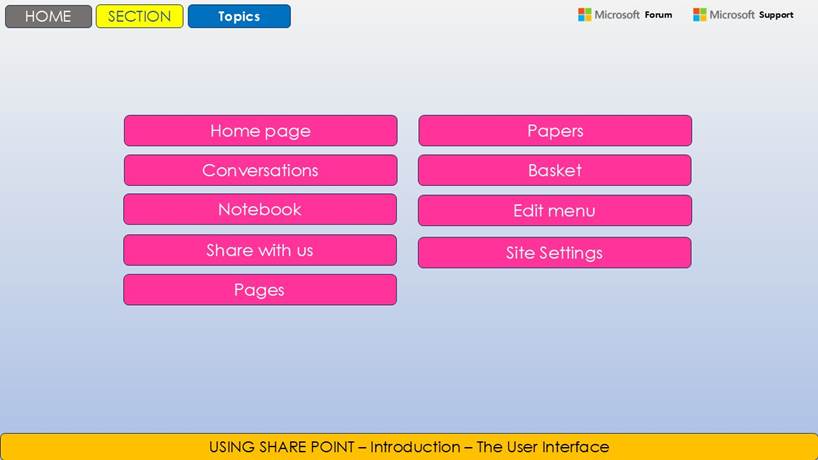
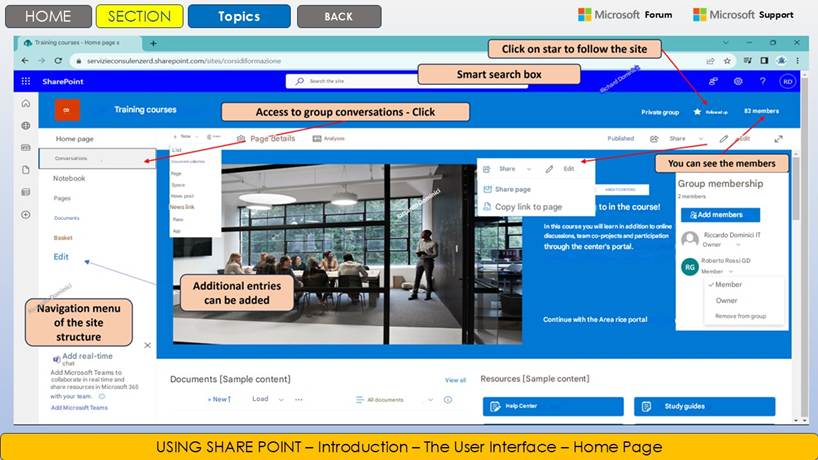
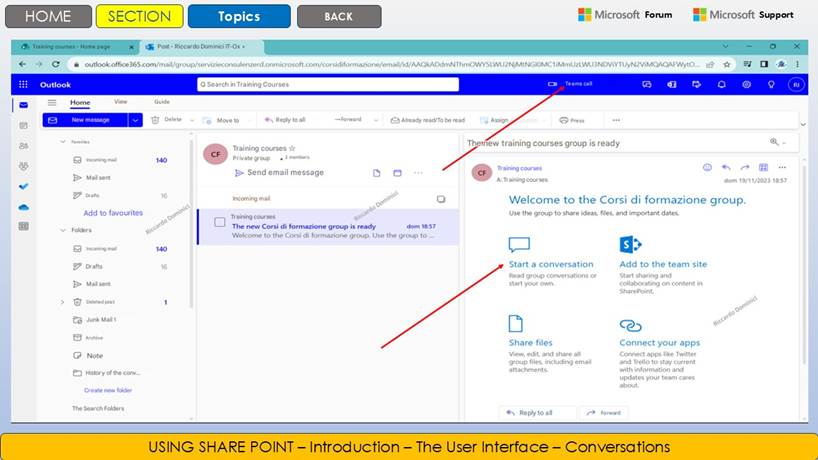
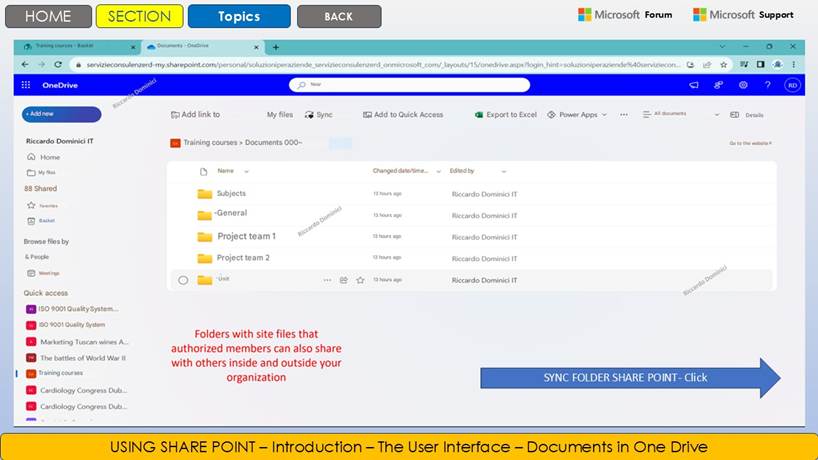
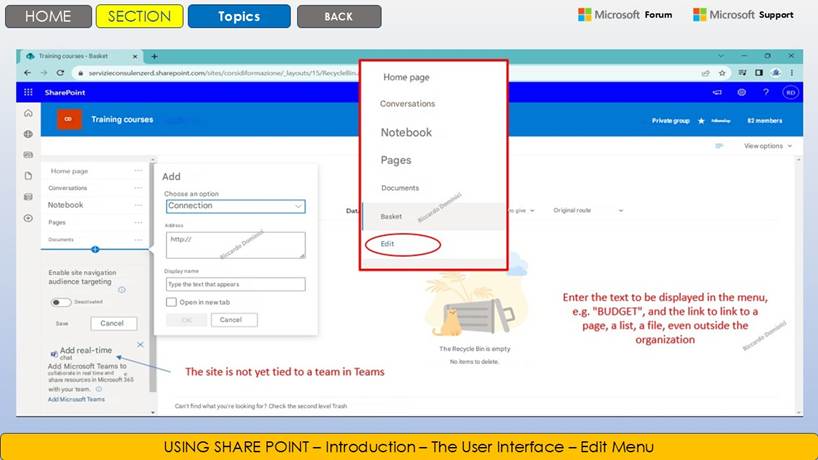
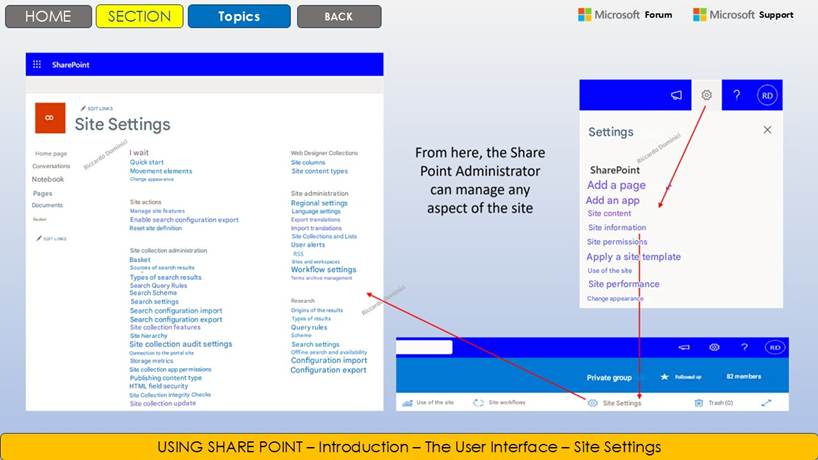
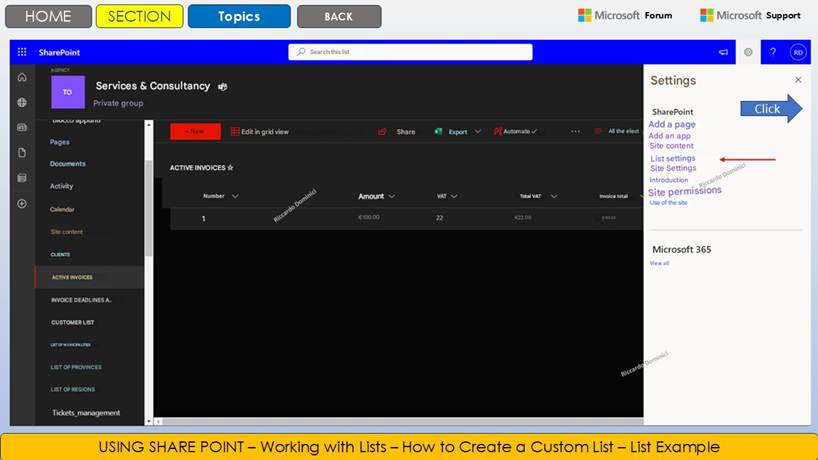
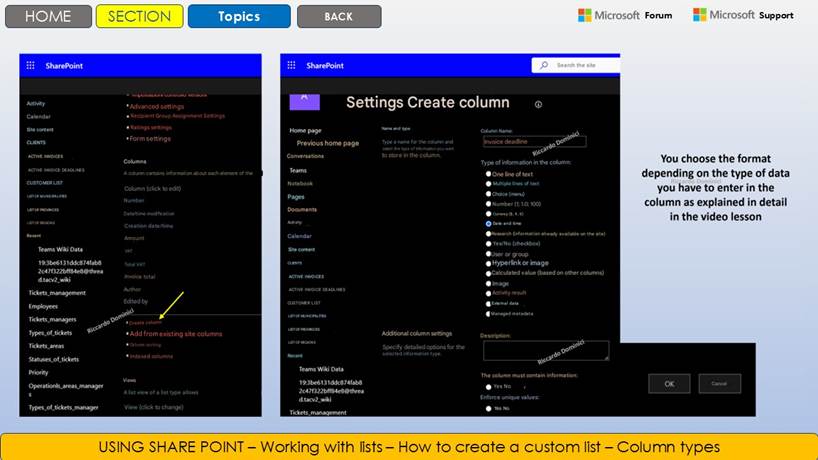
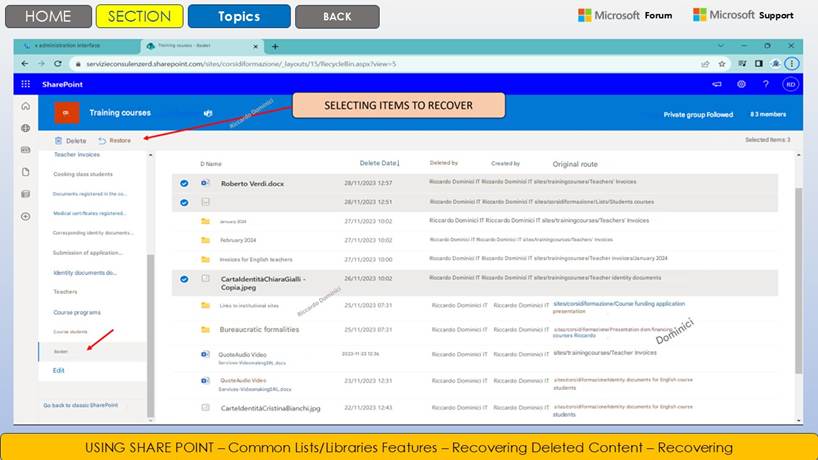
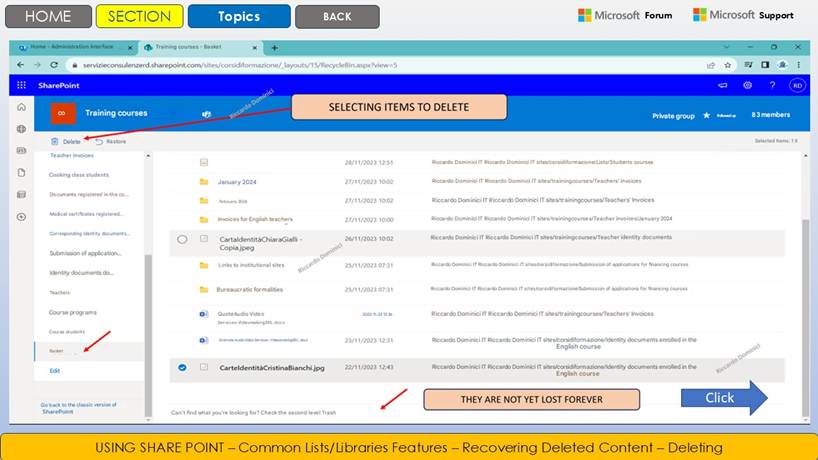
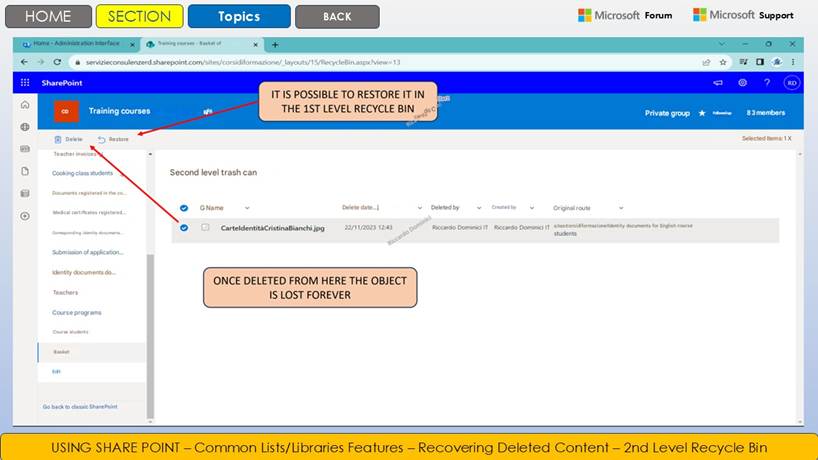
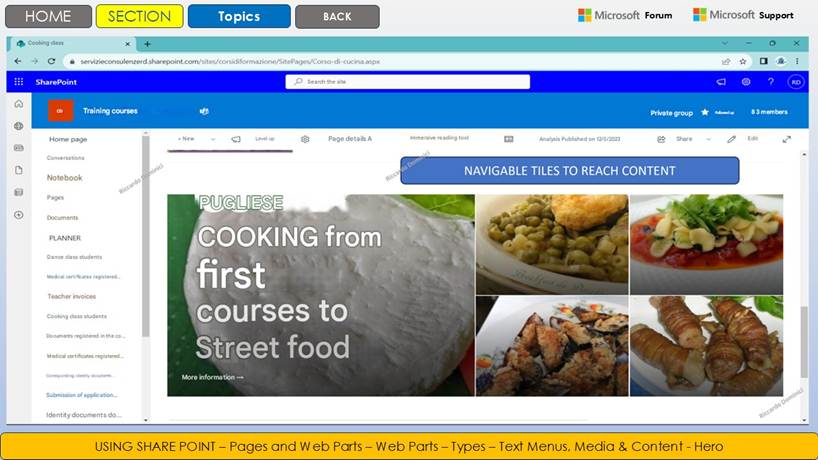
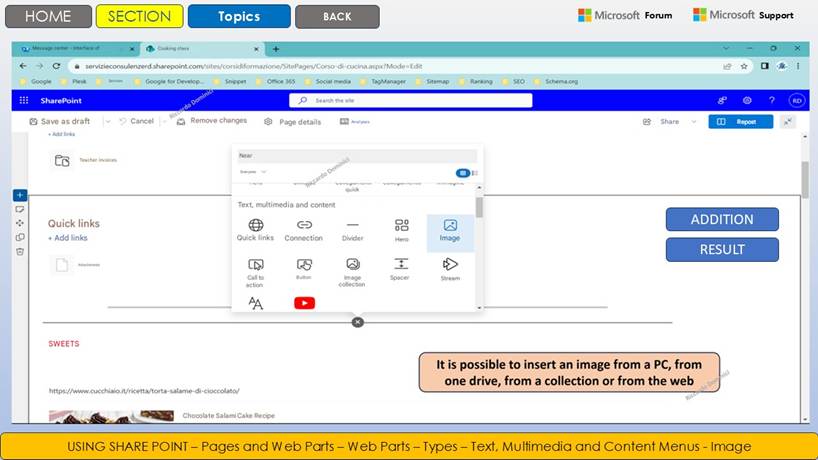
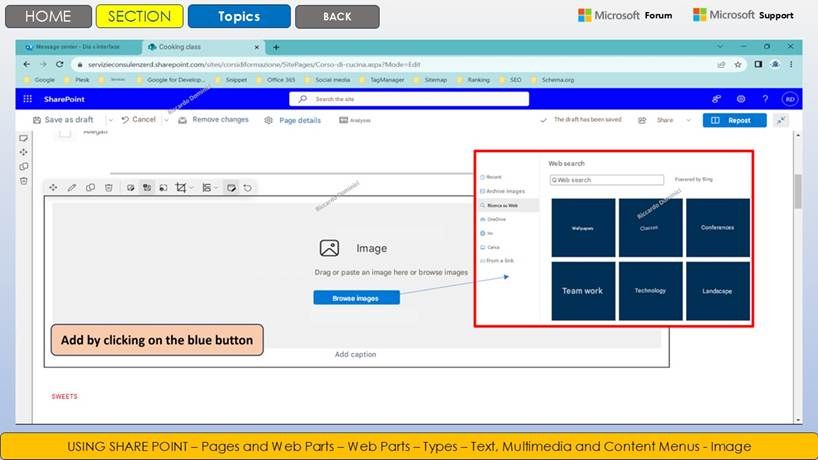
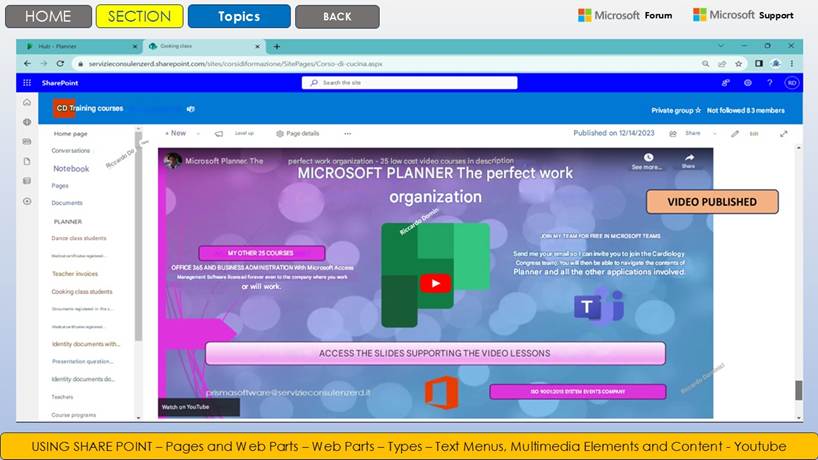
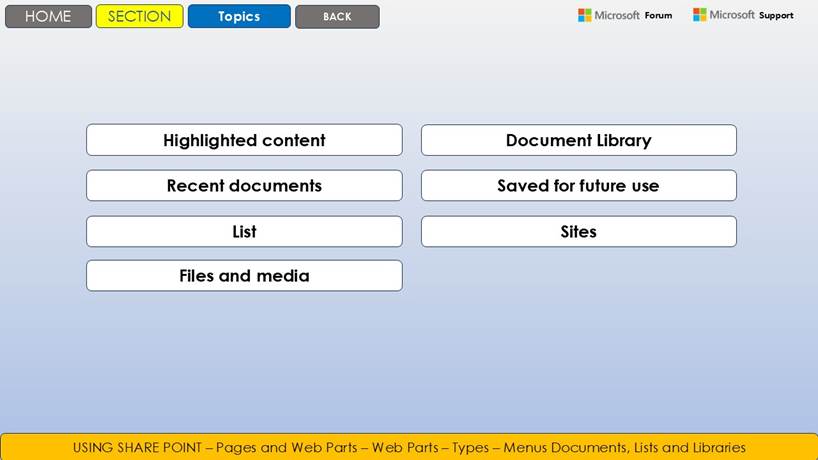
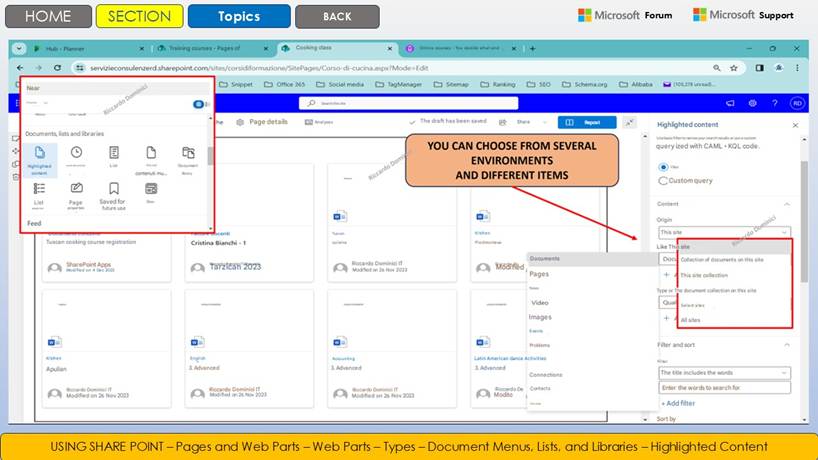
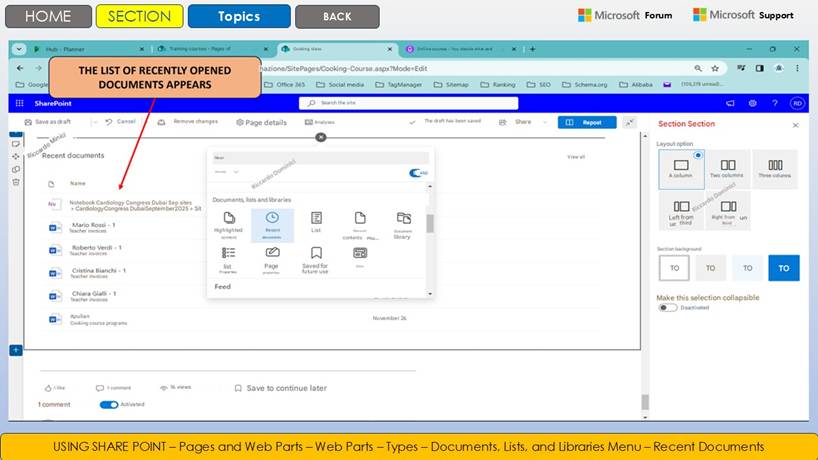
PowerPoint Slide Example. You can find the 220 slides at the bottom of the text.
MICROSOFT SHAREPOINT ONLINE
1. THE POTENTIAL OF THE APPLICATION
SharePoint Online is a complete and dynamic solution for managing business information in the modern context. Integrated into the Microsoft 365 suite, it offers advanced tools to store, organize, share and access content from any location and device. The platform is designed to optimize productivity and promote collaboration between team members, regardless of their geographical location.
SharePoint Online stands out for its ability to effectively respond to the needs of organizations that operate in an increasingly digital and interconnected world. Thanks to its deep integration with Microsoft 365, the platform allows you to overcome traditional barriers related to information management, offering a centralized environment in which documents, data and resources are always available, updated and easily findable. Users can collaborate in real time on shared projects, simultaneously editing the same file and leaving a track of versions and contributions, without ever losing control over the quality and security of the data.
SharePoint Online features go far beyond simple file storage: the platform allows you to structure and organize information according to the logic best suited to the business context, thanks to customizable sites, document libraries and libraries. The fast and intelligent search uses content indexing, metadata and tags, so as to provide precise results even in complex and fragmented situations. Business processes can be automated through workflows that simplify the approval, publication and distribution of content, reducing times and minimizing the risk of manual errors.
Mobility is one of the key elements of SharePoint Online: the platform is fully usable from any device, be it a PC, a tablet or a smartphone, ensuring operational continuity even when away from home or on business trips. Through dedicated apps, navigation is intuitive and adapted to the needs of users on the move, without ever sacrificing security and performance. Each component of the platform is in fact developed to ensure high standards of protection, thanks to advanced authentication systems, access controls and constant monitoring of activities.
Another strength of SharePoint Online is the possibility of integration with other applications in the Microsoft 365 suite. Teams, Outlook, OneDrive and Power Automate connect naturally, creating a digital ecosystem in which communication and collaboration are fluid and transversal. Data can be shared in a few clicks, tasks managed in a coordinated manner and information flows always kept consistent. This interoperability favors the creation of virtual workspaces suitable for distributed teams, international projects and complex organizational structures.
Personalization is another distinctive element: SharePoint Online allows you to model corporate sites and portals according to the identity and specific needs of the company, offering an engaging user experience that is consistent with the internal culture. Thanks to development tools and modular components, you can extend the functionality, integrate third-party solutions or develop customized applications that respond to specific processes.
The platform also supports compliance with major data protection and privacy regulations, making it suitable for regulated industries and organizations focused on information governance. Reporting, auditing, and version controls complete the picture of a solution that aims for excellence in managing corporate digital assets.
In short, SharePoint Online is much more than a tool for storing documents: it is a true digital environment for collaboration, innovation and growth, where each person can contribute and access collective knowledge, wherever they are, in total security and with maximum efficiency.
Data centralization : Centralizing data in SharePoint Online allows you to create a single environment where all company information is collected and organized in a structured way. Documents, images, videos and data are stored in easily navigable document libraries, divided by project, department or thematic area. This central repository eliminates file fragmentation across devices or platforms, making it easier to search and share resources. Authorized users can quickly access the content they need, collaborate in real time and ensure information consistency. Access management is flexible: each team can have reserved or shared spaces, with customized permissions. The modular structure facilitates the growth of the organization, allowing new content to be added without losing order or control. In this way, SharePoint becomes the digital hub of the company, supporting processes, communication and innovation.
Version Control : A key aspect of secure storage is version control: in SharePoint Online, every change made to a document is automatically recorded. This system not only allows you to track who made changes and when, but also allows you to easily recover previous versions of files if necessary. This maintains a complete and reliable history of revisions, ensuring transparency in collaborative processes and making it easy to restore content in the event of errors or unwanted changes. This functionality is essential in business contexts where traceability and data governance are essential requirements.
Security and Compliance : In terms of security and compliance, SharePoint Online offers an advanced approach to protecting corporate data. The storage system implements encryption of both data in transit and at rest , ensuring that information is protected during every phase of its digital lifecycle. Granular permissions allow you to precisely define who can access, view or modify content, significantly reducing the risk of unauthorized access. In addition, there are configurable retention policies, essential to ensure that data is retained only for the necessary time and managed in accordance with the main regulations in force, such as GDPR. The platform also allows you to set up detailed audits and automatic alerts, so as to facilitate continuous monitoring of access and changes, to protect privacy and transparency.
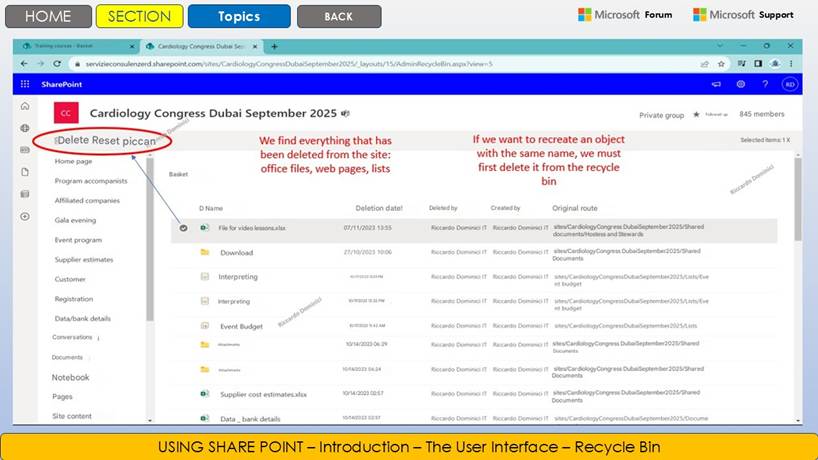
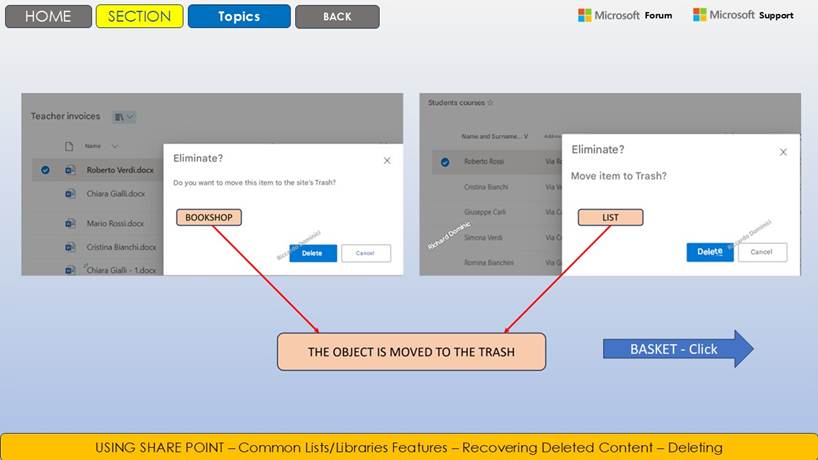
Backup and restore : An often overlooked but strategically important aspect concerns the management of backups and restore procedures in SharePoint Online. The platform, in fact, adopts an automatic backup system that operates in the background, constantly safeguarding the integrity of the archived data. This means that all content hosted within the sites is periodically duplicated on secure servers, distributed in geographically separate data centers, drastically reducing the risk of loss due to hardware failures, human errors or cyberattacks. In case of need, such as accidental deletion of files or compromise of information following an attack, administrators have the possibility of using rapid and targeted restore procedures. SharePoint Online allows you to recover deleted documents through the integrated recycle bin, which temporarily stores files before definitive removal, thus offering a window of opportunity for recovery without the intervention of IT specialists. For more complex needs, such as restoring entire document libraries or sites, Microsoft provides advanced restore tools that allow you to return the environment to a previous state in a few simple steps. These backup and recovery capabilities, combined with transparent management of versions and access permissions, ensure not only operational continuity, but also the peace of mind needed to face the challenges of digital transformation with the certainty that the company's information assets are always protected and easily recoverable.
Exercise. Information storage
OBJECTIVE OF THE EXERCISE
The goal is to learn how to use SharePoint Online to ensure secure, traceable, and compliant storage of corporate information. You will learn how to centralize documents in structured libraries, enable version control to track changes, configure security permissions, and access backup and restore capabilities. This exercise helps improve document governance, reduce data loss risks, and ensure regulatory compliance, making SharePoint a trusted tool for information management.
OPERATIONAL STEPS
Centralize data in a document library
Log in to https://portal.office.com
Go to SharePoint > select the team site
Click on Site Content
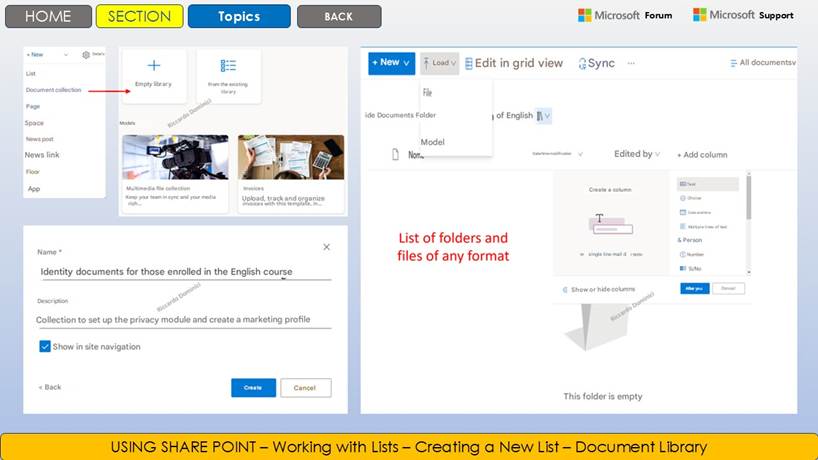
Select + New > Document Collection
Give a descriptive name (e.g. Contract Archive )
Click on Create
Open the collection and click Add Column
Create columns like Document Type , Year , Responsible
Create custom views to filter content
Add the collection to the site home via web part
Enable version control
Go to the created document library
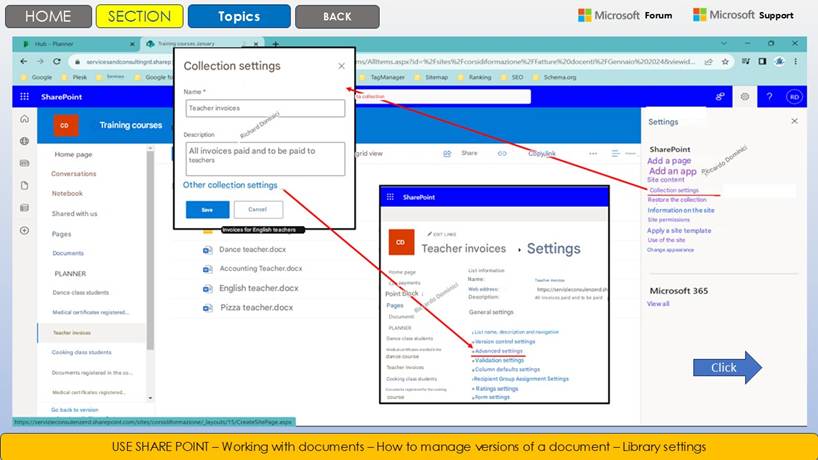
Click on Settings ( ) > Collection Settings
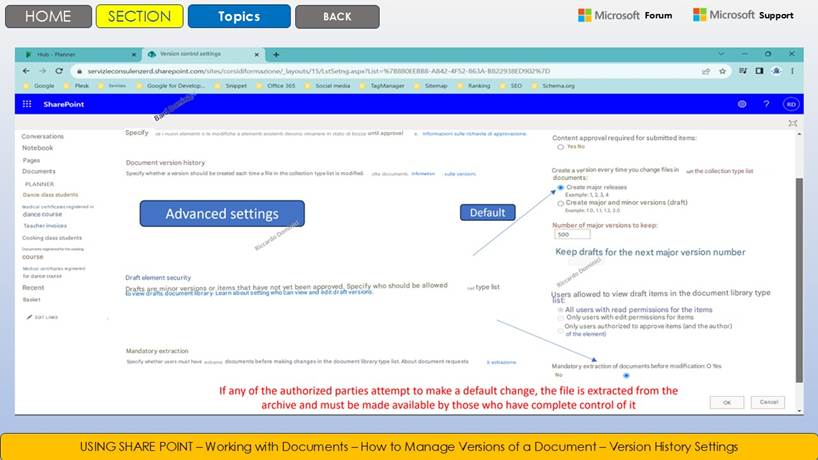
Select Version Control Settings
Enable Create major versions
Set the maximum number of versions to keep
Save changes
Upload a file and edit the contents
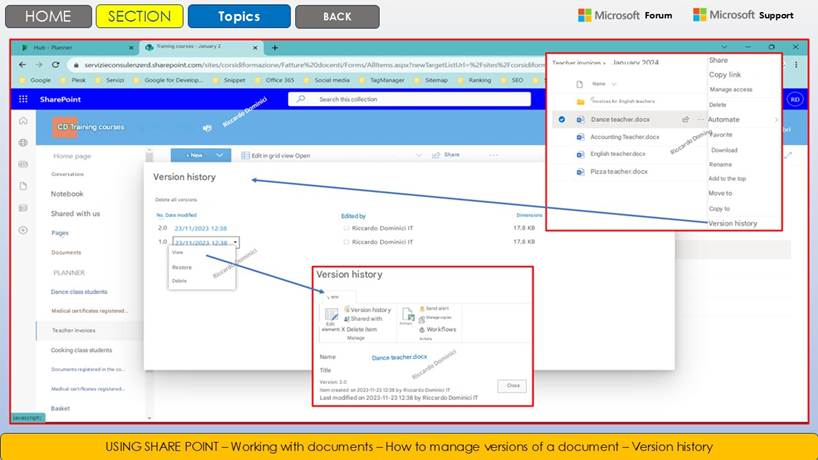
Click on ... > Version History
View and restore a previous version
Verify that changes are tracked correctly
Security and Compliance Setup
Go to Collection Settings > Collection Permissions
Click on Stop Permission Inheritance
Remove unauthorized users
Add users or groups with specific roles (Read, Edit)
Go to https://compliance.microsoft.com
Select Solutions > Compliance Management
Create a retention policy for the collection
Set the retention period (e.g. 5 years)
Apply the policy to the document collection
Save and monitor policy application
Backup and restore content
Sign in to the SharePoint Admin Center
Go to Active Sites > select the site
Click on Backup and Restore (section integrated with Microsoft 365)
View restore options for collections and files
Select a collection and click Restore Collection
Choose a reference date
Confirm the restore
Verify that the files have been restored successfully
Alternatively, use OneDrive > Recycle Bin to recover deleted files
Document the operation for internal audits
APPLICATION OPERATIONAL SCENARIO
Legal needs to store contracts securely and compliantly. Create a centralized document library, enable version control to track changes, set permissions to limit access, and configure a 5-year retention policy. Use the restore feature to recover files if something goes wrong.
Centralization : SharePoint > New Library > Add Columns
All contracts are stored in one structured location.Versioning : Collection Settings > Versioning
Every change is tracked and recoverable.Security : Settings > Permissions > Compliance
Only authorized users can access or edit.Recovery : Admin Center > Backup and Restore
Deleted or modified files can be recovered.KEY COMMANDS USED AND HOW TO ACCESS THEM
Function
Path
Document collection
SharePoint > Site Content > + New > Document Library
Version control
Collection > Settings > Version Control Settings
Permissions and Compliance
Collection > Settings > Permissions / compliance.microsoft.com
Backup & Restore
SharePoint Administration Center > Active Sites > Restore Library
PRODUCTIVITY BENEFITS
Reduce the risk of data loss thanks to versioning and automatic backup
Controlled access to sensitive documents through granular permissions
Regulatory compliance ensured with retention and audit criteria
Centralization of content that facilitates search and organization
Quick recovery in case of errors or accidental deletions
Change Traceability for Audit and Accountability
Eliminate file duplication with centralized management
Greater efficiency in review and approval processes
Reduce the use of email for document sharing
Supporting the culture of cyber security in the company
IDEAS FOR USE IN A REAL BUSINESS CONTEXT
Legal Contracts Archive
With restricted access, active versioning and long-term preservation.ISO Document Management
With revision tracking and automatic backup for audits.Corporate Policy Repository
Centralized sharing with read-only access and retention policies.SELF-ASSESSMENT QUESTIONS
1. How do I enable versioning in a document library?
2. Where do you set permissions to limit file access?
3. How do I apply a retention policy to a collection?
4. What tools does SharePoint offer for file recovery?
5. Why is it important to centralize company documents?
SUMMARY OF WHAT I LEARNED
You have learned how to use SharePoint Online to ensure secure and compliant information storage. You have created a centralized document library, enabled version control, configured permissions and retention policies, and used backup and restore capabilities. These practices improve security, traceability, and efficiency in document management. You are now able to structure a storage system that protects corporate data and supports regulatory compliance.
b) Efficient content organization
Site and library structure : In SharePoint, the organizational structure is based on a hierarchy of elements that allow you to model the information architecture according to the needs of the company. At the base are the sites, which act as the main containers of information and resources, each dedicated to specific departments, projects or themes. Within each site are the document libraries, spaces designed to store and share files in a secure and centralized manner. The libraries represent specialized collections of documents, often customized with views, permissions and automations based on the workflow. The lists, on the other hand, allow you to manage structured data, such as tasks, contacts or requests, offering timely tracking and collaboration between members of the organization. This division faithfully reflects the internal structure of the institution or company, improving clarity, security and efficiency in the management of digital content.
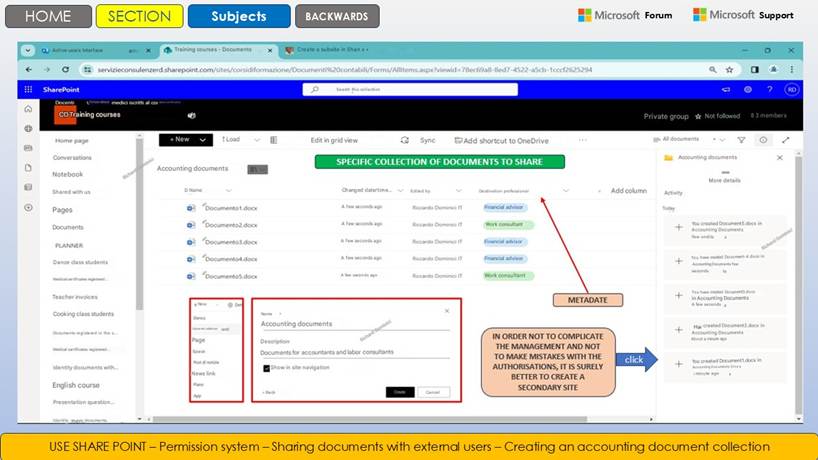
Tags and Metadata : Using tags and metadata in SharePoint allows you to give each file additional descriptive information, such as author, date, category, or document status. These elements are not only useful for quickly filtering and sorting content, but also make it possible to find what you need in seconds, thanks to advanced search based on specific criteria. In practice, adding tags and filling in metadata while uploading or editing documents greatly improves the precision and speed of navigating through company files.
Custom templates : In SharePoint, you can create site and library templates to standardize processes and layouts across the company. Using predefined or custom templates, each team can launch new workspaces with structures, permissions, and libraries already set up according to business needs. This reduces setup time, ensures consistency in the organization of information, and facilitates the adoption of shared best practices. Templates can include custom views, automatic workflows, and metadata fields, allowing you to easily replicate the most effective or compliant internal policy structures.
Organization automation : With automated workflows available in SharePoint, you can set rules that guide the categorization and storage of corporate content in a systematic and consistent way. For example, when a new document arrives in a library, a flow can automatically assign tags, fill in metadata, move the file to the correct folder, or send notifications to the relevant team members. Rules are based on criteria such as author, file type, date, or approval status, ensuring that each piece of information is handled according to corporate policies. This approach not only reduces manual errors and speeds up daily tasks, but also ensures data traceability and compliance, improving overall efficiency in digital document management.
Exercise. Efficient content organization
OBJECTIVE OF THE EXERCISE
The goal is to learn how to structure and manage enterprise content efficiently and at scale with SharePoint Online. You will learn how to create sites and document libraries to organize information, use tags and metadata to facilitate search, apply custom templates to standardize content, and automate classification and archiving with Power Automate. This exercise helps you improve document governance, reduce redundancy, and increase productivity through an intelligent digital organization.
OPERATIONAL STEPS
Site and collection structure
Log in to https://portal.office.com
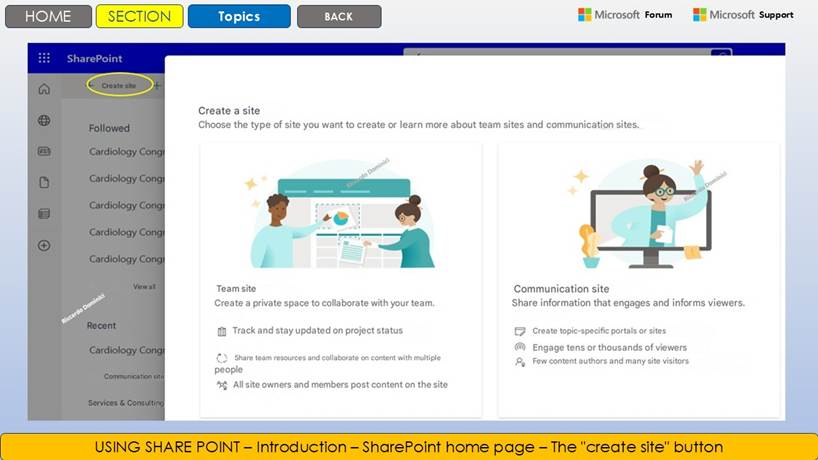
Go to SharePoint > + Create Site
Select Team Site
Enter site name and description
Click on Create
Go to Site Content
Click + New > Document Collection
Give it a descriptive name (e.g. Project X Documentation )
Click on Create
Add collection to home via Collection View web part
Tags and metadata
Open the document library
Click on Add Column
Select type: Choice , Text , Date
Create columns: Category , Responsible , Status
Go to Collection Settings > Advanced Settings
Enable the use of managed metadata
Create custom views by filtering by Category
Upload a document and fill in the metadata
Check the display in filtered views
Add the view to the site home
Custom templates
Open Word/Excel/PowerPoint
Create a standard document (e.g. report template)
Save as template (.dotx, .xltx, .potx)
Go to SharePoint > Document Library
Click Collection Settings > Advanced Settings
Select Use template
Upload the template file to the collection
Set the template as default for new files
Create a new document using the template
Check format consistency
Organization Automation
Go to https://make.powerautomate.com
Click + Create > Automated Flow
Give a name (e.g. Automatic document classification )
Choose trigger: When a file is created in SharePoint
Select the document collection
Add condition: If Category = 'Report'
Add action: Move file to 'Report' folder
Add action: Send notification via Teams
Save and activate the flow
Test by uploading a file with Report metadata
APPLICATION OPERATIONAL SCENARIO
A project team wants to organize documentation efficiently. Create a dedicated site with collections for each phase of the project, use metadata to classify documents, set up templates for reports, and automate classification with Power Automate.
Structure : SharePoint > Create Site > Create Collection
Each stage of the project has a dedicated collection.Metadata : Add Column > Advanced Settings
Documents are easily filterable and searchable.Templates : Collection Settings > Use Template
Reports are uniform and consistent.Automation : Power Automate > Automated Flow
Documents are automatically archived.
KEY COMMANDS USED AND HOW TO ACCESS THEM
Function
Path
Create site and collection
SharePoint > + Create Site / Site Content > + New > Library
Metadata
Collection > Add Column / Collection Settings > Advanced
Custom templates
Collection Settings > Advanced Settings > Use Template
Automation
Power Automate > + Create > Automated Flow
PRODUCTIVITY BENEFITS
Clear and scalable content organization
Quick search using metadata
Uniformity in corporate documents
Reduction of manual activities
Greater control and traceability
Simplified collaboration between teams
Instant access to information
Reduction of storage errors
Greater efficiency in document processes
Support for corporate standardization
IDEAS FOR USE IN A REAL BUSINESS CONTEXT
Project Management
Each project has a site with collections, templates, and automated flows.HR Documentation
Forms, policies and reports are automatically classified and archived.Technical archive
Manuals and guides are organized by category and updated with versioning.SELF-ASSESSMENT QUESTIONS
1. How do I create a document library in SharePoint?
2. What types of metadata are useful for classifying content?
3. How do I set up a custom template for documents?
4. What actions can you automate with Power Automate?
5. How does the site and collection structure improve organization?
SUMMARY OF WHAT I LEARNED
You have learned how to structure content in SharePoint Online efficiently. You have created sites and libraries, configured metadata for classification, set up custom templates for standardization, and automated organization with Power Automate. These skills enable you to manage large volumes of documents in an orderly, traceable, and scalable manner. Now you can design digital environments that support business productivity and collaboration.
c) Smart and controlled sharing
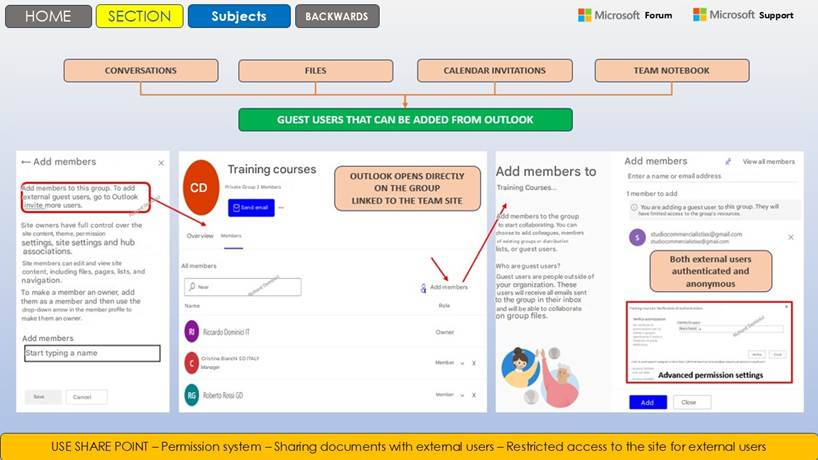
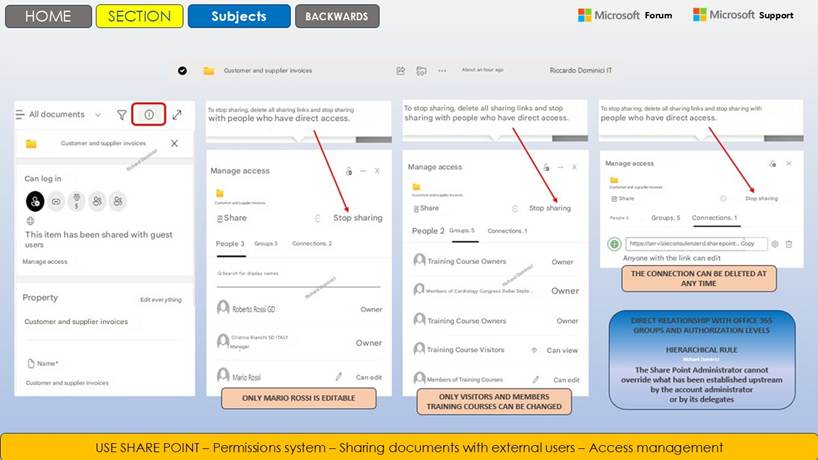
Permissions Management : Different permissions can be assigned to individual users, groups, guests and external partners. This flexibility allows, for example, to grant read-only access to certain files to some people, while other participants can have editing or sharing rights. External guests can be invited by specifying their permissions in a timely manner, while for internal workgroups, more extensive and automated security rules can be applied. Partners and external collaborators thus receive only the strictly necessary and time-limited permissions, ensuring that confidentiality is always preserved.
Real-time collaboration : Office documents can be edited simultaneously by multiple people, with the ability to insert comments and suggestions. This real-time co-authoring feature profoundly transforms the way you work on documents, allowing multiple people to make changes simultaneously without having to wait for a turn or send different versions via email. Each intervention is immediately visible to all collaborators, who can see who is working on which part, drastically reducing errors and overlaps. Furthermore, by inserting comments and suggestions directly into the document, the comparison becomes faster and more transparent, facilitating decision-making processes and collective reviews. These tools raise the quality of collaboration and make teamwork more fluid, shared and traceable.
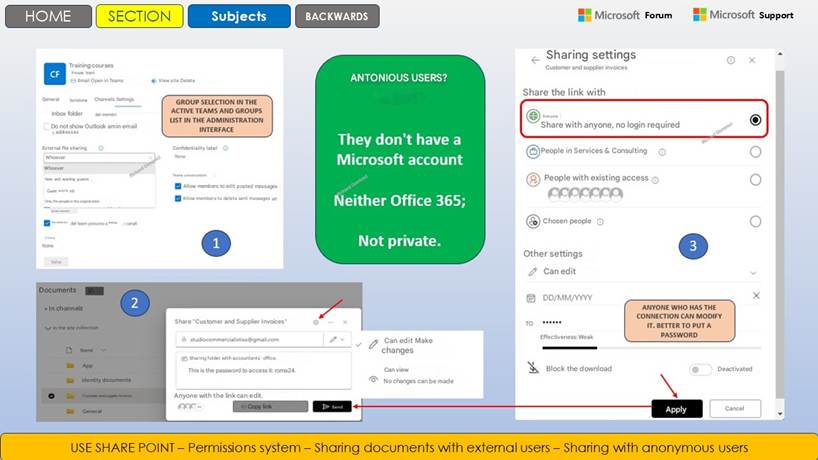
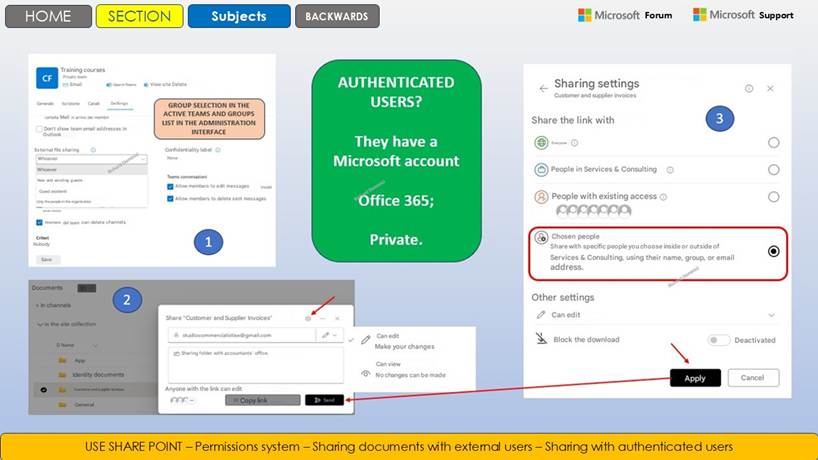
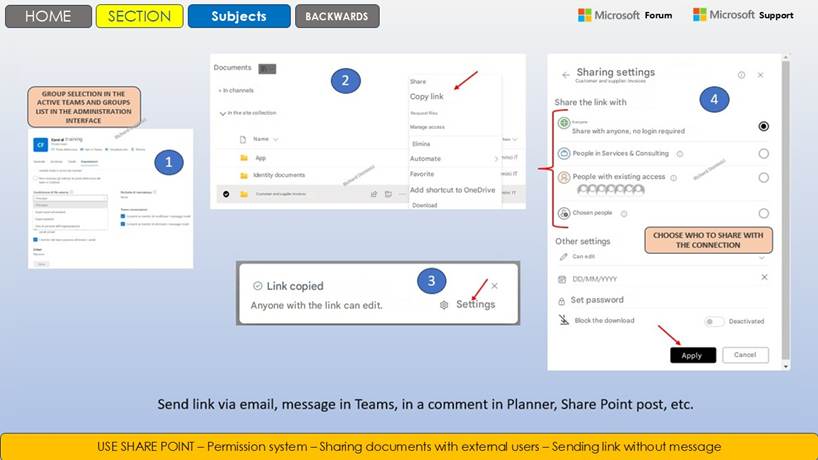
Shareable links : Generate secure links for selective sharing of documents and folders, even with expiration dates and passwords. This feature allows you to generate unique and secure links that allow targeted sharing of files and folders both inside and outside the organization. For each document or folder, you can choose whether to create a link reserved for specific people, company members or, only in selected cases, external users. SharePoint offers advanced options such as defining an expiration date for the link and entering an access password, thus ensuring greater security and precise control over the duration and methods of access to shared content. For example, to share a project folder with an external supplier for a limited period, simply generate the link, set the desired expiration date and password: after that time, the link will no longer be active and access will be automatically blocked. This approach allows you to maintain full control over sensitive information and adapt sharing to real operational needs, without risking unauthorized dissemination. Each link is traceable and can be deactivated at any time, ensuring maximum flexibility and protection of confidentiality.
Auditing and monitoring : SharePoint offers advanced tools for tracking activities performed on documents and folders, allowing administrators and security personnel to have a complete overview of who accesses, modifies or downloads content. These auditing capabilities allow for detailed reports that include information on the date, time and type of action performed by each user or group, thus ensuring maximum transparency and accountability in data management. In addition, SharePoint can send automatic notifications in the event of significant access or modifications, facilitating real-time monitoring and the timely identification of anomalous or unauthorized behavior. This level of control is particularly useful for complying with corporate security policies, data protection regulations and for ensuring compliance with audit standards required in the professional field. All tracked activities are easily accessible through intuitive interfaces or exportable for more in-depth analysis, thus offering constant protection of the confidentiality and integrity of shared content.
Exercise. Sharing content
Objective of the exercise
The goal is to learn how to share content in SharePoint in a secure, traceable, and collaborative way. You will learn how to configure granular permissions for files and libraries, enable simultaneous editing of documents, generate shareable links with restrictions, and monitor activities using audit tools. This exercise helps improve information security, increase transparency, and facilitate real-time collaboration, reducing the risks associated with uncontrolled content management.
OPERATIONAL STEPS
Permissions Management
Log in to https://portal.office.com
Go to SharePoint > select the site
Open the document library
Click ... next to the file > Manage access
Click Advanced to access inherited permissions
Select Stop permission inheritance
Remove unauthorized users
Add users or groups with specific roles (Read, Edit)
Save changes
Check permissions with the Check Permissions option
Real-time collaboration
Upload a Word or Excel file to the library
Click on the file to open it in online mode
Share the file with a colleague with editing permission
Check for simultaneous presence of multiple users in the document
Add a comment and check the response in real time
Use the built-in chat to communicate while editing
Save and close the document
Reopen to see changes made by others
Access version history to see revisions
Restore a previous version if necessary
Shareable links with restrictions
Select a file in the collection
Click on Share
Click on Who can view this link
Select Specific people or Only people in your organization
Allow editing option if necessary
Set an expiration date for the link
Disable download if file is sensitive
Click Apply
Copy the link and send it via Teams or Outlook
Verify login from another account
Audit and monitoring
Go to https://compliance.microsoft.com
Select Audit from the side menu
Click Start Search
Filter by activity: Files viewed , Files modified , File sharing
Set the date range
Enter the file name or user name
Start the search
Export results to Excel
Analyze who viewed or modified the file
Save the report for any internal audits
APPLICATION OPERATIONAL SCENARIO
Legal needs to share a draft contract with Sales for review. The document is uploaded to SharePoint, permissions are limited to Sales team members with read-only access. A shareable link is generated that expires in 7 days. Legal monitors activity to see who has viewed the file and when.
Permissions : Library > Manage Access > Advanced
Only the sales team can view the file.Collaboration : Open files in Word Online > Share
Comments and changes are visible in real time.Shareable link : Share > Specific people > Expires
The link expires and will not download.Monitoring : Compliance Center > Audit > Search
Legal team checks who opened the file.
KEY COMMANDS USED AND HOW TO ACCESS THEM
Function
Path
Permissions Management
File > ... > Manage Access > Advanced
Co-authoring
Open files in Word/Excel Online
Shareable link
File > Share > Link Settings
Audit log
compliance.microsoft.com > Audit > Start Search
PRODUCTIVITY BENEFITS
Secure and controlled document sharing
Simultaneous collaboration without file duplication
Activity Traceability for Audit and Accountability
Reduce the use of emails and attachments
Greater transparency in review processes
Quick and targeted access to content
Protect sensitive data with expiring links
Granular control over access permissions
Automatic notifications for changes and accesses
Regulatory compliance and governance support
IDEAS FOR USE IN A REAL BUSINESS CONTEXT
Contract Review
Share drafts with clients or internal departments with limited access and traceability.Marketing Collaboration
Work in real time on presentations and brochures with the creative team.Distribution of corporate policies
Share documents with expiring links and track who has read them.SELF-ASSESSMENT QUESTIONS
1. How do I change file permissions in SharePoint?
2. What options does SharePoint offer for creating secure shareable links?
3. How do I find out who has viewed or modified a file?
4. How does real-time collaboration improve efficiency?
5. Where can I access the Advanced Audit Compliance Center?
SUMMARY OF WHAT I LEARNED
You have learned how to share documents in SharePoint in an intelligent and controlled way. You have configured custom permissions, enabled real-time collaboration, created shareable links with restrictions and monitored activities through audit tools. These features allow you to work securely, transparently and efficiently, maintaining control over who accesses and modifies content. Now you are able to manage document sharing in SharePoint with awareness and precision.
d) Accessibility from any device
Cloud-native platform : which eliminates the need for local installations: all features are available directly via web browser. You can access your content and collaboration tools from any PC, tablet or smartphone, simply by logging in online. This flexibility ensures continuity of work even on the move, allowing you to consult, edit and share files anytime and anywhere. Information is always synchronized and updated thanks to the cloud infrastructure, reducing the risk of data loss or obsolete versions. The intuitive interface and advanced security options guarantee a reliable experience for both those who work in the office and those who work remotely. The absence of hardware constraints also allows for rapid adoption and centralized management, simplifying corporate IT.
Dedicated mobile app : The SharePoint Mobile app is designed to offer users full functionality even on the go. Thanks to a simple and intuitive interface, it allows you to access sites, document libraries and corporate content with just a few taps. File editing is immediate, both online and offline, thus ensuring maximum flexibility. Real-time notifications inform you of updates, sharing or collaboration requests. You can upload new documents, take photos and save them directly to the workspaces. The integrated search engine makes it easy to quickly find information. Finally, security is ensured by advanced authentication and centralized permission management.
Synchronization with OneDrive : The perfect integration between SharePoint and OneDrive allows you to easily synchronize corporate document libraries directly on your device. This means that you can work on files even without an internet connection: every change made locally is automatically uploaded and updated in the platform, as soon as the device is back online. This continuous flow between cloud and local guarantees not only the availability of data at any time, but also their security, thanks to automatic versioning and the ability to restore previous versions of documents. Furthermore, selective synchronization allows you to choose which folders or files to keep offline, optimizing storage space and adapting to the needs of each user or team.
Responsive design : ensures that every page and Web Part is always readable and usable, regardless of the screen size or device used. Whether it is a desktop PC, a tablet or a smartphone, the contents are automatically redistributed to offer maximum visual and functional comfort. Elements such as menus, images and tables adapt dynamically, eliminating the need to zoom or scroll horizontally. This flexibility allows everyone to work with the same efficiency whether in the office or on the move. Usability remains high even in the event of updates or new features, ensuring consistency in the user experience. In this way, access and collaboration are always simple and immediate for the entire team.
Exercise. Using SharePoint Outside the Office
OBJECTIVE OF THE EXERCISE
The goal is to learn how to use SharePoint Online on the move and from any device, taking advantage of its cloud-native nature. The user will learn how to access corporate content from a browser, install and configure the mobile app, synchronize document libraries with OneDrive for offline access, and verify the adaptability of the interface on mobile devices. This exercise allows you to ensure business continuity, work flexibility, and effective collaboration even outside the office.
OPERATIONAL STEPS
Access to the cloud-native platform
Go to https://portal.office.com
Log in with your company credentials
Click on SharePoint from the apps menu
Select a team or communication site
Navigate through document collections
Open a file directly in the browser
Verify that no local software is needed
Try Editing a Word or Excel Document Online
Save and close the file
Check that the changes are also visible on other devices
Installing and using the mobile app
Open App Store (iOS) or Google Play (Android)
Search Microsoft SharePoint
Install the app on your mobile device
Open the app and log in with your business account
Browse available sites
Open a document library
View a PDF or Word file
Share the file via Teams or Outlook
Add the site to your favorites for quick access
Enable push notifications for updates
Sync with OneDrive
From a browser, access a document library
Click on Synchronize (icon with two arrows)
Confirm opening OneDrive
Wait for synchronization to start
OneDrive app on your PC
Go to the synced folder
Right click on a file > Available offline
Edit the file even without a connection
Reconnect to the Internet
Verify that the changes are synced
Responsive design check
Access SharePoint from a mobile browser
Navigate through the pages of the site
Check automatic content adaptation
Open a document library
View a Word or PDF file
Try editing a file from a mobile browser
Check the readability of menus and web parts
Rotate your device to test horizontal viewing
Add a comment to a document
Make sure the experience is smooth and consistent
APPLICATION OPERATIONAL SCENARIO
A sales rep on the road needs to access an updated presentation. They use the SharePoint mobile app to open the team site, sync the Marketing Materials library with OneDrive, and make the necessary file available offline. During the meeting with the client, they open the file from their tablet even without an internet connection.
Cloud-native access : portal.office.com > SharePoint
Access content from any device.Mobile App : App Store / Google Play > Microsoft SharePoint
Offers a mobile-friendly interface.Sync : Library > Sync > OneDrive
Files are also available offline.Responsive design : Mobile browser navigation
The interface automatically adapts to the screen.
KEY COMMANDS USED AND HOW TO ACCESS THEM
Function
Path
Cloud-native access
portal.office.com > SharePoint
Mobile App
App Store / Google Play > Microsoft SharePoint
OneDrive Sync
Document Collection > Synchronize
Responsive design
Mobile Browser > SharePoint Navigation
PRODUCTIVITY BENEFITS
Continuous access to corporate content from any location
Ability to work offline with automatic synchronization
Real-time collaboration even on the move
Reducing dependence on specific devices
Greater flexibility for workers on the move or working from home
Consistent interface across desktop, tablet and smartphone
Push notifications for important updates
Reduction of response and decision times
Greater autonomy for field teams
Business continuity support in any context
IDEAS FOR USE IN A REAL BUSINESS CONTEXT
Technicians on the move
They access manuals and checklists from tablets even offline thanks to synchronization.Commercials on the go 🚗
They consult offers and presentations directly from the mobile app during customer visits.Smart working managers
Manage documents and approvals from smartphones, maintaining productivity anywhere.Self-assessment questions
1. How do I sync a document library with OneDrive?
2. What are the benefits of the SharePoint mobile app?
3. How do I make a file available offline?
4. How does responsive design improve user experience?
5. Why is SharePoint considered a cloud-native platform?
SUMMARY OF WHAT I LEARNED
You have learned how to leverage SharePoint capabilities to access corporate content from any device. You have explored browser access, mobile app usage, OneDrive syncing, and responsive design. These skills allow you to work flexibly, even offline, maintaining productivity in any context. You have seen how these capabilities apply in real-world scenarios such as business trips, smart working, and off-site meetings. You are now able to configure and use SharePoint to ensure continuous and secure accessibility to your corporate documents.
Microsoft 365 Integration : SharePoint integrates seamlessly with the Microsoft 365 ecosystem, boosting collaboration and productivity for workgroups. Teams enables chat, video calls, and file sharing directly from SharePoint spaces. Through Outlook, you can manage shared calendars and events linked to team sites. Planner lets you plan and monitor assigned tasks, displaying deadlines and priorities in a single interface. Power Automate automates notifications, sending reports, and approval processes, reducing errors and downtime. Integration with OneDrive facilitates secure document synchronization and sharing. The entire operational flow is centralized, simplifying daily management and improving cross-functional collaboration.
Automated Workflows : SharePoint helps streamline repetitive tasks such as reviewing documents, sending and managing approval requests, and communicating deadlines in a timely manner with automated workflows. These automations reduce the need for manual intervention, minimizing the risk of errors and eliminating process bottlenecks. Using tools such as Power Automate, you can configure custom rules that trigger notifications, task assignments, or file movements, ensuring that each step in the workflow is always completed on time and transparently for all team members.
Dashboards and reports : With SharePoint interactive Web Parts, you can create dynamic dashboards that aggregate data from lists, document libraries, Power BI, or other integrated sources. Charts, tables, and KPIs are displayed in real time, providing an immediate overview of project progress and key activities. Users can filter, explore, and customize data according to their operational needs. Automated reports help monitor goals, identify any critical issues, and promptly address corrective actions. Constantly updating information ensures faster, more informed decisions. Dashboards are also accessible from mobile devices, ensuring continuity in consulting data wherever you are.
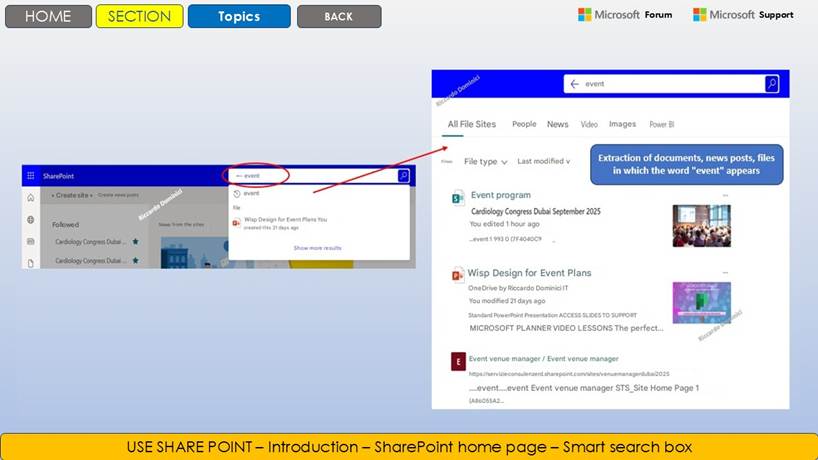
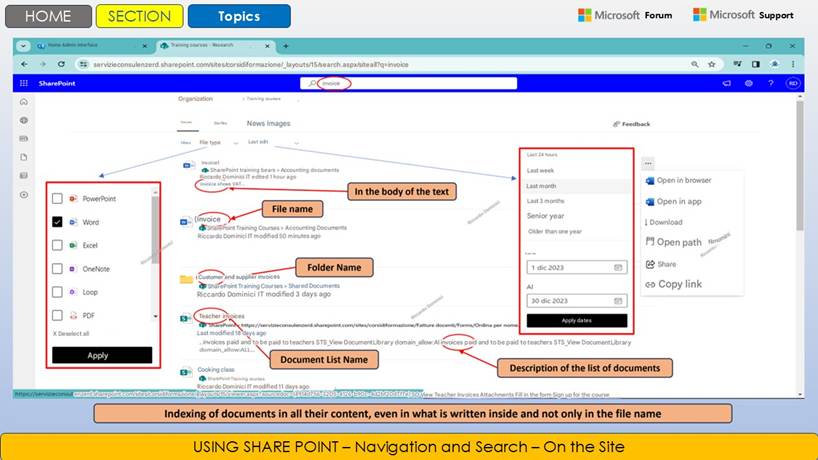
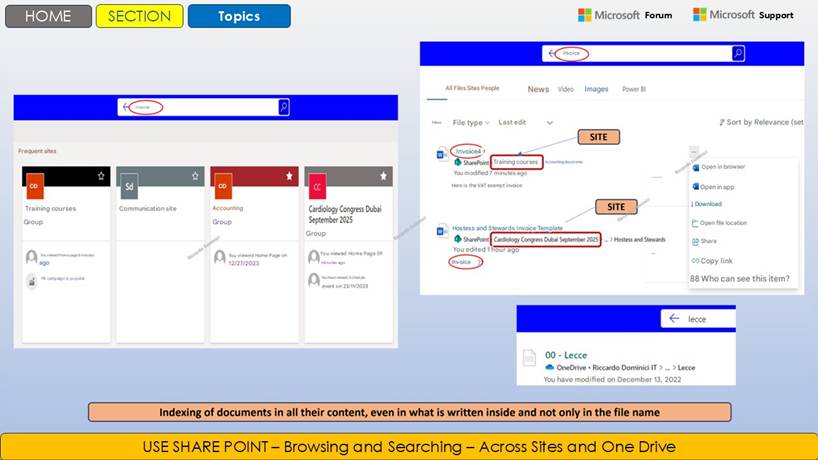
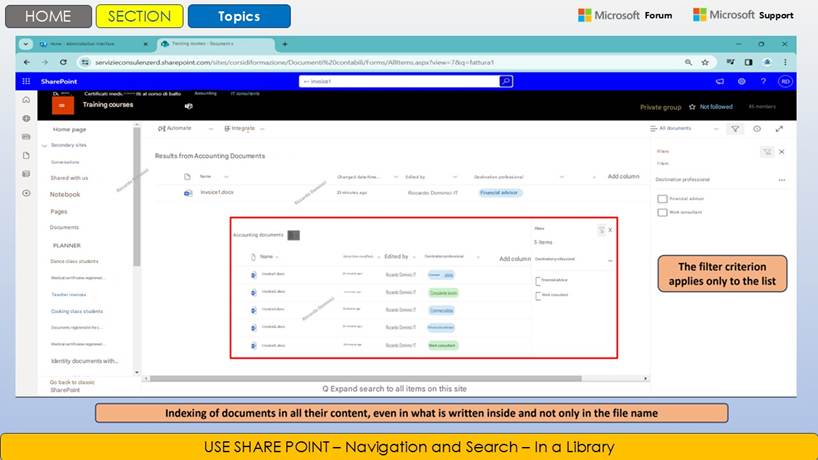
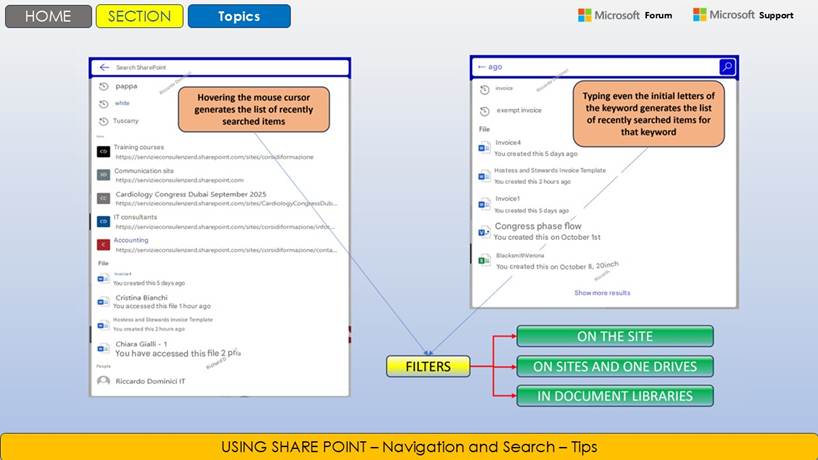
Advanced Search Engine : SharePoint s advanced search engine is a key tool for business efficiency, thanks to its ability to quickly index files, conversations, images and structured data. Users can apply filters to narrow results by author, date, document type or specific project, saving valuable time in daily searches. Intelligent suggestions learn from personal and group habits, anticipating information needs and suggesting resources already used. Integration with Microsoft Graph further enhances the relevance of results, connecting related information from Teams, Outlook and OneDrive. In addition, semantic search also allows you to find content using keywords, synonyms or related phrases. All this happens in a secure environment that protects privacy and respects access permissions. In this way, each person can quickly find what they need, promoting more fluid and informed collaboration.
Exercise. Improving Productivity
OBJECTIVE OF THE EXERCISE
The goal is to learn how to leverage SharePoint as a productive hub integrated with Microsoft 365. You will learn how to connect SharePoint to Excel, Teams, and Power BI to create dynamic dashboards, build automated workflows with Power Automate, use the advanced search engine to quickly find content, and integrate with tools like Outlook for seamless collaboration. This exercise helps reduce manual tasks, improve data visibility, and speed up access to information, increasing operational efficiency.
OPERATIONAL STEPS
Integration with Microsoft 365
Log in to https://portal.office.com
Go to SharePoint > select a site
Open a document library
Click Open in Excel to edit files directly
Click Share > Copy link > Paste into Teams
Add SharePoint site as a tab in a Teams channel
Connect an Outlook Calendar to Your Site Using a Web Part
Embed a Microsoft Forms module into your site's homepage
Connect a SharePoint List to Planner for Task Management
Save and test the interaction between apps
Automated Workflows
Go to https://make.powerautomate.com
Click + Create > Automated Flow
Give a name (e.g. File Upload Notification )
Choose trigger: When a file is created in SharePoint
Select the document collection
Add action: Send notification via Teams
Add Action: Create Task in Planner
Add condition: If file contains 'report' in name
Save and activate the flow
Test by uploading a file to the collection
Dashboards and reports
Open Power BI Desktop
Click Get Data > More > SharePoint Online List
Enter the URL of the SharePoint site
Select the list to analyze
Create visualizations (charts, tables, KPIs)
Customize filters and fields
Save the report
Publish to Power BI Service
Embed report in SharePoint via Power BI web part
Check automatic data update
Advanced search engine
Go to SharePoint > Search Bar
Enter keywords (e.g. 2024 sales report )
Click Show more results
Filter by file type (PDF, Excel, Word)
Filter by author or date modified
Sort results by relevance or date
Save search as custom view
Add the view to the site home
Try searching for a specific document
Check the accuracy of the results
APPLICATION OPERATIONAL SCENARIO
The sales team wants to track the progress of deals and automate notifications. They create a SharePoint list with the data, connect it to Power BI to see the status in real time, and set up a flow that notifies them via Teams whenever a new deal is added. Team members use advanced search to quickly find related documents.
Integration : SharePoint > Excel > Teams > Forms
All Microsoft 365 tools work together.Automated Flow : Power Automate > New Flow
Automate notifications and reduce manual work.Dashboard : Power BI > SharePoint Online List
View the performance of your offers in real time.Advanced Search : SharePoint > Filters & Views
Quickly find relevant files and information.KEY COMMANDS USED AND HOW TO ACCESS THEM
Function
Path
Excel/Teams Integration
SharePoint > Open in Excel / Share / Add to Teams
Automated flow
Power Automate > + Create > Automated Flow
Power BI Dashboards
Power BI Desktop > Get Data > SharePoint Online List
Advanced Search
SharePoint > Search Bar > Filters
PRODUCTIVITY BENEFITS
Reduction of manual and repetitive activities
Quick access to up-to-date data and documents
Clear visualization of business performance
Seamless collaboration across Microsoft 365 tools
Automation of decision-making processes
Greater transparency and traceability
Save time searching for content
Customize dashboards for each team
Real-time notifications for critical events
Support for rapid and informed decisions
IDEAS FOR USE IN A REAL BUSINESS CONTEXT
Purchasing office
Automate purchase requisition approvals and generate monthly reports with Power BI.HR Team
Share forms and policies via SharePoint, with automatic notifications for revisions.Project management
Monitor project progress with integrated dashboards and automatic update flows.SELF-ASSESSMENT QUESTIONS
- How do I create an automated flow in SharePoint?
- Which Microsoft 365 tools integrate with SharePoint?
- How do I connect a SharePoint list to Power BI?
- What are the advantages of advanced search?
- How do automated flows improve productivity?
SUMMARY OF WHAT I LEARNED
You have learned how to use SharePoint to improve productivity by integrating with Microsoft 365, creating automated flows, generating dashboards, and using the advanced search engine. You have seen how to connect SharePoint to Excel, Teams, and Power BI to work seamlessly and centrally. You have created flows with Power Automate to reduce manual tasks and improve communication. You have used advanced search to quickly find relevant content. These skills help you work more efficiently, make faster decisions, and collaborate better with your team.
f) Facilitating collaboration between team members
Team sites : These are dedicated digital spaces where each work group can organize itself efficiently. Within these sites, it is possible to archive and share documents, always ensuring access to the most up-to-date versions. Shared calendars help coordinate events, meetings and deadlines, avoiding overlaps and forgetfulness. Activity management is done through integrated task lists, assigning specific tasks to team members and monitoring project progress. Discussion forums facilitate the comparison and sharing of ideas, promoting structured dialogue. Each space can be customized with tools and layouts suited to the specific needs of the group. In this way, collaboration becomes simple, transparent and always aligned with common goals.
Real-time co-authoring : In real time on SharePoint, multiple people can simultaneously edit the same Word, Excel or PowerPoint document, instantly seeing the changes made by others. Each contribution is automatically saved, avoiding conflicts and overwrites. The cursors and selections of other users are visible, making it easy to collaborate without losing the thread of your work. You can leave comments, suggest revisions and track the history of changes. This feature speeds up file reviews and significantly reduces the risk of errors or duplicates. The system notifies you in real time of the activities of other collaborators, allowing you to coordinate efficiently. Co-authoring transforms team productivity, making digital collaboration simple and secure.
Targeted communications : Announcements, posts and news instantly reach all members or only selected groups. This feature allows for effective information management, ensuring that each communication reaches the right people at the right time. Administrators can choose whether to publish announcements on the site homepage or send targeted notifications only to specific teams or project groups. In this way, message overload is avoided for those who are not directly involved, keeping the focus high on what really matters. News can include multimedia attachments, quick links and personalized calls to action. Posts are easily commentable, promoting an open dialogue between participants. The real-time notification system makes communications timely and always traceable. All this contributes to a more focused, engaging and productive collaboration.
Collaboration spaces for projects : Project management is supported by dedicated collaboration spaces, designed to provide a structured and centralized environment where each project team can work synergistically. These spaces include intuitive task trackers that allow you to easily assign, monitor and update tasks, document repositories for the secure storage of files and work materials, and a detailed activity history that allows you to track each phase of the project. Each member can quickly access key information, follow the progress and contribute in real time to achieving shared goals. Integration with communication tools and automatic notifications ensures that everyone is always updated and involved, promoting fluid and transparent collaboration throughout the project lifecycle.
Exercise. Facilitating Collaboration
OBJECTIVE OF THE EXERCISE
The goal is to learn how to use SharePoint Online to create effective collaborative environments. You will learn how to create a team site to centralize documents and tasks, enable simultaneous editing of files, publish targeted communications on the site home page, and structure spaces dedicated to projects. This exercise helps improve transparency, information sharing, and workgroup productivity by reducing content dispersion and promoting real-time collaboration.
OPERATIONAL STEPS
Creating a team site
Log in to https://portal.office.com
Go to SharePoint > + Create Site
Select Team Site
Enter site name and description
Add team members
Click Next and then Finish
Customize your home page with the Edit button
Add web part: Documents , Activities , News
Save and publish the page
Share the site link with the team
Real-time co-authoring
Upload a Word or Excel file to the document library
Click on the file to open it in online mode
Share the file with other team members
Check for simultaneous presence of multiple users in the document
Add comments or changes
See changes in real time
Save and close the file
Reopen to see changes made by others
Access version history
Restore a previous version if necessary
Targeted communications
Go to the team site home
Click on Edit
Add a News web part
Click on + Add news
Enter title and content (e.g. project update)
Add images or links to documents
Save and publish the news
Enable notifications for team members
Check the display on the home page
Share the news link via Teams or Outlook
Collaboration space for projects
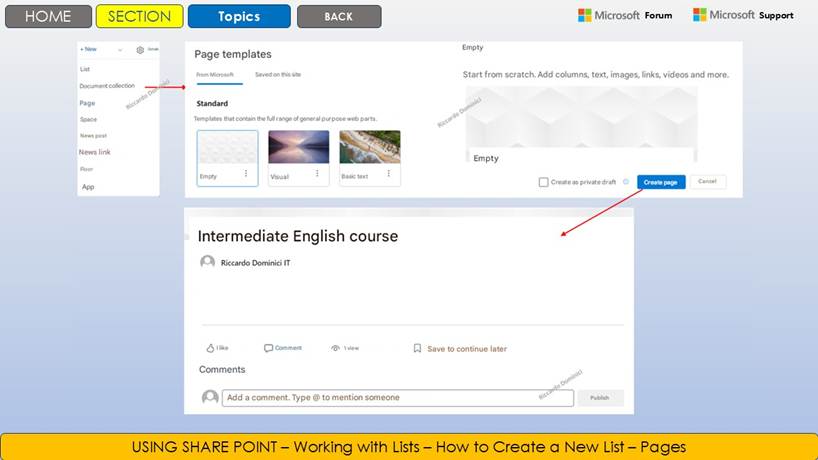
Go to + New page
Choose two-column layout
Enter title (e.g. Q3 Marketing Project )
Add Planner web part for activities
Add Shared Documents Web Part
Add Teams Conversations Web Part
Insert links to related files or modules
Save and publish the page
Add page to navigation bar
Share the page with project members
APPLICATION OPERATIONAL SCENARIO
The communications team launches a new campaign. They create a team site to centralize materials, enable co-authoring to work together on presentations, publish weekly updates on the site's home page, and create a dedicated project page with documents, deadlines, and reports.
Team Site : SharePoint > + Create Site > Team Site
Centralize files, tasks, and communications.Co-authoring : Open files in Word Online > Share
Enables simultaneous editing and seamless collaboration.Announcements : Home > Edit > News web part
Makes important updates and messages visible.Project Space : New Page > Planner + Teams
Organize tasks, files, and dashboards in one view.
KEY COMMANDS USED AND HOW TO ACCESS THEM
Function
Path
Create team site
SharePoint > + Create Site > Team Site
Co-authoring
Document Library > Open File > Share
Targeted communications
Home > Edit > Add News Web Part
Project space
New Page > Add Web Part (Planner, Docs, Teams)
PRODUCTIVITY BENEFITS
Centralization of content and activities
Simultaneous collaboration without file duplication
Visible and traceable communications for the entire team
Quick access to project documents and tools
Reduce the use of emails and attachments
Greater transparency in workflows
Active involvement of team members
Track changes and versions
Ease of updating and sharing information
Support for agile project management
IDEAS FOR USE IN A REAL BUSINESS CONTEXT
Software Development Team
Backlog management, technical documentation and sprint updates in one place.Internal Communications Office
Spaces for internal campaigns, with shared materials and weekly updates.Cross-functional project groups
Centralization of files, tasks and reports accessible to all members.SELF-ASSESSMENT QUESTIONS
1. How do I create a team site in SharePoint?
2. What are the benefits of real-time co-authoring?
3. How do I publish a targeted communication on the home page of my website?
4. What tools can you integrate into a project collaboration space?
5. How does SharePoint improve team collaboration?
SUMMARY OF WHAT I LEARNED
You ve learned how to use SharePoint to facilitate collaboration among team members. You ve created a team site, enabled co-authoring to work together on documents, published targeted communications on the site home, and organized dedicated spaces for projects. These features help you centralize information, improve communication, and increase productivity. Now you can design effective and dynamic collaborative environments in SharePoint.
g) Platform customization and adaptability
Modular Web Parts : They are flexible tools that allow you to enrich SharePoint pages in a dynamic and personalized way. These add-ons include the ability to insert interactive charts for data visualization, dynamic lists for organizing information and digital forms for collecting data from users. You can integrate real-time company news, social feeds to increase collaboration and areas dedicated to announcements. Web Parts also allow you to present summary dashboards, shared calendars, document libraries and quick links to useful resources. Each element can be moved, resized or configured according to the needs of the team. In this way, each SharePoint site is transformed into a customized, functional and always up-to-date work environment.
Customizing layouts : Each site can be customized with logos, corporate colors, and customized graphics. Custom layouts allow you to visually shape each SharePoint site to the needs and identity of your organization. You can insert company logos to strengthen your brand, change the color palette to match your corporate colors, and add banners or graphics to make the work environment more attractive. Typefaces can be selected to ensure consistency and readability, while page sections can be organized according to the team's operational priorities. Customized graphics help orient users and improve the navigation experience. Each change you make helps create a unique and recognizable digital atmosphere, promoting a sense of belonging and collaboration among members of the company community.
App Marketplace : Ability to integrate third-party apps to expand the functionality of the platform. The App Marketplace is a strong point of SharePoint, offering the ability to easily integrate third-party solutions to extend and customize the functionality of the platform. Through a rich and constantly expanding catalog, it is possible to add applications that support collaboration, advanced document management, project planning or information sharing in an innovative way. The integration of these apps allows you to respond to specific operational needs, optimizing processes and making each workspace even more effective and tailored to the organization.
Custom development : Developers can create custom solutions through APIs, Power Apps and SharePoint Framework. Thanks to these custom development possibilities, SharePoint becomes an extremely versatile platform, capable of responding to specific organizational needs that go beyond standard functionality. Developers can create automated workflows, interactive dashboards, integration solutions with external systems (such as ERP or CRM) and customize approval processes. Through the use of APIs, services can be implemented that communicate in real time with other business applications, ensuring synchronized updates and centralized data management. Power Apps allows the rapid creation of customized applications that are also accessible from mobile devices, while the SharePoint Framework offers advanced tools to enrich the user experience with modern web components, compatible with development best practices. In this way, each organization can model its digital environments to best reflect workflows, improving productivity, collaboration and consistency with respect to business objectives.
Exercise. Personalization and adaptability
OBJECTIVE OF THE EXERCISE
The goal is to learn how to customize a SharePoint site to suit the specific needs of a team or project. You will learn how to use modular web parts to add dynamic content, change page layouts to improve readability, install apps from the marketplace to extend functionality, and integrate custom-developed components. This exercise will help you transform SharePoint into a flexible, interactive, and business-friendly platform.
OPERATIONAL STEPS
Adding Modular Web Parts
Log in to https://portal.office.com
Go to SharePoint > select a site
Click Edit on the home page
Click + to add a new web part
Select a web part (e.g. News , Documents , Activities , Power BI )
Configure the web part (e.g. select the collection or list to display)
Drag the web part to the desired position
Add multiple web parts to create a dashboard
Click Publish to save your changes
Check desktop and mobile viewing
Layout customization
Still in Edit mode , click on a section of the page
Select Section Layout
Choose between 1, 2 or 3 column layouts
Add sections with colored background to highlight content
Insert headings and titles for each section
Add images or icons to improve readability
Use the Text web part for descriptions or instructions
Reorder sections by dragging them
Click Preview to check the result
Click on Publish
Installing apps from the Marketplace
Go to Settings ( ) > Site Content
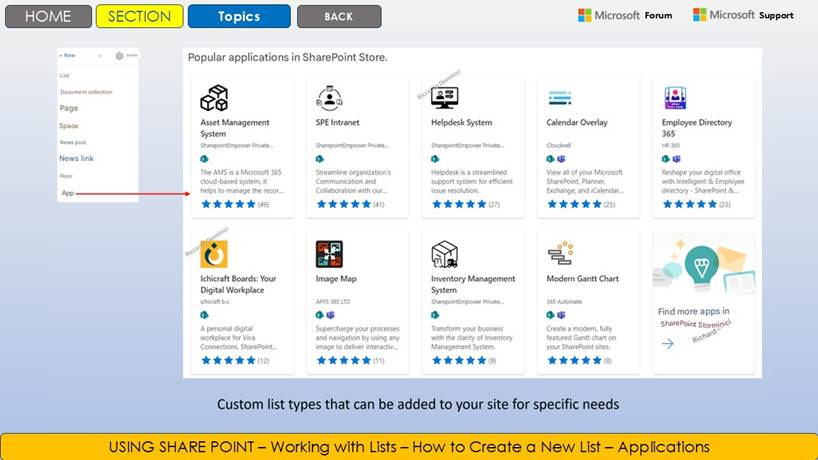
Click on + New > App
Click on SharePoint Store
Search for an app (e.g. Shared Calendar , Feedback Form )
Click on Add
Wait for installation
Return to the site home page
Click Edit > + > select the installed app
Set up the app according to the instructions
Publish the page
Integration of a custom development
Sign in to the SharePoint Admin Center
Go to App Catalog
Upload a .sppkg package developed with SharePoint Framework
Click on Distribute
Return to SharePoint site
Go to Site Content > + New > App
Select the installed custom app
Add it to your home page via web part
Test the component's functionality
Document the integration for the IT team
APPLICATION OPERATIONAL SCENARIO
The HR team wants to create an internal portal for managing communications and documents. They customize the layout with colored sections, add web parts for news, documents, and tasks, install an app for managing vacation requests, and integrate a custom form for employee feedback.
Web Part : Home > Edit > + > News, Documents, Activities
Allows you to display dynamic and up-to-date content.Layout : Edit > Section Layout > Columns + Colors
Improve readability and visual organization.App Marketplace : Settings > Site Content > Store
Extends the functionality of the site with ready-to-use tools. Custom Development : Catalog App > Upload .sppkg
Integrate tailor-made solutions for specific needs.
KEY COMMANDS USED AND HOW TO ACCESS THEM
Function
Path
Added Web Part
Home > Edit > +
Layout customization
Edit > Section Layout
App Installation
Settings > Site Content > SharePoint Store
Custom development
Admin Center > Catalog App > Upload Package
PRODUCTIVITY BENEFITS
Creating intuitive and customized interfaces
Quick access to relevant content and tools
Reducing dependence on external developments
Greater end-user engagement
Adaptability to different departments and projects
Seamless integration with Microsoft 365 tools
Real-time content updates
Optimized for desktop and mobile viewing
Expandability via apps and custom components
Support for the digitalization of business processes
IDEAS FOR USE IN A REAL BUSINESS CONTEXT
HR Portal
With web parts for policies, forms, vacation calendar and request apps.Sales Dashboard
Custom layout with Power BI charts, Excel reports, and notifications.IT Project Space
Custom development for internal ticketing and activity tracking.SELF-ASSESSMENT QUESTIONS
How do I add a web part to a SharePoint page?
What layouts are available to customize a page?
How do I install an app from the SharePoint Marketplace?
What are the advantages of integrating custom components?
How does personalization improve user experience?
SUMMARY OF WHAT I LEARNED
You have learned how to customize a SharePoint site using modular web parts, flexible layouts, marketplace apps, and custom-developed components. You have seen how to create an interface consistent with the needs of your team, improve content accessibility, and integrate advanced tools. These skills enable you to transform SharePoint into a dynamic, scalable, and user-centric platform. You are now able to design customized digital environments that support business productivity and innovation.
h) Security, reliability and compliance
Multi-factor authentication : It provides additional protection for corporate access, requiring users to provide more than one proof of identity to access digital resources. In addition to the classic password, the system can require a temporary code sent via SMS or generated by an authentication app. This double verification significantly reduces the risks associated with credential theft and unauthorized access, even if the password is compromised. The MFA configuration can be managed centrally by the IT administrator, who can impose more restrictive policies for groups or individual users based on the level of data sensitivity. Integration with Microsoft 365 and Azure Active Directory allows this security to be extended to all connected applications, offering a seamless but secure user experience. The adoption of multi-factor authentication thus represents a fundamental standard for information security in modern cloud environments, responding to data protection regulations and international best practices.
Identity Management : It achieves maximum efficiency thanks to the integration with Azure Active Directory. This solution allows you to manage users and groups from a single centralized console, making it easy to assign permissions and define specific roles for each project or business area. Onboarding and offboarding processes become fast and secure, with the ability to automate access to resources based on the user's profile. Every change in identities is immediately synchronized across all connected Microsoft 365 applications, ensuring consistency and control. Administrators can monitor user activities, intervening promptly in the event of anomalies. The integration also allows you to apply advanced security policies, such as password management and conditional access. This unified ecosystem ensures scalable management and compliance with current regulations.
Threat Monitoring : SharePoint integrates advanced anti-malware and anti-fishing systems that constantly protect company data and documents from cyber attacks. The scanning engine detects and blocks infected files before they can be shared or downloaded. Anti-fishing features identify fraud attempts and attacks via suspicious emails or links, immediately alerting the users involved. All activities are monitored in real time, with automatic notifications in case of detected threats. Integration with Microsoft Defender further strengthens security, centralizing the management of alerts and response actions. Detailed reports allow administrators to analyze risks and take targeted preventive measures. This proactive approach ensures a safe digital work environment, compliant with the highest data protection standards.
Audit log : It is a fundamental tool for the security and transparency of digital activities. It records in detail all the actions performed by users, such as accesses, document modifications, downloads and shares. This log allows administrators to monitor who did what and when, facilitating regular checks and timely investigations in case of suspected violations. The recorded data can be consulted through advanced reports, useful for ensuring compliance with regulations and internal policies. The audit log also supports the analysis of security incidents, providing precise traces of the activities performed. Thanks to this feature, it is possible to prevent abuse and protect company resources, promoting a safe and controlled digital environment.
Exercise. Safety, reliability and compliance
OBJECTIVE OF THE EXERCISE
The goal is to learn how to configure and use advanced security features in SharePoint and Microsoft 365 to protect your business data. You will learn how to enable multi-factor authentication (MFA), manage identities and roles using Enter ID (formerly Azure AD), monitor suspicious activity with Microsoft Defender, and review audit logs for traceability. This exercise helps you strengthen information protection, prevent unauthorized access, and ensure regulatory compliance.
OPERATIONAL STEPS
Enable Multi-Factor Authentication (MFA)
Sign in to https://entra.microsoft.com
Go to Users > All Users
Click on Multi-Factor Authentication
Select users to protect
Click on Enable MFA
Confirm activation
Tell users to complete setup
Check MFA status for each user
Enable conditional MFA recording if needed
Save and close
Identity and role management
From Login ID, go to Roles and Administrators
Look for roles like SharePoint Administrator or Global Reader
Click on a role > Assign
Select the user or group
Set the duration of the assignment (if temporary)
Save
Go to Users > select a user
Check assigned roles
Remove roles no longer needed
Document changes for audit
Threat Monitoring with Microsoft Defender
Go to https://security.microsoft.com
Go to Incidents and Alerts
Filter by SharePoint or Office 365
Click on an incident to view details
Analyze suspicious activity (e.g. bulk download, access from unusual IP)
Check the users involved
Take corrective actions (e.g. revoke access, reset password)
Add notes to the incident
Close the incident once resolved
Export the report for documentation
Audit log consultation
Go to https://compliance.microsoft.com
Go to Audit > Start Search
Select activities to monitor (e.g. Deleted files , Failed logins )
Set the date range
Enter the file name or user name
Start the search
View Results
Export to Excel
Analyze recorded actions
Archive the report for possible checks
APPLICATION OPERATIONAL SCENARIO
An IT administrator must strengthen the security of corporate SharePoint sites. Enable MFA for all employees, assign specific roles to limit privileges, monitor for anomalous access using Microsoft Defender, and review audit logs to verify who deleted a sensitive document.
MFA : Login ID > Users > Multi-Factor Authentication
Protects accounts from unauthorized access.Role Management : Login ID > Roles & Admins
Restrict privileges based on responsibilities.Threat Monitoring : Microsoft Defender > Incidents
Identify suspicious behavior in real time.Audit log : Compliance Center > Audit
Track all security-relevant actions.
KEY COMMANDS USED AND HOW TO ACCESS THEM
Function
Path
MFA
entra.microsoft.com > Users > Multi-Factor Authentication
Role Management
entra.microsoft.com > Roles and Administrators
Threat Monitoring
security.microsoft.com > Incidents & Alerts
Audit log
compliance.microsoft.com > Audit > Start Search
PRODUCTIVITY BENEFITS
Proactive protection of accounts and sensitive data
Precise control of privileges and responsibilities
Early detection of anomalous activities
Full traceability of actions on files and sites
Reduce the risk of data breaches and loss
Regulatory compliance support (e.g. GDPR)
Greater trust in the corporate digital environment
Automation of security checks
Centralized access to logs and alerts
Better IT emergency management
IDEAS FOR USE IN A REAL BUSINESS CONTEXT
Access control in regulated environments
Mandatory MFA and audit logs to ensure GDPR or HIPAA compliance.Role Management in Distributed Teams
Differentiated roles for internal and external users in collaborative projects.Continuous monitoring in high-security environments
Using Defender for SharePoint to detect bulk downloads or logins from suspicious IPs.SELF-ASSESSMENT QUESTIONS
1. How do I enable multi-factor authentication for my users?
2. What roles can be assigned in Enter ID for SharePoint?
3. Where do I see SharePoint security alerts?
4. How do I filter audit logs for specific activities?
5. Why is it important to monitor identities and privileges?
SUMMARY OF WHAT I LEARNED
You have learned how to configure and use advanced security features in SharePoint and Microsoft 365. You have enabled multi-factor authentication to secure access, managed identities and roles to control privileges, monitored threats with Microsoft Defender, and reviewed audit logs to ensure traceability. These skills help you strengthen security, improve compliance, and prevent incidents. You are now equipped to protect SharePoint content proactively and professionally.
i) Sustainability and economic benefits
IT Cost Reduction : With SharePoint Online, companies can eliminate the need to manage physical servers on-site, resulting in lower costs related to purchasing, installing and maintaining hardware. The infrastructure is managed by Microsoft, which guarantees maximum reliability and constant updates without operational interruptions. This model also reduces energy costs and investments in physical data security. IT staff can thus focus on higher value-added activities, such as developing innovative solutions for the business, rather than solving daily technical problems. In addition, the scalability of the cloud allows you to adapt resources to the real needs of the organization, avoiding waste and optimizing the budget. Overall, adopting SharePoint represents a strategic choice to improve operational efficiency and pursue a more sustainable and modern management of digital resources.
Automatic updates : They are one of the main advantages of SharePoint Online. The platform receives new features, user experience improvements and security patches constantly, without the need for manual intervention by IT staff. This guarantees not only maximum security against emerging threats, but also the possibility of immediately accessing the latest technological innovations. Updates are implemented in the background, without interrupting operational activities and without causing disruptions to users. This approach reduces the risks associated with obsolete versions and allows companies to always keep the platform aligned with best practices. In this way, SharePoint confirms itself as a dynamic and reliable solution, ideal for those seeking efficiency and continuity.
Scalability : One of its greatest strengths is that the platform is designed to easily expand as your organization grows, without having to resort to costly IT infrastructure restructuring. You can quickly add new users, increase storage space, or manage a growing number of documents and processes, all while maintaining high standards of performance and security. This elasticity allows you to respond quickly to seasonal work peaks, new business initiatives, or changes in your internal structure, ensuring operational continuity and predictable costs. In addition, centralized management facilitates control of resources and permissions, even in complex and distributed environments. In this way, SharePoint adapts perfectly to the dynamic needs of modern businesses, accompanying the evolution of your business without technical or operational limitations.
Reduced environmental impact : The adoption of SharePoint Online and cloud technologies brings significant environmental benefits. By eliminating the need for corporate data centers and physical servers on site, electricity consumption and CO ₂ emissions associated with the cooling and operation of traditional infrastructures are drastically reduced. Large cloud providers, such as Microsoft, are investing in increasingly efficient data centers powered by renewable sources. This approach allows companies to actively contribute to sustainability goals, minimizing their environmental footprint. Centralized management and cloud scalability also reduce waste of resources, optimizing energy use based on actual needs. In a global context where attention to the environment is crucial, choosing SharePoint means adopting a responsible digital solution that supports business growth while safeguarding the planet.
Exercise. Sustainability and economic benefits
OBJECTIVE OF THE EXERCISE
The goal is to understand how SharePoint Online, as a cloud-native platform, contributes to environmental sustainability and economic efficiency. You will learn how to identify features that reduce IT costs (such as eliminating on-premises servers), how to leverage automatic updates to keep the platform up to date, how to easily scale the environment based on business needs, and how to evaluate the positive environmental impact of digitizing processes. This exercise helps develop strategic awareness of the intelligent use of cloud technologies.
OPERATIONAL STEPS
Verify the cloud-native nature of SharePoint
Log in to https://portal.office.com
Go to SharePoint and select an existing site
Make sure the URL starts with https://<tenant>.sharepoint.com
Open a Word or Excel file directly in the browser
Edit and save the file without installing Office
Check automatic sync with OneDrive
Access the same file from another device
Confirm that changes are visible
Conclude that the environment is completely cloud-native
Automatic update control
Sign in to https://admin.microsoft.com
Go to Message Center
Filter by category: Product Updates
Read the release notes for SharePoint
Verify that updates are managed by Microsoft
View recent update history
Find out that SharePoint automatically updates
Capacity expansion (scalability)
Sign in to the SharePoint Admin Center
Go to Active Sites
Select a site > click Storage
View used and available space
Click on Change Storage Limits
Increase the space available for the site
Save changes
Verify that the expansion is immediate
Conclude that the platform is scalable on demand
Environmental impact analysis
Go to https://sustainability.microsoft.com
Sign in with your business account
View sustainability reports
Search the Cloud Sustainability section
Analyze CO₂ reduction data
Download the report in PDF
Share it with your IT or ESG team
Conclude that SharePoint contributes to sustainability
APPLICATION OPERATIONAL SCENARIO
A company decides to migrate all paper documentation to SharePoint to reduce printing and storage costs. The administrator:
Experience cloud-native nature by accessing SharePoint from a browser and editing files online.
Check for automatic updates in the Microsoft 365 Admin Message Center.
Expands storage space to accommodate new documents without additional hardware.
Consult environmental reports to measure the positive impact of digitalization.
KEY COMMANDS USED AND HOW TO ACCESS THEM
Function
Path
Cloud-native verification
portal.office.com > SharePoint
Automatic updates
admin.microsoft.com > Message Center > Updates
Storage expansion
SharePoint Administration Center > Active Sites > Storage
Sustainability Report
sustainability.microsoft.com
PRODUCTIVITY BENEFITS
Reduce IT costs by eliminating physical servers
No operational disruption due to manual updates
Instant storage expansion without hardware investment
Access content from any device, anywhere
Reducing environmental impact and supporting ESG objectives
Greater efficiency in document management
Simplified collaboration across distributed teams
Reduce backup and recovery times
Greater security thanks to centralized management
Support for corporate digital transformation
IDEAS FOR USE IN A REAL BUSINESS CONTEXT
HR archive digitization
Elimination of paper files, saving on printing and physical space.Legal Document Management
Cloud storage with automatic versioning and secure access.Rapid expansion for temporary projects
Create scalable SharePoint sites for project teams with no fixed costs.SELF-ASSESSMENT QUESTIONS
1. How do I know if SharePoint is cloud-native?
2. Where do I check for automatic platform updates?
3. How do you expand a site's storage space?
4. What economic benefits does cloud scalability offer?
5. How does SharePoint contribute to environmental sustainability?
SUMMARY OF WHAT I LEARNED
You have learned how to use SharePoint Online to achieve economic and environmental benefits. You have verified that the platform is cloud-native, controlled automatic updates, scaled storage, and consulted sustainability reports. These capabilities reduce IT costs, improve operational efficiency, and support ESG objectives. You have seen how to apply these practices in real-world contexts such as digitizing archives or managing temporary projects. Now you are able to leverage SharePoint as a strategic tool for sustainable and scalable management of digital assets.
j) Practical examples of using SharePoint Online
Internal communication portals : Thanks to them, internal communication created with SharePoint Online, organizations can create a shared digital environment where information circulates in a structured and always up-to-date way. Company news, official communications, internal policies and training materials are published in a single space accessible to all staff, promoting transparency and a sense of belonging. The portals support the distribution of videos, guides and multimedia resources, facilitating continuous training and the rapid dissemination of news. Through targeted notifications and thematic areas, each person easily finds what they need to work better and collaborate with colleagues. The ability to interact with content, comment and propose feedback makes communication two-way and stimulates active participation. In this way, SharePoint becomes the hub of digital business life, ensuring order, security and accessibility. The user experience always remains intuitive, customizable and scalable based on growth needs.
Advanced document management : It allows you to apply customized publishing rules, ensuring that only updated and approved content is accessible to the organization. Each document can be subjected to automatic review flows, with detailed tracking of changes and approvals, so as to ensure transparency and accountability at every stage of the lifecycle. The archiving processes respect high standards of security and regulatory compliance, allowing the orderly storage of files and their immediate traceability. Thanks to integrated audit systems, all activities on documents are recorded and can be easily consulted through advanced reports. This structure allows you to prevent unauthorized access and respond promptly to requests for verification or internal investigations. The automation of procedures reduces human error and speeds up operational times. In this way, SharePoint becomes the ideal tool for efficient, compliant and reliable document management.
Interdepartmental collaboration : With SharePoint Online, cooperation between different departments reaches new levels of efficiency and transparency. The platform offers shared spaces where heterogeneous work groups can coordinate projects, exchange documents and follow the progress of activities in real time. Thanks to tools such as lists, calendars and dedicated areas for discussion, each team contributes to the success of common initiatives, avoiding dispersion and duplication. Intelligent notifications and the ability to assign specific tasks allow you to easily monitor responsibilities and deadlines. All data and updates remain centralized and accessible, promoting a clear and shared overview. In this way, SharePoint transforms collaboration between departments into a fluid and integrated process, capable of supporting business growth and innovation.
Human Resources Management : Thanks to SharePoint Online, human resources management becomes more efficient and intuitive. Through dedicated portals, staff can send feedback anonymously and in a structured way, promoting a climate of listening and continuous improvement. Digital onboarding allows newcomers to easily access procedures, training materials and essential documents, facilitating a quick and smooth integration. The publication of benefits, regulations and regulatory updates takes place in a single centralized space, guaranteeing transparency and immediate consultation. Automatic notifications ensure that each person is always informed about the latest news, while permission management protects the confidentiality of sensitive information. SharePoint, in this way, simplifies HR processes and creates a more cohesive and modern corporate environment.
Workflow Automation : Thanks to this feature, processes such as approval of expenses, holidays, purchases and support requests are managed digitally, drastically reducing times and minimizing manual errors. Requests can be submitted via intelligent forms, automatically routed to the relevant managers and monitored at every stage. Timely notifications inform each person involved about the status of the practices, ensuring transparency and traceability. Integration with Outlook and Teams allows you to approve or reject directly from the applications used daily, making the process fluid and accessible even from mobile devices. The data collected is centralized and easily analyzed to optimize procedures and identify margins for improvement. In this way, SharePoint transforms the management of authorization flows into a simple, reliable experience that complies with company policies.
Knowledge Management : SharePoint Online enables the creation and management of real knowledge centers, accessible and updatable by the entire organization. Through FAQ databases, answers to the most frequently asked questions are always at hand, reducing search times and improving productivity. Discussion forums encourage the exchange of ideas, collaborative problem solving and sharing of experiences between colleagues and colleagues from different departments. Best practice repositories collect proven procedures, guidelines and tips, facilitating the rapid dissemination of company know-how. Thanks to granular permissions, each person can participate according to their role, protecting the confidentiality of sensitive information. Integration with advanced search tools allows you to quickly find relevant content, helping to create a corporate culture oriented towards continuous learning and the valorization of internal talent.
Exercise. Real-world uses of SharePoint Online
OBJECTIVE OF THE EXERCISE
The goal is to learn how to design and use SharePoint Online as an integrated digital platform to support real business activities. The user will be guided in creating an internal communication portal, in configuring advanced document management with metadata and versioning, in creating collaborative spaces between departments, in automating HR processes and in building a corporate knowledge base. The exercise aims to develop practical skills to improve productivity, transparency and knowledge sharing within the organization.
OPERATIONAL STEPS
Create an internal communication portal
Log in to https://portal.office.com
Go to SharePoint > + Create Site
Select Communication Site
Enter name and description
Select Topic layout
Click on Create
Go to the site home > click Edit
Add web parts: News , Events , Contacts , Documents
Customize colors and headers
Click on Publish to make the portal visible
Set up an advanced HR document library
Go to Site Content > + New > Document Library
Give it a name (e.g. HR Documents )
Open the collection > click Add Column
Create columns: Document Type , Year , Responsible
Go to Collection Settings > Version Control Settings
Enable versioning and retention limits
Set specific permissions for the HR team
Create filtered views by document type
Add the collection to the site home
Test uploading and editing a file
Create a page for interdepartmental collaboration
Go to + New page
Choose two-column layout
Enter title (e.g. HR-IT Project )
Add Planner web part for activities
Add Teams Conversations Web Part
Add Shared Documents Web Part
Add Calendar Web Part
Insert links to related files or modules
Click on Publish
Share the page with the departments involved
Automate an HR flow with Power Automate
Go to https://make.powerautomate.com
Click on + Create
Select Automated Flow
Give it a name (e.g. HR Contract Approval )
Choose trigger: When a file is created in SharePoint
Select the HR Documents collection
Add action: Send approval by email
Add action: Send Teams notification
Add action: Move file to approved folder
Save and activate the flow
Create a company knowledge base
Go to Site Content > + New > Document Library
Give it a name (e.g. Company Know-how )
Add columns: Category , Author , Date Updated
Enable version control
Create filtered views by category
Add Collection View web part to home
Insert link to collection in navigation bar
Create a FAQ page with links to documents
Publish and promote the knowledge base
Test advanced keyword search
APPLICATION OPERATIONAL SCENARIO
A company wants to digitize HR processes and improve internal communication. The IT team creates a communication site with news and policies, an HR document library with metadata and versioning, a collaboration page between HR and IT, an automated contract approval flow, and a knowledge base with guides and FAQs.
Communication Portal : SharePoint > + Create Site > Communication Site
Centralize company news, events and policies.HR Document Management : Collection > Add Columns > Versioning
Organize and track documents in a structured way.Interdepartmental Collaboration : New Page > Planner + Teams
Promotes synergy between departments.HR Workflow : Power Automate > New Flow
Automate document approval.Knowledge base : New collection > Metadata + Search
Makes company know-how accessible.KEY COMMANDS USED AND HOW TO ACCESS THEM
Function
Path
Create communication site
SharePoint > + Create site > Communication site
HR Document Collection
Site Content > + New > Document Collection
Collaboration page
+ New Page > Add Web Part
Automated HR flow
Power Automate > + Create > Automated Flow
Knowledge base
New Collection > Add Metadata > Enable Search
PRODUCTIVITY BENEFITS
Centralization of communications and documents
Reduce approval times and manual management
Seamless collaboration across departments and teams
Rapid and structured access to company knowledge
Greater transparency in HR processes
Reduce the use of email and local files
Automation of repetitive tasks
Track versions and changes
Greater employee engagement
Supporting corporate culture and continuous learning
IDEAS FOR USE IN A REAL BUSINESS CONTEXT
Onboarding Portal
With documents, videos and checklists for new hires.Cross-team project space
With shared activities, files and real-time updates.Technical archive
With guides, manuals and procedures for internal support.SELF-ASSESSMENT QUESTIONS
1. How do I create an internal communication site in SharePoint?
2. What metadata is useful for an HR document collection?
3. How do you automate an approval flow with Power Automate?
4. What tools can you integrate into a collaboration page?
5. Why is a corporate knowledge base useful?
SUMMARY OF WHAT I LEARNED
You have learned to use SharePoint Online to create practical and integrated solutions: from internal communication to document management, from collaboration between departments to HR process automation, up to the creation of a knowledge base. You have performed detailed operational actions to build a complete, efficient and scalable digital environment. These skills allow you to digitize business flows, improve productivity and enhance the company's information assets. You are now able to design and implement SharePoint portals that respond to real and transversal needs.
2. INTERACTIONS WITH OTHER MICROSOFT 365 APPS
The integration between SharePoint Online and other Microsoft 365 applications is one of the main strengths of the platform, elevating the digital business experience to a new level of efficiency and collaboration. Thanks to this synergy, the boundaries between the different applications are becoming increasingly blurred, allowing users to operate fluidly between different tools without ever losing the thread of activities or information.
Using Teams, for example, you can directly embed SharePoint document libraries into your communication channels, allowing team members to collaborate on files in real time, comment, make changes, and track versions, all within a shared, secure environment.
OneDrive, on the other hand, allows you to automatically synchronize documents stored on SharePoint, making them available offline on any device, whether it's a laptop on the go or a smartphone during an off-site meeting. This two-way synchronization ensures that every change is updated transparently and instantly, eliminating any risk of working on outdated copies of files.
Outlook integrates deeply with SharePoint, giving you the ability to attach documents directly from site libraries to emails, host meetings with direct links to sites or resources, and centrally manage project-related communications and activities.
Office, both online and desktop, also communicates natively with SharePoint, allowing the co-creation of Word, Excel or PowerPoint documents and ensuring that each contribution is saved in real time in the correct location.
This consistency between applications breaks down organizational barriers, reduces information search times, and facilitates teamwork, even between people and departments operating in different locations. Permissions management remains centralized and consistent thanks to SharePoint policies, protecting data security even in the context of extensive sharing. The ability to access files directly from mobile devices and receive notifications about changes or new publications makes the information flow even more dynamic and reactive.
In a context where speed of adaptation and reactivity are strategic, the integration between SharePoint and Microsoft 365 allows you to orchestrate complex processes, minimizing data dispersion and simplifying daily work life. Working on multiple projects becomes easier thanks to shared workspaces, interactive dashboards and automation tools that connect operational needs to the corporate information architecture.
The approval processes themselves can take advantage of tools like Power Automate, which integrates seamlessly with SharePoint, Teams, and Outlook, creating intelligent workflows that automate notifications, approvals, archiving, and activity tracking, without any interruption between one system and another. In this way, companies can build agile digital ecosystems, where each application contributes to strengthening overall productivity, enhancing internal information and relational assets.
Thus SharePoint Online confirms its role as the central hub of modern collaboration, placing itself at the heart of a network of tools that constantly communicate to offer the end user a unified, simple and powerful experience.
a) SharePoint Online and Microsoft Teams Integration
Shared Document Areas : The integration between Teams and SharePoint Online transforms each team into a structured collaborative space: creating a new team in Teams automatically activates a dedicated SharePoint site, complete with document library. All files shared in channels are stored in this library, ensuring centralized, secure management that complies with company policies. Users can view, upload, edit and organize documents directly within Teams, without interruptions between platforms. This unified environment facilitates collaboration, eliminates file duplication and reduces the risk of data loss. Folder organization and document searches are immediate, thanks to integrated SharePoint tools. In this way, each team has a shared document space that evolves with projects, agilely supporting each work process.
Real-time collaboration : Thanks to the integration between SharePoint and Teams, multiple people can work simultaneously on the same Word, Excel or PowerPoint document, making changes that are immediately saved and visible to all collaborators. Each intervention is tracked, allowing you to see who is changing what in real time. Comments on documents, as well as discussions linked in Teams chats, always remain available in context, facilitating the exchange of ideas and direct comparison on individual parts of the file. This approach eliminates overlaps and duplications, allowing for more efficient version management and greater transparency in the decisions made. The ability to receive notifications about changes and respond to comments directly from the document speeds up the review cycle. In this way, even distributed teams can operate in perfect synchrony, quickly resolving doubts and moving projects forward without slowdowns. Collaboration thus becomes more fluid, dynamic and productive, with each person actively contributing to the final result.
Access to versions and history of changes : With this feature, every time a document is modified, SharePoint automatically saves a new version, without overwriting previous ones. You can consult the history of versions directly from the document interface, viewing who made each change, on what date and what changes were made. This allows you not only to restore a previous version in the event of an error, but also to compare two different versions of the same file, highlighting the differences. Traceability is guaranteed throughout the document lifecycle, offering security and transparency even in complex collaborative environments. Furthermore, the history of changes can be used to comply with audit and compliance policies, representing a valid support in the event of checks or revisions. The system maintains versions efficiently, without weighing down daily management and contributing to reliable collaboration.
Web Part and Card Integration : The integration of web parts and cards between SharePoint Online and Teams allows you to bring the key features of document libraries, custom lists and information pages directly into channels. Users can add these resources as dedicated cards, making access to files, lists and dashboards immediate and without having to change platforms. This solution reduces the dispersion of information, improves the visibility of key data for each work group and promotes cross-team collaboration. Reports, operational documentation and monitoring tools are always just a click away and easily updated by all team members. Thanks to this integration, project management is more effective, decisions can be made on constantly updated data and each team can customize the environment based on their operational needs, maximizing the potential of SharePoint and Teams in a single digital ecosystem.
Notifications and automation : The integration between SharePoint, Teams and Power Automate allows you to configure instant notifications for any changes, uploads or updates to documents in SharePoint libraries, received directly within Teams. Thanks to automated flows, each team member is promptly informed about relevant activities, without the risk of missing important updates. You can design customized approval flows that involve multiple users and steps, making the entire validation process much faster and more traceable. All actions from the review request to the final approval are automatically monitored and archived, ensuring transparency and compliance with company policies. This approach dramatically reduces management time and promotes continuous collaboration, even among distributed teams. Automation also extends to recurring tasks such as classification, notification of deadlines or file transfers, simplifying daily processes and improving overall efficiency.
Practical example: A project team starts a discussion on Teams to evaluate a new operational proposal . During the chat, a person directly attaches the document stored on SharePoint, making it immediately accessible to anyone participating in the conversation. The group members then start working simultaneously on the file, making changes and additions in real time, each from their own devices. All revisions are instantly visible and tracked, ensuring transparency on everyone's contribution. Comments entered on individual steps are automatically notified to recipients, who can respond or intervene without leaving the collaborative environment. If necessary, approval flows are activated via Power Automate, with timely notifications at each step passed. This working method allows the document to be finalized quickly, sharing the final result with the entire team and maximizing digital collaboration.
Exercise. SharePoint and Teams Integration
OBJECTIVE OF THE EXERCISE
The goal is to learn how to design and use SharePoint Online as an integrated digital platform to support real business activities. The user will be guided in creating an internal communication portal, in configuring advanced document management with metadata and versioning, in creating collaborative spaces between departments, in automating HR processes and in building a corporate knowledge base. The exercise aims to develop practical skills to improve productivity, transparency and knowledge sharing within the organization.
OPERATIONAL STEPS
Internal communication portal
Log in to https://portal.office.com
Go to SharePoint > + Create Site > Communication Site
Enter name and description
Select Topic layout
Click on Create
Go to the site home > click Edit
Add web parts: News , Events , Contacts , Documents
Customize colors and headers
Click on Publish
Share the link with the team
Advanced document management
Go to Site Content > + New > Document Library
Give it a name (e.g. HR Documents )
Add columns: Document type , Year , Responsible
Go to Collection Settings > Version Control
Enable versioning
Set specific permissions
Create filtered views by document type
Add collection to home
Upload a document and fill in the metadata
Check the display in the views
Interdepartmental collaboration
Go to + New page
Choose two-column layout
Enter title (e.g. HR-IT Project )
Add Planner web part for activities
Add Teams Conversations Web Part
Add Shared Documents Web Part
Insert links to related files or modules
Save and publish the page
Add page to navigation bar
Share the page with the departments involved
Workflow Automation
Go to https://make.powerautomate.com
Click + Create > Automated Flow
Give it a name (e.g. HR Contract Approval )
Trigger: When a file is created in SharePoint
Select the HR Documents collection
Add action: Send approval by email
Add action: Send Teams notification
Add action: Move file to approved folder
Save and activate the flow
Head by loading a file
Knowledge Management
Go to Site Content > + New > Document Library
Give it a name (e.g. Company Know-how )
Add columns: Category , Author , Date Updated
Enable version control
Create filtered views by category
Add Collection View web part to home
Insert link to collection in navigation bar
Create a FAQ page with links to documents
Publish and promote the knowledge base
Test advanced keyword search
APPLICATION OPERATIONAL SCENARIO
A company wants to digitize HR processes and improve internal communication. The IT team:
Create a communication site with news and policies
Set up an HR document library with metadata and versioning
Create a page for HR and IT collaboration
Automate contract approvals with Power Automate
Builds a knowledge base with guides and FAQs
KEY COMMANDS USED AND HOW TO ACCESS THEM
Function
Path
Create communication site
SharePoint > + Create site > Communication site
HR Document Collection
Site Content > + New > Document Collection
Collaboration page
+ New Page > Add Web Part
Automated HR flow
Power Automate > + Create > Automated Flow
Knowledge base
New Collection > Add Metadata > Enable Search
PRODUCTIVITY BENEFITS
Centralization of communications and documents
Reduce approval times and manual management
Seamless collaboration across departments and teams
Rapid and structured access to company knowledge
Greater transparency in HR processes
Reduce the use of email and local files
Automation of repetitive tasks
Track versions and changes
Greater employee engagement
Supporting corporate culture and continuous learning
IDEAS FOR USE IN A REAL BUSINESS CONTEXT
Onboarding Portal
With documents, videos and checklists for new hires.Cross-team project space
With shared activities, files and real-time updates.Technical archive
With guides, manuals and procedures for internal support.SELF-ASSESSMENT QUESTIONS
1. How do I create an internal communication site in SharePoint?
2. What metadata is useful for an HR document collection?
3. How do you automate an approval flow with Power Automate?
4. What tools can you integrate into a collaboration page?
5. Why is a corporate knowledge base useful?
SUMMARY OF WHAT I LEARNED
You have learned to use SharePoint Online to create practical and integrated solutions: from internal communication to document management, from collaboration between departments to HR process automation, up to the creation of a knowledge base. You have performed detailed operational actions to build a complete, efficient and scalable digital environment. These skills allow you to digitize business flows, improve productivity and enhance the company's information assets. You are now able to design and implement SharePoint portals that respond to real and transversal needs.
b) SharepPint Online and One Drive Integration
Two-way synchronization : Allows users to work on their files wherever they are. SharePoint document libraries can be easily synchronized to OneDrive, offering the possibility of accessing content even offline from any device: PC, tablet or smartphone. When you make changes to files offline, these are saved locally and, the next time you access the Internet, they are automatically updated and transferred to SharePoint. This system prevents the loss or involuntary overwriting of data, always keeping all versions of documents aligned. Transparent synchronization promotes dynamic and collaborative management, allowing each member of the team to work on updated files in real time. In this way, both operational efficiency and the security of company information are optimized.
Flexible document management : By dragging and dropping files or entire folders into OneDrive, they are automatically synchronized with the linked SharePoint libraries. This process greatly simplifies both the management and sharing of materials, eliminating complexity and reducing the margins of error. Thanks to synchronization, every change made is immediately shared with the team, promoting a constantly updated work environment. The advanced search features allow you to find any document in a few seconds, whether it is stored on OneDrive or SharePoint. This ensures rapid access to information, greater control over versions and perfectly integrated document management. This system improves productivity, makes collaboration more fluid and ensures maximum security of company data.
Secure Collaboration : Collaboration between SharePoint and OneDrive ensures that each file maintains the access permissions established by the organization, even when it is synchronized between the two platforms. In other words, the permissions configured on SharePoint are automatically applied to documents available on OneDrive, thus preventing unauthorized people from viewing or modifying sensitive data. This system promotes rigorous security management, reducing the risk of breaches and information leaks. Team members can work freely on shared files, knowing that every change is tracked and protected by company policies. Constant synchronization ensures that restrictions always remain up to date and consistent, even in the presence of changes in roles or permissions. In this way, productivity is combined with a high standard of data protection, promoting effective and secure collaboration.
Mobile access : With the OneDrive mobile app, every member of the team can manage SharePoint files with complete freedom, wherever they are. Whether it's a smartphone, tablet, or laptop, the work experience remains fluid and secure, without the need for complex procedures or specific configurations. The intuitive interface allows you to view, edit, and share documents in real time, promoting seamless collaboration even when away from the company headquarters. Push notifications immediately notify you of any updates, so no changes are missed. Even offline, documents are accessible and editable, and all revisions are automatically synchronized as soon as you return online. Cross-platform compatibility eliminates technical constraints, allowing you to work with iOS, Android, or Windows systems. In this way, company productivity is not interrupted and each person can actively contribute to projects, wherever they are.
Practical example: An employee is on a business trip to a client's office and needs to update the company contract template. Using the OneDrive app on their smartphone, they access the SharePoint document library where the file is stored in just a few seconds. During the meeting, they make the changes requested by the client in real time, directly updating the document without having to download anything. As soon as the Internet connection is re-established, all revisions are synchronized and made immediately available to the entire team in the office. Thanks to push notifications, colleagues are automatically notified of new developments and can view or integrate the updated contract. The system ensures that access permissions remain unchanged, protecting the confidentiality of sensitive data. In this way, collaboration between those on the move and those working on site is fluid, secure and continuous.
Exercise . SharePoint and OneDrive Integration
OBJECTIVE OF THE EXERCISE
The goal is to learn how to use SharePoint Online in conjunction with OneDrive to improve your business document management. You will learn how to synchronize document libraries bidirectionally, manage files locally and online, collaborate securely with internal and external colleagues, and access content from mobile devices. This exercise helps you optimize file organization, reduce duplication, increase security, and ensure business continuity even on the go.
OPERATIONAL STEPS
Two-way sync
Log in to https://portal.office.com
Go to SharePoint > select a site > Documents
Click on Synchronize (icon with two arrows)
Confirm opening OneDrive
Wait for the collection to be synced to your PC
Open File Explorer > Company Name > Site Name
Create a new Word file in the synced folder
Verify that the file also appears on SharePoint
Delete a file from SharePoint and verify that it is also removed locally
Conclude that synchronization is active in both directions
Flexible document management
Open a synced file from File Explorer
Edit content and save
Verify that changes are visible on SharePoint
Right click on a file > Available offline
Disconnect from the Internet and open the file
Edit and save
Reconnect and check synchronization
Right click on a file > View online
Open the file directly in SharePoint
Conclude that you can work locally or online flexibly
Safe collaboration
Select a file on SharePoint
Click on Share
Choose Specific People
Turn off Allow editing if needed
Set an expiration date for the link
Click Apply > Copy Link
Send the link via Teams or Outlook
Make sure access is restricted
Open the file in Word Online with a colleague
Edit together in real time
Mobile access
Download the OneDrive and SharePoint app from the App Store or Google Play
Sign in with your business account
Open the SharePoint app > go to site > document library
View a PDF or Word file
Open the OneDrive app > go to the synced folder
Make a file available offline
Edit a Word file with the Office app
Save and verify synchronization
Get change notifications
You conclude that you can work anywhere
APPLICATION OPERATIONAL SCENARIO
A marketing team works on a shared campaign. Files are stored on SharePoint and synchronized with OneDrive for offline work. Documents are edited in real time by multiple users, shared securely with external partners, and accessed from smartphones during events and business trips.
Sync : SharePoint > Documents > Sync
Files are always up to date across all your devices.Flexible management : OneDrive > Available offline
You can also work without a connection.Secure Collaboration : Share > Specific People
Controlled and traceable access.Mobile access : SharePoint and OneDrive apps
Documents are always at your fingertips.KEY COMMANDS USED AND HOW TO ACCESS THEM
Function
Path
Synchronization
SharePoint > Documents > Sync
Offline file management
OneDrive > File Explorer > Available offline
Safe Sharing
SharePoint > File > Share > Specific People
Mobile access
OneDrive / SharePoint Mobile App > Document Access
PRODUCTIVITY BENEFITS
Access documents always up to date from any device
Work offline with automatic synchronization
Real-time collaboration with colleagues and partners
Granular control over file sharing
Reduction of document duplication
Greater security in content management
Notifications and tracking of changes
Seamless integration with Teams and Outlook
Reduce the use of emails and attachments
Support for mobility and hybrid working
IDEAS FOR USE IN A BUSINESS CONTEXT
Commercial offers management
Files sync between SharePoint and OneDrive so you can work on the go.Technical support on the field
Manuals and checklists are available offline on tablets and updated in real time.Collaboration with suppliers
Securely share documents with limited and tracked access.SELF-ASSESSMENT QUESTIONS
1. How do I enable sync between SharePoint and OneDrive?
2. How do I work offline with synced files?
3. What security options does file sharing offer?
4. How do I access documents from mobile devices?
5. What are the benefits of two-way synchronization?
SUMMARY OF WHAT I LEARNED
You have learned how to integrate SharePoint and OneDrive for modern, secure, and flexible document management. You have configured two-way synchronization, worked offline, shared files in a controlled manner, and accessed content from mobile devices. These features improve productivity, support hybrid working, and ensure data security. Now you are able to take full advantage of the integration between SharePoint and OneDrive to optimize collaboration and accessibility of business documents.
c) SharePoint Online and Outlook Integration
Attach documents: This integration enables a more streamlined workflow: you can easily select files or entire folders directly from SharePoint when composing a message in Outlook, without having to download the documents to your device first. Instead of a traditional attachment, the recipient receives a secure link that allows immediate access to the updated file, ensuring data protection according to company policies. In this way, everyone always works on the latest version of the document, reducing the risk of errors and wasted time due to duplicates or obsolete files. Administrators can also easily monitor and manage access permissions. This solution promotes controlled collaboration and secure sharing even with people outside the organization, always respecting the required security levels.
Meeting Management : When you organize a meeting via Outlook, you can insert links to documents or SharePoint sites relevant to participants directly into the invitation. This allows participants to always have access to the most up-to-date version of the materials, ensuring that everyone is aligned on the same content. This eliminates the risk of working on duplicate or outdated files, making meeting preparation and participation more efficient. In addition, any updates made to shared documents will be immediately visible to the entire group, without the need to send new copies. The integration also promotes the traceability of changes and information security, since access is managed according to company policies. This makes collaboration during and after the meeting smoother, safer and more productive.
Centralization of activities : Synchronization between SharePoint and Outlook allows you to manage all project activities in a single interface, offering a clear and up-to-date view of deadlines and responsibilities. The activities assigned in SharePoint sites are automatically displayed in the Outlook calendar and task list, allowing those who work to easily monitor the progress of the work and receive timely reminders. This integration reduces the risk of forgetfulness or duplication, promoting a more orderly organization and transparent collaboration between team members. The user can update the status of the activities directly from Outlook, with immediate synchronization also on SharePoint. All updates are traceable, offering greater control and reporting on the activities carried out and still to be completed. In this way, centralization simplifies the management of company projects and allows each person involved to always remain aligned on tasks and priorities.
Integrated Search : It is a powerful tool for those who work with large volumes of information on a daily basis. Using the Outlook search bar, you can quickly locate both emails and documents stored on SharePoint, without having to change platforms or open multiple applications. When you start typing a keyword, the system automatically suggests relevant files, conversations and sites related to the tasks or projects in progress. This allows you to quickly retrieve what you need during a meeting or while preparing a communication. In addition, integrated search facilitates collaboration, since each person can access the most up-to-date shared resources directly from their usual work environment. Saving precious time and reducing the loss of information thus becomes a concrete advantage in daily operations.
Practical example: A project manager needs to gather his team to discuss the progress of a project. He schedules the meeting directly from the Outlook calendar, adding the interested members. In the body of the invitation he inserts links to documents stored on SharePoint, so everyone can consult them before the meeting. During the meeting, the updated material is shared, ensuring that everyone is working on the same files. Immediately after, he uses Power Automate to automatically generate follow-up tasks and assign them to the responsible people. In this way, the status of the tasks is synchronized between Outlook and SharePoint. The result is a more structured, transparent and productive meeting management.
Exercise. SharePoint and Outlook Integration
OBJECTIVE OF THE EXERCISE
The goal is to learn how to use SharePoint and Outlook in an integrated way to improve the management of business activities and communications. You will learn how to connect Outlook calendars and meetings to SharePoint, centralize shared activities in a single interface, and take advantage of integrated search to quickly find relevant content. This exercise helps you increase productivity, reduce information dispersion, and improve team collaboration.
OPERATIONAL STEPS
Meeting Management
Log in to https://portal.office.com
Go to Outlook > Calendar
Create a new meeting and invite team members
Insert the link to the project's SharePoint site in the body of the invitation
Save and send
Go to SharePoint > Edit Page
Add the Group Calendar Web Part
Connect Outlook Calendar to the Site
Verify that meetings are visible on SharePoint
Click on an event to open it directly in Outlook
Centralization of activities
Go to SharePoint > + New Page
Planner web part
Connect Outlook Group Task Plan
Create tasks and assign members
Add deadlines and priorities
View tasks in board or list format
Add the Recent Activity web part
Verify that changes are synchronized with Outlook Tasks
Share the page with the team
Use the page as an operational dashboard
Integrated search
Go to SharePoint > Search Bar
Type the name of a meeting or activity
Click on Show more results
Filter by content type: events, documents, emails
Select a result and open it
Go to Outlook > Mail
Use the search bar to search for the same term
Compare Results Between SharePoint and Outlook
Save search in SharePoint as a custom view
Add the view to the site home
APPLICATION OPERATIONAL SCENARIO
A project team wants to centralize meeting and task management. The manager creates a shared calendar in Outlook and connects it to SharePoint. Tasks are managed through Planner and displayed on the site. Team members can search for documents, events, and messages from a single interface.
Meetings : Outlook > Calendar > Link to SharePoint
All appointments are also visible on the site.Tasks : SharePoint > Planner > Outlook Link
Tasks are synced and assigned in real time.Search : SharePoint > Integrated Search
Content is easily found from a single bar.KEY COMMANDS USED AND HOW TO ACCESS THEM
Function
Path
Shared Calendar
Outlook > Calendar > SharePoint Link Invitation
Integrated activities
SharePoint > Planner Web Part > Outlook Group Link
Integrated search
SharePoint > Search Bar / Outlook > Mail Search
PRODUCTIVITY BENEFITS
Centralize meetings, tasks and documents in one platform
Reduce time spent searching for information across different apps
Greater visibility into deadlines and responsibilities
More seamless collaboration across teams and departments
Quick access to relevant content from SharePoint and Outlook
Automatic synchronization between activities and calendar
Reduce redundant emails with shared dashboards
Traceability of activities and communications
Better organization of daily work
Support for agile project management
IDEAS FOR USE IN A REAL BUSINESS CONTEXT
Cross-functional project management
Connect calendar and project tasks between SharePoint and Outlook to coordinate different teams.HR Portal
View onboarding meetings and training activities in a single dashboard.Customer Support
Centralize appointments, tickets and documentation for each customer in a SharePoint site connected to Outlook.SELF-ASSESSMENT QUESTIONS
How do I connect an Outlook calendar to a SharePoint site?
How can Planner and Outlook be synchronized?
How do I do integrated search between SharePoint and Outlook?
What are the advantages of centralizing activities?
How do you use SharePoint to improve meeting management?
SUMMARY OF WHAT I LEARNED
You ve learned how to integrate SharePoint and Outlook to improve meeting, task, and information management. You ve connected a shared calendar, synchronized tasks with Planner, used integrated search, and created an operational dashboard. These features help you work more organized, reduce information dispersion, and increase team productivity. Now you can design digital spaces that unite communication, planning, and collaboration in one seamless experience.
d) SharePoint Online and Office Integration
Document co-authoring : Allows multiple people to simultaneously edit the same Word, Excel, or PowerPoint file, seeing every update made in real time. This mode eliminates version conflicts, because all changes are immediately integrated and automatically saved. You can add comments, suggestions, and revisions without interrupting the team's workflow. Users can see who made the changes and easily revert to previous versions if mistakes are made. Co-authoring facilitates collaboration even when you're far away, making it easy to brainstorm, brainstorm, and write content together. All this happens in a secure and traceable environment, reducing the risk of losing important data. In this way, SharePoint becomes the hub of shared productivity and modern teamwork.
Access from anywhere : Using Office Online or desktop versions of Word, Excel, and PowerPoint, you can open and edit documents stored on SharePoint from anywhere, even when you re on the go. There s no need to download files locally; all you need is an Internet connection to work in real time, keeping versions up to date. This flexibility improves collaboration between colleagues in different locations and allows them to quickly take action on shared documents. Plus, all changes are automatically saved and tracked, reducing the risk of data loss. With native integration between Office and SharePoint, you can access the same functionality from both the browser and the desktop application, ensuring a consistent, productive experience.
Revision Integration : This feature allows those involved in drafting a document to clearly follow every change, suggestion or observation made over time. Revisions are never lost: they remain tracked and can be consulted even after days or weeks, allowing you to easily trace the evolution of a project. In case of doubts or errors, you can return to a previous version, thus avoiding the loss of valuable information. Comments also allow for direct comparison on specific sections of the file, speeding up the resolution of doubts and shared approval of content. This approach increases the final quality of documents, since each part can be subject to collegial review and progressive improvement. The transparency of changes facilitates collaboration between people from different teams, ensuring that all voices are heard and valued in the decision-making process.
Templates and automation : Using templates in SharePoint allows you to speed up the launch of new projects and promote the adoption of shared corporate standards. Templates can include predefined layouts, formatting and fields, ensuring that each document created respects the guidelines and visual identity of the organization. Automation, through Power Automate workflows or Office macros, allows you to intelligently manage document approval, send automatic notifications and update connected databases. In this way, manual errors are reduced and administrative processes are speeded up. SharePoint, integrated with automation tools, becomes a dynamic environment where documents are managed transparently, traceably and always compliant with corporate standards. This synergy between templates and automation frees up valuable time, allowing teams to focus on higher value-added activities.
Practical example: Imagine that the HR team needs to prepare a PowerPoint presentation for a new internal training course. The draft is uploaded to SharePoint, where managers and trainers from different locations access the file at the same time. Thanks to co-creation, each person adds suggestions, comments and additional resources, visible in real time. There is no need to send emails or different versions: the entire group works on the same updated document. Revisions are tracked and it is easy to revert to previous versions in case of errors. This approach reduces training preparation time and ensures that the final result reflects the needs of the entire team. SharePoint thus becomes the digital meeting point for effective and transparent collaboration.
Exercise. SharePoint and Office Integration
OBJECTIVE OF THE EXERCISE
The goal is to learn how to use SharePoint Online in synergy with Office apps (Word, Excel, PowerPoint) to improve collaboration and document management. You will learn how to co-create documents in real time, access files from any device, integrate trackable reviews and comments, and use business templates to standardize content. This exercise helps you increase productivity, reduce file duplication, and ensure consistency and control in your document processes.
OPERATIONAL STEPS
Real-time document co-creation
Log in to https://portal.office.com
Go to SharePoint > select a site > Documents
Upload a Word, Excel or PowerPoint file
Click on the file to open it in online mode
Click Share > enter a colleague's email address
Make sure the Allow editing option is turned on
The colleague will receive a link to edit the file
You can both work at the same time
Changes are visible in real time
All revisions are automatically saved
Access from anywhere
Open the file from a browser on another device (e.g. tablet)
Make sure the content is up to date
Download the Office app or Word/Excel/PowerPoint from the App Store or Google Play
Sign in with your business account
Open the file directly from the app
Edit and save
Verify that changes are synchronized to SharePoint
Try accessing from OneDrive too
Confirm that the file is accessible everywhere
Conclude that access is guaranteed from any location
Integration of reviews and comments
Open a shared Word file
Go to Review > Comment
Add a comment on a section of text
The colleague receives a notification and can respond
Go to Review > Track Changes
All changes are highlighted
Accept or reject changes
View version history from SharePoint
Restore a previous version if necessary
All revisions are traceable and collaborative
Using templates and automation
Create a Word document with a standard header, logo and structure
Save as template (.dotx)
Go to SharePoint > Library Settings > Advanced Settings
Upload the model to the collection
Set the template as default for new files
Click on + New > the template is automatically used
Integrate a Power Automate flow: When a file is created → Send notification
Go to https://make.powerautomate.com
Create the flow and connect it to the collection
Test automatic creation and notification
APPLICATION OPERATIONAL SCENARIO
A legal team works on shared contracts. Documents are saved in SharePoint, edited in real time by multiple users, accessible from any device, and tracked with comments and revisions. Standardized templates ensure consistency, and an automated flow notifies the manager whenever a new contract is created.
Co-creation : SharePoint > Documents > Share
Simultaneous and conflict-free collaboration.Access anywhere : Office apps > Files from SharePoint
Work flexibly from any device.Revisions : Word > Review > Comments and Changes
Track and control changes.Templates & Flows : SharePoint > Library Settings + Power Automate
Standardize and automate processes.KEY COMMANDS USED AND HOW TO ACCESS THEM
Function
Path
Co-creation
SharePoint > Documents > Share
Mobile access
Office Apps > Files from SharePoint
Document Review
Word > Review > Comments / Track Changes
Models & Automation
SharePoint > Library Settings > Advanced / Power Automate
PRODUCTIVITY BENEFITS
Simultaneous collaboration without file duplication
Access documents from any location and device
Full traceability of changes and comments
Standardizing documents with business templates
Automating repetitive workflows
Reduce the use of emails and attachments
Greater control over shared content
Save time on review and approval
Seamless integration with the Microsoft 365 ecosystem
Support for agile and secure document management
IDEAS FOR USE IN A REAL BUSINESS CONTEXT
Legal Contract Management
Standardized templates, co-creation, and review tracking.Drafting of monthly reports
Excel templates shared and updated in real time by multiple departments.Marketing Presentations
Collaborative PowerPoint accessible from desktop and mobile.SELF-ASSESSMENT QUESTIONS
1. How do I enable co-authoring of a document in SharePoint?
2. How do I access an Office file from mobile devices?
3. How do you track changes and comments in Word?
4. How do I set a default template in a SharePoint library?
5. How do I automate a notification when a file is created?
SUMMARY OF WHAT I LEARNED
You've learned how to integrate SharePoint with Word, Excel, and PowerPoint to improve collaboration and document management. You've co-created documents in real time, accessed files from anywhere, tracked revisions and comments, and used templates with automated workflows. These capabilities help you work more efficiently, reduce errors, and ensure consistency in your business content. Now you can take full advantage of the integration between SharePoint and Office to streamline your document processes.
Unified User Experience : A truly unified user experience means being able to manage documents, communications and tasks without ever leaving your digital workspace. SharePoint, integrated with Teams, Outlook and other Microsoft 365 apps, allows you to view, edit and share files from a single interface. This eliminates information fragmentation and reduces the risk of errors caused by continuous switching between different platforms. Notifications, comments, task assignment and version tracking happen centrally, simplifying daily routines. Thanks to integrated access, each person on the team can easily find what they need, promoting clarity and rapid decision-making. In this way, work becomes more fluid, efficient and accessible, offering complete control over the entire document cycle.
Reduced errors and duplications : One of the main benefits of integrating SharePoint with Microsoft 365 applications is the significant reduction in errors and document duplications. Thanks to automatic, real-time synchronization, all changes made by anyone to the file are immediately saved and made visible to the entire team, preventing accidental overwriting or the creation of outdated copies. In this way, each person always works on the most recent version, with the ability to track revisions and easily recover the history. The risk of confusion between different files is drastically reduced, as is the risk of losing important information. In addition, version control features allow you to easily manage corrections and restores, ensuring reliability and consistency in shared document processes.
Greater security and control : With centralized permission management in SharePoint, every document access can be precisely regulated, ensuring that only authorized users can view or edit content. Enforced policies extend consistently across Teams, OneDrive, Outlook, and all connected apps, providing granular control over sensitive data and confidential information. Easily set different access levels for individuals or groups, automate permission revocation, and monitor all activities through detailed audit trails. If policies or organizational needs change, permissions are updated in real time across the platform. This integrated approach dramatically reduces the risk of unauthorized access and helps with regulatory compliance. End users benefit from advanced protection without additional complexity, while administrators maintain full control and visibility into corporate data security.
Process Automation : Minimize manual and repetitive tasks, improving operational efficiency and accuracy. Power Automate allows you to create flows that automatically notify team members when a file is uploaded or modified in a SharePoint library, or start an approval process directly in Teams or via Outlook. You can collect data through forms, generate automatic reports and assign tasks based on predefined rules. These flows adapt to customized needs, ensuring traceability and timeliness in business communications. Thanks to native integrations, each step is centralized and monitorable, facilitating collaboration and speeding up work cycles.
Anytime, anywhere access : With seamless integration between SharePoint, OneDrive, and Microsoft 365 apps, you can work on your documents from any device, whether you're in the office or on the go. The OneDrive mobile app lets you access, edit, and share files even when you're offline; changes are automatically synchronized as soon as you're connected. This ensures business continuity and the ability to respond to your team's needs in real time, wherever you are. Whether you're consulting reports on the go, updating presentations on the go, or collaborating remotely, accessing your data remains simple and secure. All documents are protected by advanced security and backup systems, offering peace of mind even outside the corporate environment.
Cross-functional collaboration : It finds its maximum expression when teams from different business areas share objectives and resources on platforms such as SharePoint. Through customized dashboards, each group can monitor the progress of projects in real time, view critical data and quickly identify any critical issues. Integrated analysis tools allow for in-depth performance assessment, promoting timely and informed decisions. Transparency in the management of activities breaks down organizational silos, promoting constant dialogue between marketing, sales, production and IT. Documents, reports and key indicators are always accessible, ensuring consistency and synchronization of efforts. In this digital environment, collaboration goes beyond simple file sharing, becoming a driver of innovation and growth. The cross-functional approach, thus supported, makes each project more agile, effective and results-oriented.
Cross-functional example: Imagine an organization that launches a marketing campaign. It starts by creating a SharePoint site to centralize strategic documents and project materials. The Teams channel is connected to facilitate operational meetings and communication between departments. The resources needed by the team in the field are synchronized on OneDrive, ensuring accessibility from anywhere. For approval of materials, the procedure is automated with Power Automate and Outlook, reducing time and errors. Each phase is tracked, flows are fluid and cross-functional collaboration becomes natural. Thus, the organization optimizes productivity, security and control over all the processes of the campaign.
Exercise. Benefits of supplementation
OBJECTIVE OF THE EXERCISE
The goal is to learn how to use SharePoint Online in synergy with Teams, Outlook, OneDrive, Power Automate and Planner to manage a marketing campaign in a collaborative, secure and automated way. The user will learn how to centralize documents, assign tasks, automate notifications, ensure access from anywhere and reduce errors and duplication. The exercise shows how a unified user experience and cross-functional collaboration improve productivity and process control. Integration between Microsoft 365 apps allows work to be fluid, traceable and accessible from any device, with greater security and consistency.
OPERATIONAL STEPS
Creating the SharePoint site for the campaign
Log in to https://portal.office.com
Go to SharePoint > click Create Site
Select Team Site
Enter name: Q3 Marketing Campaign
Add a project description
Choose an existing Microsoft 365 group or create a new one
Set the site privacy (public or private)
Click Next and add team members
Click Finish to create the site
Verify that the site is accessible and functional
Organizing and uploading documents
Go to Documents on the SharePoint site
Click + New > Folder to create thematic sections
Create folders: Contents , Graphics , Schedule , Reports
Click Upload > File to insert documents
Drag multiple files at once to speed up
Rename files for clarity and consistency
Add custom metadata (e.g. author, status)
Set specific permissions for each folder
Enable version history for each file
Verify that files are accessible and editable
Sharing files via OneDrive
Open the file from your company's OneDrive
Click on Share
Select SharePoint Site as the destination
Set permissions to Anyone with the link can edit
Add a personalized message for the recipient
Send the link via email or Teams
Verify that the file is visible in the SharePoint library
Check recent activity to confirm login
Remove access if no longer needed
Archive obsolete versions to avoid duplication
SharePoint Site Integration in Teams
Open Microsoft Teams
Select the project team or create a new one
Click + in the tab bar
Select SharePoint from the list of apps
Select the site Q3 Marketing Campaign
Add document collection as a tab
Rename the tab for clarity (e.g. Campaign Documents )
Verify that files are accessible from Teams
Send a message in the channel to inform the team
Encourage the use of the card to avoid email attachments
Task Management with Planner
In Teams > click + > select Planner
Create a new plan: Campaign Activities Q3
Add bucket: Content , Design , Social , Email
Create tasks for each specific activity
Assign responsibilities and deadlines
Add checklists and attachments to tasks
Set priorities and colored labels
View the plan in dashboard or calendar mode
Monitor progress
Send automatic reminders to team members
Automating Notifications with Power Automate
Go to https://make.powerautomate.com
Click Create > Automated Flow
Choose the trigger: When a file is created in SharePoint
Add action: Send message in Teams
Personalize the message with file name and author
Save and activate the flow
Test the flow by uploading a new file
Verify that the message arrives in the correct channel
Add conditions for targeted notifications
Document the flow for the team
Managing Approvals via Outlook
Open Outlook > click New Message
Click on > Approvals
Enter subject and description of approval
Add recipients (e.g. marketing manager)
Attach file from SharePoint
Send the request
The recipient receives a notification with Approve/Reject buttons
View approval status in real time
Archive completed approvals
Integrate the process with Power Automate for traceability
Review and track changes
Open a Word file from SharePoint
Go to Review > Track Changes
Add contextual comments
Reply to comments received
Accept or reject the proposed changes
View file version history
Restore a previous version if necessary
Save the file with resolved comments
Notify collaborators of changes
Keep a final approved copy
Access from mobile devices
Download the SharePoint app from the App Store or Google Play
Sign in with your business account
Navigate to the Q3 Marketing Campaign site
Open the document library
View and edit Word, Excel, PowerPoint files
Download the Teams app to communicate in real time
Get push notifications for updates and tasks
Upload photos or files directly from your device
Check automatic sync
Work anywhere, even offline
Monitoring and reporting with Power BI
Open Power BI > click Get Data > SharePoint Online List
Connect the activity or document collection
Create views: task status, uploaded files, approvals
Add filters for responsible, date, status
Customize the report layout
Publish report to shared workspace
Share the link with the team
Integrate the report into Teams as a tab
Update data in real time
Use the report for progress meetings
APPLICATION OPERATIONAL SCENARIO
An organization is launching a new marketing campaign for Q3. The team involves marketing, sales, graphics, and communications. The goal is to create content, promotional materials, and reporting in a collaborative, secure, and trackable way. SharePoint is used as the central hub, integrated with Teams for communication, OneDrive for sharing, Outlook for approvals, Power Automate for notifications, and Planner for task management.
Site Creation : SharePoint > Create Site
Centralize documents, tasks, and team members in one space.Document Management : SharePoint > Documents > Upload
Organize files into thematic folders with custom permissions.Sharing : OneDrive > Share > SharePoint Site
Avoid duplication and ensure controlled access to files.Collaboration : Teams > + > SharePoint
Direct access to documents and integrated communication in the channel.Task management : Teams > Planner > New Plan
Visually assign tasks, due dates, and responsibilities.Automation : Power Automate > Create Flow
Automatic notifications for every new file uploaded.Approvals : Outlook > New Message > Approval
Built-in, trackable process for content review.Track Changes : Word > Review > Track Changes
Full change tracking and collaborative commenting.Mobile Access : SharePoint App / Teams
Work flexibly from any device, even offline.Monitoring : Power BI > Create Reports > SharePoint
View real-time project status.KEY COMMANDS USED AND HOW TO ACCESS THEM
Function
Path
Website creation
SharePoint > Create Site > Team Site
Uploading documents
SharePoint > Documents > Upload
File Sharing
OneDrive > Share > SharePoint Site
Teams Integration
Teams > + > SharePoint
Activity Management
Teams > Planner > New Plan
Flow automation
Power Automate > Create > Automated Flow
Approvals
Outlook > New Message > Approval
Revisions
Word > Review > Track Changes / Comments
Mobile access
SharePoint / Teams App > Sign in with company account
Monitoring
Power BI > Create Report > Connect to SharePoint
PRODUCTIVITY BENEFITS
Consistent and centralized user experience
Reduce errors and file duplications
Greater security and access control
Automating notifications and approvals
Access content from any device
Seamless collaboration between different departments and locations
Track changes and versions
Standardization of document processes
Save time in managing activities
Full integration with the Microsoft 365 ecosystem
IDEAS FOR USE IN A BUSINESS CONTEXT
Global Product Launch
Marketing, sales, and legal collaborate on multilingual materials, with automated approvals and global access.Corporate Event Management
Events, communications and logistics teams share documents, assign tasks and monitor status in real time.R&D Innovation Projects
Researchers and engineers co-create technical documents, track reviews, and automate feedback collection.SELF-ASSESSMENT QUESTIONS
1. How do I create a SharePoint site for a collaborative project?
2. What is the correct way to share files from OneDrive to SharePoint?
3. How do I integrate a document library into Teams?
4. How do I automate a notification for new files?
5. How do you track changes and manage versions in Word?
6. How do I assign a task in Planner?
7. How do I send an approval request from Outlook?
8. How do I access SharePoint files from mobile devices?
9. How do I create a report in Power BI that is connected to SharePoint?
10. What are the benefits of integrating SharePoint with other Microsoft 365 apps?
SUMMARY OF WHAT I LEARNED
You've learned how to manage a marketing campaign using the integration between SharePoint and Microsoft 365 apps. You've created a site to centralize content, shared files securely, assigned tasks with Planner, automated notifications with Power Automate, and managed approvals with Outlook. You've tracked revisions, ensured mobile access, and monitored the entire project with Power BI. This approach improves collaboration, reduces errors, increases security, and makes work more efficient and accessible. Now you can orchestrate complex projects in an integrated, traceable, and productive way.
Deep integration between SharePoint Online and the main applications of the Microsoft 365 suite such as Teams, OneDrive, Outlook and Office is now the key to building a cutting-edge digital work environment, capable of adapting with agility to the needs of organizations of all sizes. Thanks to this synergy, collaboration is no longer limited by physical or technological barriers: teams can work together wherever they are, securely sharing documents, ideas and information in real time.
SharePoint Online acts as a true information backbone , centralizing content, processes and corporate knowledge in a single structured and easily navigable space. Teams, integrated with SharePoint, allows you to manage chats, meetings, video calls and shared files in the same place, accelerating the flow of communications and reducing the risk of information dispersion. Thanks to OneDrive, each person has a personal and secure space for storing their files, with the certainty that each document is always updated and available on any device, even on the move.
Outlook, integrating with SharePoint and Teams, allows you to automate the sending of notifications, quickly manage approval requests and coordinate appointments and shared activities, eliminating redundancy in communications and increasing transparency between departments. Finally, the Office suite offers advanced productivity tools for the creation and co-production of documents, presentations and spreadsheets, enabling real-time co-authoring and ensuring the traceability of each change.
This integrated approach, in addition to improving individual and group productivity, offers multiple strategic benefits: the reduction of errors resulting from outdated versions, the advanced protection of sensitive data thanks to granular permissions and centralized management of security policies, the ability to monitor the status of projects and campaigns with tools such as Power BI, always connected to SharePoint data sources. Automating recurring processes through Power Automate also frees up valuable resources that can be dedicated to higher value-added activities.
In an increasingly complex and dynamic reality, the ability to orchestrate activities, documents, workflows and communications in a single integrated ecosystem makes the company more reactive, innovative and capable of responding quickly to market challenges. The collaboration experience becomes richer and more inclusive, breaking down organizational silos and maximizing human and information capital.
The fragmentation of activities gives way to harmonious and coherent management, where each person can access the resources they need in a few clicks, actively contributing to the success of projects. The digital environment thus built is not only more efficient, but also more secure, transparent and oriented towards continuous growth. Ultimately, the full integration of SharePoint Online with Teams, OneDrive, Outlook and Office represents the foundation of a new way of working: more connected, more intelligent, more human.
3. ACTORS IN SHARE POINT
In SharePoint Online, role management is one of the last bastions to ensure security and flexibility within the corporate digital environment. Each role, from administrator to visitor, determines precisely which functions, data and processes are accessible to each person, thus shaping the architecture of collaboration and sharing. The SharePoint Administrator role covers a crucial position: this figure oversees the general configuration of the platform, defines security policies, monitors activities, intervenes in the resolution of technical problems and updates the permission settings according to the needs of the organization.
Administrators are the point of reference for control and governance: they are responsible for creating new sites, managing apps and workflows, protecting sensitive information, and integrating with other services such as Teams or OneDrive. Owners, on the other hand, are the people in charge of managing a specific site or group of sites: in addition to being able to modify the page layout and Web Parts, they can also decide who can access the content, which members to add or remove, and which rules to apply to document libraries. This role is essential in dynamic environments where projects follow one another rapidly and maximum responsiveness is required in access management. Members are the beating heart of collaborative activities: they can insert, modify, and delete documents, participate in discussions, update calendars and to-do lists, co-author Office files, and interact with others through comments.
Members often determine the quality of documentation and the speed with which a team responds to daily operational challenges. The Guest role, on the other hand, was designed to extend collaboration to people outside the organization, such as consultants, partners, or customers. Guests can access only the areas granted to them, view certain documents, perhaps leave feedback or upload useful files, but remain excluded from advanced settings and confidential information.
This separation reduces the risks associated with sharing sensitive data and allows external figures to be involved only where strictly necessary. Finally, the Visitor role is intended for those who only need to consult content, without the ability to make changes: think, for example, of human resources who publish regulations, technical manuals for the sales force or institutional communications accessible to all staff. Limiting visitor permissions is a common practice to maintain information consistency and prevent accidental or unauthorized changes. Correctly assigning roles in SharePoint Online not only optimizes the user experience, but becomes a strategic lever for information security, regulatory compliance and the productivity of people involved in business processes.
In complex scenarios, the ability to combine roles, delegate temporary permissions, or configure granular rules for individual documents or folders allows you to adapt SharePoint to the evolving needs of the company, maintaining control and traceability of every action performed. It is precisely this attention to role assignment that makes SharePoint a powerful and versatile tool, capable of supporting both small businesses and large multinational organizations with the same effectiveness, always in the name of secure and transparent collaboration.
a) The SharePoint Administrator
Global Settings Management : The SharePoint Administrator role is essential for shaping the corporate digital environment according to the strategic needs of the organization. This role has full access to the administration center, a central space from which all the main SharePoint features can be governed. Here the administrator can set and update security and compliance policies, defining rules on access, data sharing and information retention. They are responsible for managing the lifecycle of sites and site collections, from creation to decommissioning, ensuring consistency and control over all digital assets. They can also configure native integration with other Microsoft 365 services such as Teams, OneDrive and Outlook, enabling cross-tool and user collaboration. Tasks also include customizing regional settings, managing storage limits, enabling or disabling features such as external sharing and automating recurring processes. The administrator documents every significant change to ensure transparency and traceability, collaborating with the IT team and site owners to ensure a secure, efficient environment that is always aligned with corporate policies.
Permissions Management : Through permissions management, the SharePoint Administrator has the power to precisely shape the permissions structure, balancing accessibility and security. They can create customized groups based on operational needs, assigning specific roles to each group such as read, edit or full control. The administrator can break the inheritance of permissions for individual sites, documents or folders, so as to ensure maximum granularity in access control. Each change is documented to ensure transparency and compliance with corporate policies. It is possible to monitor the effective permissions of each user, remove unauthorized access and quickly update permissions in response to organizational changes. This flexibility allows SharePoint to adapt to both small teams and complex and distributed structures. In this way, the platform remains aligned with the objectives of secure collaboration and efficient governance.
Control and monitoring : Through tools such as Microsoft Purview and audit logs, the administrator can filter and analyze every activity carried out within the sites, from simple accesses to downloads and document sharing. It is possible to set automatic alerts in the event of suspicious behavior, export data for in-depth analysis and archive logs according to company policies. Control also extends to data integrity, ensuring that every change is tracked and documented. Collaboration with the security manager allows you to share reports and maintain high vigilance on risks. In the event of technical anomalies, timely intervention ensures the prompt resolution of critical issues, while updating configurations keeps the platform always compliant with regulations and internal standards.
Creating and managing workflows : Through the adoption of tools such as Power Automate, the administrator can orchestrate a wide range of automated processes, from simple notification of changes to documents to the approval of complex requests. The configuration of customized workflows allows you to reduce manual work in recurring tasks, speeding up the management of activities and minimizing errors. The administrator defines specific triggers and actions, integrating SharePoint with services such as Teams, Outlook or external systems, to create flows that respond to real business needs. Each workflow is tested and monitored through specific panels, ensuring visibility of the processes in progress and the possibility of rapid intervention on any anomalies. The timely documentation of the flows facilitates maintenance and updating over time. Thanks to these automations, the platform becomes a dynamic tool that supports daily operations and team growth. The result is a more efficient environment, where collaboration is simplified and the time spent on repetitive tasks is drastically reduced.
Security Responsibility : The SharePoint Administrator has a crucial role in safeguarding sensitive corporate information: he/she constantly supervises the implementation of security measures and takes care of the timely management of any incidents, assessing risks and adopting corrective solutions to reduce the impact on digital assets. He/she coordinates the application of access policies to prevent data leaks and checks activity logs to identify anomalous or potentially dangerous behaviors. He/she works closely with the IT security manager to ensure compliance with regulations and the resilience of the SharePoint environment. In addition to the technical aspects, he/she plans and conducts training sessions aimed at users, promoting a culture of security and raising awareness of the best practices to adopt. He/she monitors the effectiveness of existing policies and proposes updates based on the evolution of digital threats. Finally, he/she ensures that each intervention is documented to ensure transparency and traceability in all security management activities.
Exercise. SharePoint Administrator
Objective of the exercise
The goal is to gain hands-on experience in the SharePoint Administrator role, learning how to configure global settings, manage permissions, monitor user activity, create automated workflows, and ensure content security. You will learn how to access the admin center, apply security policies, control site and library permissions, and use auditing and automation tools. This exercise helps you improve governance, reduce risk, and streamline SharePoint management in complex enterprise environments.
OPERATIONAL STEPS
Accessing the SharePoint Admin Center
Sign in to https://admin.microsoft.com
Go to Admin Centers > SharePoint
Verify that you have the Global or SharePoint Administrator role
Explore the side panel with sections: sites, policies, settings
Click on Settings to access global settings
Enable/disable features like OneDrive, external sharing
Set default language and regional settings
Set up storage limits for sites
Save changes and test the application
Document settings for internal governance
Site-level permission management
Go to Active Sites > select a site > click Permissions
View default groups: owners, members, visitors
Add or remove users from each group
Click on Advanced to access detailed management
Break inheritance if necessary
Create new groups with custom permissions
Assign roles: read, edit, full control
Check the effective permissions of a specific user
Remove unauthorized access
Save and communicate changes to the IT team
Control and monitoring of activities
Go to Microsoft Purview > Audit ( https://compliance.microsoft.com )
Select Audit log search
Filter by activity: file access, download, sharing
Set specific date range and users
Export results to Excel for analysis
Create alerts for suspicious activity (e.g. mass download)
Enable activity logging for all sites
Verify the integrity of the log data
Share reports with the security manager
Archive logs according to company policies
Creating and managing workflows
Go to https://make.powerautomate.com
Click Create > Automated Flow
Choose the trigger: When a file is created in SharePoint
Add actions: send email, approve, Teams notification
Personalize messages with dynamic variables
Save and activate the flow
Test the flow by uploading a file to the site
Check the execution in the Execution History panel
Create flows for onboarding, requests, publications
Document flows for future maintenance
Enforcing Security Policies
Go to Microsoft 365 Defender > Policy & rules
Configure conditional access policies
Set up data loss protection (DLP)
Enable File Encryption in SharePoint
Restrict external sharing to approved domains
Enable Multi-Factor Authentication (MFA)
Set shared links to expire
Verify regulatory compliance (e.g. GDPR)
Create data retention policies
Monitor your application through security reports
APPLICATION OPERATIONAL SCENARIO
A multinational organization has just begun a restructuring of its teams and needs to ensure that the SharePoint environment is secure, well-configured, and compliant with new corporate policies. The SharePoint Administrator is responsible for updating global settings, reviewing permissions, monitoring tasks, automating workflows, and tightening security.
Global Settings : Admin Center > SharePoint > Settings
Configure language, storage, external sharing, and advanced features.Permissions : Active Sites > Permissions > Advanced
Control and customize access groups for each site.Monitoring : Microsoft Purview > Audit
Track suspicious activity, unauthorized logins and downloads.Workflows : Power Automate > Create Flow
Automate approvals, notifications, and document processes.Security : Microsoft 365 Defender > Policy
Enforce DLP, MFA, encryption, and sharing limits.KEY COMMANDS USED AND HOW TO ACCESS THEM
Function
Path
Global Settings
Admin Center > SharePoint > Settings
Permissions Management
SharePoint > Active Sites > Permissions > Advanced
Audit and monitoring
Microsoft Purview > Audit log search
Workflows
Power Automate > Create > Automated Flow
Security Policy
Microsoft 365 Defender > Policy & rules
PRODUCTIVITY BENEFITS
Greater centralized control over your SharePoint environment
Reduce risks related to human errors or unauthorized access
Automation of repetitive and approval processes
Complete traceability of activities and changes
Compliance with security and privacy regulations
Simplified access for authorized users
Greater efficiency in permit management
Standardize configurations across sites
Immediate response in case of accidents or anomalies
Secure and controlled collaboration between cross-functional teams
IDEAS FOR USE IN A BUSINESS CONTEXT
Employee Onboarding Management
SharePoint Admin creates automated flows to assign time off, send documents, and notify managers when new hires arrive.Access control for confidential projects
Groups with custom permissions are created for legal or R&D teams, with activity monitoring and limited sharing.Document Approval Automation
Power Automate flows manage corporate policy approvals, with automatic notifications and revision tracking.SELF-ASSESSMENT QUESTIONS
1. Where are SharePoint global settings located?
2. How do I manage advanced permissions for a site?
3. What tools are used to monitor user activities?
4. How do I create an automated flow to notify a file upload?
5. What security policies can be applied to SharePoint?
6. How do I limit external sharing of content?
7. Where do you enable file encryption?
8. How do I check the execution history of a flow?
9. Which roles can access the admin center?
10. How do I export audit logs for analysis?
SUMMARY OF WHAT I LEARNED
You have learned how to operate in the SharePoint Administrator role, accessing the admin center to configure global settings, manage permissions, monitor activities, and enforce security policies. You have learned how to create automated workflows with Power Automate and use audit tools to ensure traceability. These skills enable you to maintain a secure, efficient, and compliant SharePoint environment. You are now equipped to support your organization in centralizing and strategically managing digital collaboration.
Complete control over the site : This means the ability to manage the entire lifecycle of the site, from activating new features to updating security settings. Owners can oversee the creation and maintenance of document libraries, authorize or limit access to specific resources, and monitor user activity. One of the key responsibilities is the timely management of permissions, ensuring that only the appropriate people can view or edit sensitive content. The role also includes customizing the site to reflect the needs of the team or organization, introducing collaborative tools, web parts, and interactive dashboards. Owners are responsible for ensuring consistency of information, preventing duplication of data, and promoting good practices in the daily use of the platform. They are also responsible for supporting user training, responding to support requests, and guiding the community on new features introduced. Through proactive and strategic action, Owners help make SharePoint a safe, efficient, and collaborative digital space. Their focus on governance and innovation is essential to the success of projects and the protection of corporate information.
User Management : Careful user management is one of the key levers to ensure the security and operational fluidity of a SharePoint site. Owners are responsible for regularly monitoring members, performing periodic checks on the activity and relevance of access. By creating groups with specific permissions, they can differentiate permission levels based on role or project, ensuring that each person has only the strictly necessary permissions. In dynamic situations, such as onboarding or team changes, the speed with which Owners update the composition of users is crucial to avoid interruptions in workflows. It is good practice to document each change to maintain traceability and facilitate any future audits. In addition, Owners play a key role in educating users on security policies and available tools, promoting responsible and aware behaviors in the use of the platform.
Content Personalization : Allows Owners to shape the site to the real needs of the work group, enhancing relevant information and facilitating use by all the people involved. They can create new pages, update documents and insert multimedia elements to make communication more effective and engaging. In addition, they have the possibility of redefining the structure of the site, organizing sections, categories and links based on changes in projects or the evolution of company objectives. Constantly updating content ensures that all information is always current and easily available. Owners can also collect feedback from users to optimize the browsing experience and introduce customized tools, such as dedicated dashboards, informative web parts and notification banners. In this way, the site becomes a dynamic and flexible platform, capable of supporting collaboration and continuous innovation.
Strategic Role : A strategic approach is therefore essential to quickly address organizational changes, onboarding new members or redefining permissions related to project development. Owners must be able to anticipate the needs of the work group, intervening promptly to update authorizations, implement new security policies and adapt the site structure to new operational needs. This reactivity translates into more secure information management and greater fluidity of collaborative processes, minimizing the risk of interruptions and ensuring compliance with corporate regulations. In contexts where innovation and adaptability make the difference, the role of Owners becomes the linchpin on which the effectiveness of digital collaboration revolves, enhancing each transformation as an opportunity for collective growth.
Exercise. SharePoint Site Owners
OBJECTIVE OF THE EXERCISE
The goal is to gain operational skills in the role of a SharePoint site owner. You will learn how to manage users and permissions, customize content and layout, configure site structure, and support team collaboration. The owner has complete control over the site and plays a strategic role in ensuring that content is up to date, accessible, and consistent with business goals. This exercise helps improve site governance, reduce errors and duplication, and promote a unified and productive user experience.
OPERATIONAL STEPS
Access the site as owner
Log in to https://portal.office.com
Go to SharePoint > select the site you own
Settings link (gear icon)
Click on Site Content to view the structure
Go to Site Settings for advanced configurations
Check the Permissions and Management section
Make sure your account is in the Owners group
If not, please contact the administrator.
Save changes and return to the site home page
Confirm that you have full access to the features
User and permission management
Click Settings > Site Permissions
View Groups: Owners, Members, Visitors
Add new users to the appropriate group
Click Share Site to send invitations
Customize permissions for individual files or folders
Break inheritance if necessary
Create new groups with specific roles (e.g. Content Editor )
Remove inactive users
Document changes for governance
Verify effective permissions with Check Permissions
Customizing the home page of the site
Click Edit on the site home page
Add Sections: One Column, Two Columns, Grid
Insert web part: text, images, links, documents
Customize the colors and style of the site
Add a company logo via Settings > Appearance
Insert a welcome message or banner
Link the home page to secondary pages (e.g. Documents , Activities )
Save and publish changes
Preview from desktop and mobile
Collect user feedback for improvements
Creating and managing pages and content
Go to Site Content > Site Pages
Click on + New > Page
Choose a layout (e.g. blank, title, highlighted section)
Add content: text, video, lists, files
Insert dynamic web parts (e.g. recent activity, news)
Save as draft or publish directly
Set the page as home if necessary
Create a page hierarchy for navigation
Add tags or categories to make searching easier
Monitor views via Site Analytics
Strategic role in collaboration
Organize a meeting with the teams involved
Collect information and access requirements
Define site structure based on workflows
Create a section for each department or project
Set up content publishing and update rules
Work with IT for Teams and OneDrive integrations
Promote the use of the site as a single point of access
Create an About Us page with the site s contact details
Monitor site usage with Site Analytics
Update content periodically to keep it relevant
APPLICATION OPERATIONAL SCENARIO
A project manager is appointed as the SharePoint site owner for the new Digital Marketing 2025 initiative. The site is intended to serve as a hub for documents, tasks, communications, and shared resources. The owner is responsible for structuring the site, managing access, customizing the home page, and ensuring that content is up to date and consistent with the project goals.
Access and role verification : SharePoint > Settings > Permissions
Provides complete control over the site and its features.User Management : Share Site > Groups > Control Permissions
Allows you to assign roles and protect sensitive content.Personalization : Edit > Add Web Part > Publish
Improve user experience and site navigation.Content Management : New Page > Layout > Web Part
Organize information in a clear and accessible way.Strategic Role : Site Analytics > Meetings > Collaborative Structure
Supports cross-functional collaboration and project governance.KEY COMMANDS USED AND HOW TO ACCESS THEM
Function
Path
Site Check
SharePoint > Settings > Site Settings
User Management
SharePoint > Site Permissions > Groups
Home customization
SharePoint > Edit > Add Web Part
Page Creation
SharePoint > Site Content > Pages > New Page
Analysis and governance
SharePoint > Settings > Site Analytics
PRODUCTIVITY BENEFITS
Complete control over the structure and content of the site
Effective access and permission management
Personalized and consistent user experience
Increase team engagement through centralized collaboration
Reduce errors and file duplications
Simplified navigation and quick access to resources
Track changes and views
Alignment between content and business objectives
Greater autonomy in site management
Support for internal communication and knowledge sharing
IDEAS FOR USE IN A REAL BUSINESS CONTEXT
Cross-functional project site
The owner structures the site to collect documents, activities and reports shared between marketing, sales and IT.Corporate HR Portal
A dedicated HR SharePoint site with forms, policies, FAQs and events calendar, managed by the HR team.Intranet for internal communications
The communications team creates and updates pages with company news, announcements and multimedia content.SELF-ASSESSMENT QUESTIONS
1. How do you know if you own a SharePoint site?
2. What user groups exist on a SharePoint site?
3. How do you customize a website's home page?
4. How do I create a new page and link it to the home page?
5. What tools are used to monitor site usage?
6. How do I assign a user to a group with specific permissions?
7. How do I stop permission inheritance?
8. Which web parts can be added to a page?
9. How do you promote strategic use of the site among teams?
10. How do I access site analytics to evaluate effectiveness?
SUMMARY OF WHAT I LEARNED
You have learned how to operate as a SharePoint site owner, managing users, permissions, content, and layout. You have acquired skills in customizing the home page, creating information pages, and configuring the site structure. You have understood the importance of the strategic role of the owner in promoting collaboration, ensuring security, and keeping content up to date. Now you are able to transform a SharePoint site into a true point of reference for your team or project, improving efficiency and internal communication.
Active collaboration : In SharePoint, it allows Members to contribute dynamically and meaningfully to the life of the site. In addition to managing documents, they can work together in real time, adding comments, suggestions and revisions that facilitate the sharing of ideas and the refinement of content. Threaded discussions encourage constructive discussion, while @mentions facilitate targeted involvement of colleagues in daily activities. Members constantly update task lists, calendars and collaborative elements, ensuring that information is always current and accessible to the team. This active participation accelerates workflows, reduces response times and increases operational transparency. Thanks to co-authoring features, multiple people can work simultaneously on the same file, avoiding duplication and ensuring greater efficiency. The ability to track changes and restore previous versions of documents allows you to work safely and responsibly. In short, Members with their continuous contribution make SharePoint a modern, flexible collaboration environment that is suitable for the needs of every work group.
Co-authoring : Allows multiple users to simultaneously edit Word, Excel or PowerPoint documents directly from the browser, without conflicts or waiting. Each change is saved in real time, making each participant's contributions immediately visible. Avatars show who is working on the file and the integrated chat facilitates instant communication. Thanks to change tracking, everyone can track the evolution of the document and intervene on comments. This mode drastically reduces the risk of duplication, promotes constructive discussion and speeds up the finalization of content. Co-authoring transforms work on documents into a dynamic and shared experience, enhancing collaboration between team members.
Quality Accountability : Being responsible for quality means that each member must pay attention to the accuracy of the data entered, ensuring that the information is always up to date and relevant. Careful checking of spelling, formatting, and consistency helps to make documentation clear and professional. Timely review of content allows any errors or gaps to be quickly identified and corrected. Members are encouraged to report outdated or duplicate material, thus helping to maintain an orderly and reliable environment. The use of checklists to verify documents facilitates compliance with company standards. In addition, proper version management ensures that only approved and updated files remain accessible to the team. This shared approach strengthens the reputation and operational effectiveness of the work group.
Participation in Workflows : Participation in workflows means taking part in automated processes that streamline recurring tasks within the site. Members receive notifications to start, approve or review documents, fill out forms or provide feedback, all in a structured and traceable way. These flows, created by administrators or Owners, simplify the management of approvals, periodic reviews and data collection. Active participation helps meet deadlines, reduce errors and maintain the high quality of shared information. Every action is recorded, promoting transparency and accountability among members. Thanks to automation, the team works more coordinated and efficient, contributing to the continuous improvement of processes. This makes SharePoint a dynamic tool for collaboration and innovation.
Exercise. SharePoint Site Members
Objective of the exercise
The goal is to develop the operational skills of members of a SharePoint site, focusing on active collaboration, co-creation of content, accountability for the quality of shared information, and participation in workflows. You will learn how to edit documents in real time, comment, track changes, comply with publishing policies, and interact with automated workflows. This exercise helps improve team productivity, reduce errors and duplication, and foster a culture of responsible and transparent collaboration.
OPERATIONAL STEPS
Access the SharePoint site as a member
Log in to https://portal.office.com
Go to SharePoint > select the assigned site
Verify you are in the Members group via Settings > Site Permissions
Documents section
Navigate through shared folders
Check editing permissions on files
Check for notifications or assigned tasks
Familiarize yourself with the structure of the site
See the Who does what page if available
Start collaborating with the team
Active collaboration on documents
Open a Word, Excel, or PowerPoint file from the document library
Click Edit in Browser
Collaborate in real time with other members
Add content, comments and suggestions
Automatically save changes
Use the built-in chat to communicate while editing
Check who is active in the document (avatar top right)
Avoid overwriting other people's changes
@mention feature to engage colleagues
Close the file only after saving and notifying the team
Co-authoring and change tracking
Open a shared Word file
Go to Review > Track Changes
Add contextual comments
Reply to comments received
Accept or reject the proposed changes
View version history from SharePoint
Restore previous versions if necessary
Save the file with resolved comments
Notify collaborators of changes
Keep a final approved copy
Responsibility for the quality of content
Review documents before publishing
Check spelling, formatting and consistency
Verify that the data is updated and correct
Report obsolete content to the site owner
Use quality control checklists if available
Avoid duplication by saving only in the correct folder
Rename files in a clear and standardized way
Add metadata (author, date, category)
Archive inactive versions
Help keep the site clean and reliable
Participation in Workflows
Get notifications from Power Automate (e.g. approvals, uploads)
Click on the link received to open the file or request
Fill in the required fields (e.g. comments, approvals)
Click on Approve or Reject if applicable
Verify that the action is recorded in the flow
View activity history in file
Meet the deadlines indicated in the tasks
Report any blocks to the site owner
Actively participates in cyclical reviews
Contribute to continuous process improvement
APPLICATION OPERATIONAL SCENARIO
A marketing team works on a new campaign. Members of the SharePoint site collaborate on content writing, reviewing artwork, and managing tasks. Each member is responsible for actively contributing, ensuring content quality, and participating in automated approval flows.
Site Access : SharePoint > Site > Documents
Allows you to start collaborating with your team in a structured way.Active collaboration : Edit in browser > @mention
Encourages co-creation and real-time communication.Co-authoring : Review > Track changes
Ensures transparency and traceability of changes.Quality Control : Checklist > Metadata > Storage
Improve content reliability and consistency.Workflows : Notification > Action > History
Engage members in approval and decision-making processes.KEY COMMANDS USED AND HOW TO ACCESS THEM
Function
Path
Access and navigation
SharePoint > Site > Documents
Active collaboration
File > Edit in Browser > @mention
Co-authoring
Word > Review > Track Changes / Comments
Quality control
File > Metadata > Version History
Stream Participation
Power Automate > Notification > Action
PRODUCTIVITY BENEFITS
Simultaneous and conflict-free collaboration
Full traceability of changes and comments
Greater individual responsibility for content
Reduce errors and duplicate versions
Active participation in approval processes
Integrated and contextual communication
Quick access to updated documents
Better quality and consistency of information
Direct involvement in workflows
Supporting the culture of digital collaboration
IDEAS FOR USE IN A REAL BUSINESS CONTEXT
Commercial Brochure Writing
Members collaborate on drafting texts, reviewing content, and participating in the approval flow before printing.Event Presentation Preparation
The team works in co-authoring on PowerPoint, comments on the slides and ensures visual and textual quality.Monthly Report Management
Each department updates its section in a shared Excel file, with change tracking and final approval.Self-assessment questions
1. How do you check if you are a member of a SharePoint site?
2. How do you collaborate in real time on a document?
3. What tools do you use to track changes in Word?
4. How do you ensure the quality of shared content?
5. How do I participate in an automated approval flow?
6. How do you @mention a colleague in a document?
7. Where are previous versions of a file located?
8. How do you add metadata to a document?
9. How do I reply to a comment in a shared file?
10. How do you communicate a problem in the workflow?
Summary of what you learned
You have learned to function as an active member of a SharePoint site, collaborating in real time, co-creating content, ensuring information quality, and participating in automated workflows. You have gained skills in using review tools, document management, and contextual communication. This role is critical to the success of collaborative projects, helping to keep shared content up-to-date, consistent, and reliable. You are now equipped to work effectively within a digital team, leveraging the full potential of SharePoint.
Extended Collaboration : The Guest role in SharePoint opens up new possibilities for collaboration with people outside the organization, giving controlled access to consultants, partners or customers on specific projects or documents. This feature allows you to enrich teamwork with external expertise, without exposing sensitive data or critical platform resources. Guests can contribute in a targeted and limited way, according to the permissions established by the Site Owners. Interactions remain monitored and traceable, allowing transparency and traceability of the activities carried out. The integration of guests is always governed by restrictions and time limits, ensuring that security and confidentiality remain a priority. Flexible permission management allows you to assign only the permissions necessary for the task assigned. This makes SharePoint an effective tool for expanding the collaboration network, while maintaining full control of company information.
Limited access : Guest access to a SharePoint site is strictly limited to ensure security and control over company information. Guests can view specific documents, made available by Owners or the administrator, and, in specific and limited situations, they are also authorized to upload files according to the needs of the project. In addition to these activities, they can participate in discussions on shared workspaces, providing feedback or useful suggestions, but always within the specifically enabled spaces. Access to the sections of the site is never generalized: each area, folder or document available to guests is selected in a timely manner, so as to maintain the confidentiality of the most sensitive resources. Guests cannot freely navigate the site, nor access restricted areas, advanced settings or information critical to governance. All their actions are tracked and monitored to ensure transparency, while permissions can be changed or revoked at any time. This approach ensures that guest contributions enrich collaboration without compromising the security of the platform and company data.
Restrictions : They are a fundamental pillar for data protection and governance of the SharePoint platform. Here are the main limits and measures implemented:
Exclusion from advanced settings : Guests do not have access to the site's administrative settings, advanced configuration options, or global permission management features. This means they cannot edit site policies, create or delete workspaces, or change the organizational structure of the platform.
Sensitive Information Restriction : Guest access is limited to specific documents and folders selected by Site Owners. They cannot view, edit, or download data classified as sensitive, such as confidential financial reports, personal data, strategic information, or any other content subject to company restrictions.
Inability to access critical governance areas : The sections of the site dedicated to platform governance, such as activity logs, workflow management, policy definition or security oversight, are completely inaccessible to guests. These areas remain reserved exclusively for internal members with specific control and oversight roles.
Timely and limited access : Each document, folder or area made available to guests is selected in a targeted manner; there is no possibility of free navigation within the site. Access is granted exclusively to the resources necessary for carrying out the activities envisaged by the project or the ongoing collaboration.
Monitoring and tracking of actions : All activities performed by guests are tracked and monitored through access logs and activity reports. In case of anomalies or unauthorized access attempts, the system can generate automatic alerts for IT managers, allowing timely interventions.
Time Restrictions : Guest permissions can be time-limited based on project needs or company policies. After the set period expires, access is revoked manually or through automation, ensuring that no residual rights to company resources remain.
Temporary Permissions Management : Allows you to precisely define how long an external person can access specific site resources. This flexibility allows you to adapt access to the actual needs of the project, minimizing the risk of exposing data beyond what is necessary. At the end of the agreed period, permissions are revoked manually or through automation tools such as Power Automate, without leaving residual rights. You can set reminders for expiration and track all changes, thus maintaining constant and documented control. The process also includes clear communication to the guest about the duration of access, promoting transparency and compliance with company policies. This strategy protects the organization, ensuring that collaboration is always secure and under control.
Exercise. SharePoint Site Guests
OBJECTIVE OF THE EXERCISE
The goal is to learn how to manage and use guest access on a SharePoint site, understanding external collaboration dynamics, access limits, applicable restrictions, and temporary permissions management. You will learn how to invite a guest, assign the minimum permissions needed, monitor activities, and securely revoke access. This exercise helps you extend collaboration beyond corporate boundaries, while maintaining control and security of shared information.
OPERATIONAL STEPS
Enable external sharing on the site
Sign in to https://admin.microsoft.com
Go to Admin Centers > SharePoint
Click on Active Sites > select the site
Click on Share
Set the level to New and old guests
Save changes
Make sure sharing is also enabled in OneDrive
Please consult company policies for any restrictions.
Let your team know that sharing is enabled
Proceed with guest invitation
Invite a guest to your SharePoint site
Go to your SharePoint site > click Settings > Site Permissions
Click on Share Site
Enter the external guest's email address
Select the Visitors or Members group depending on your role
Add a custom message
Click on Send
The guest will receive an email with the access link
Verify that the user appears among the members of the site
Make sure access is limited to the intended content
Register invitation for traceability
Restrict access to shared content
Create a dedicated guest folder in your document library
Click on Manage Access
Remove permission inheritance
Grant access only to guest and necessary internal members
Set permissions to View or Edit
Make sure the guest cannot access other folders
Add a notice in the folder with usage rules
Use metadata to label shared content
Enable version history to track changes
Save and communicate restrictions to the team
Monitor guest activities
Go to https://compliance.microsoft.com > Audit
Select Audit log search
Filter by guest email address
Set the date range
View activity: logins, downloads, changes
Export results to Excel
Create a weekly report for the IT manager
Activate alerts for out-of-hours or anomalous access
Verify that the guest respects the access restrictions
Archive logs according to company policies
Manage temporary permissions
Define the duration of access (e.g. 30 days)
Create a reminder in Outlook for the due date
Go to Site Permissions > Groups
Remove guest manually when expired
Alternatively, use Power Automate to automate the revocation
Create a flow: On date X → Remove user from group
Document the procedure for future use
Inform the guest of the duration of access
Verify that access has been revoked successfully
Update external access log
APPLICATION OPERATIONAL SCENARIO
A company works with an outside consultant to review an advertising campaign. The consultant needs access to a specific folder on the SharePoint site to view and comment on materials. The site owner enables external sharing, invites the guest, limits access to only relevant documents, monitors activity, and sets an automatic expiration date for revoking permissions.
Enable Sharing : Admin Center > SharePoint > Sharing
Allows controlled access to external users.Guest Invite : SharePoint > Share Site
Enables collaboration with external partners.Access Restriction : Manage Access > Remove Inheritance
Protects sensitive content from unauthorized access.Activity Monitoring : Microsoft Purview > Audit
Ensures traceability of guest actions.Temporary Permissions : Power Automate > Revocation Flow
Automate access duration management.KEY COMMANDS USED AND HOW TO ACCESS THEM
Function
Path
Enable sharing
Admin Center > SharePoint > Active Sites > Sharing
Guest invitation
SharePoint > Settings > Site Permissions > Share Site
Access restriction
SharePoint > Documents > Manage Access
Activity Tracking
Microsoft Purview > Audit log search
Automatic revocation
Power Automate > Create Flow > Remove User
PRODUCTIVITY BENEFITS
Secure collaboration with external partners
Granular control over shared content
Complete traceability of guest activities
Reducing the risk of unauthorized access
Temporary access management automation
Greater flexibility in intercompany projects
Adherence to security and compliance policies
Transparent communication with external collaborators
Reduce administrative burden on IT
Greater efficiency in review and approval processes
IDEAS FOR USE IN A BUSINESS CONTEXT
Collaboration with creative agencies
Temporary sharing of graphic materials with external agencies for feedback and approval.External Technical Support
Limited access to technical documentation for suppliers or IT consultants during specific interventions.Legal Review of Contracts
External lawyers access a confidential folder to review and comment on contractual documents.SELF-ASSESSMENT QUESTIONS
1. How do I enable external sharing on a SharePoint site?
2. What are the steps to invite a guest?
3. How do I limit a guest's access to just one folder?
4. Where can I monitor the activities of an external user?
5. How do I set a guest login expiration?
6. What minimum permissions should I assign to a guest?
7. How do I manually revoke access from a guest?
8. What tools are used to automate the revocation?
9. How do I check if a guest still has active access?
10. What risks can be avoided with proper guest management?
SUMMARY OF WHAT I LEARNED
You have learned how to manage external guest collaboration in SharePoint by enabling sharing, inviting users, limiting access to relevant content, tracking activity, and setting temporary permissions. You have gained expertise in using security, automation, and tracking tools that are essential for effective and secure collaboration. This approach allows you to extend your team's capabilities beyond corporate boundaries while maintaining full control over shared data. You are now able to manage guests in a strategic, compliant, and productive manner.
Read-only access : This role is essential to safeguard the integrity of published information and ensure that only authorized people can make changes. The Visitor is therefore a key figure in all those contexts in which it is essential to disseminate knowledge, guidelines or company updates without risking accidental or voluntary alterations to the content. Read-only access ensures that operating procedures, regulations or institutional communications always remain consistent and reliable, while at the same time allowing immediate and controlled consultation by those who need it. In this way, SharePoint confirms itself as an effective tool for balancing information openness and operational security, supporting the responsible and compliant distribution of company data.
Preventing unauthorized changes : By setting read-only permissions for Visitors, the integrity of company data is protected: documents remain unchanged, safe from unwanted alterations. Users can thus consult and disseminate information without the possibility of deleting, overwriting or modifying files and pages. This restriction allows you to keep official versions always updated and reliable. Furthermore, it significantly limits the risk of accidental errors or unconscious gestures that could compromise important content. Centralized control over permissions ensures that only those who are truly authorized can actively intervene. In this way, a safe environment is created, where collaboration is effective but always under control.
Control over the circulation of information : The visitor role, granting limited access and no right to modify, is an essential tool to ensure that only correct and validated information is disseminated within the organization. In this way, each document remains faithful to the official version, preventing accidental alterations or unauthorized disclosures. Consultation is always tracked and bound by company policies, reducing the possibility of errors and promoting individual responsibility in the use of shared resources. Centralized control of permissions allows you to know who can access what content, facilitating any audits and reviews. This careful and structured management safeguards the uniformity of communications and supports trust between different departments and teams, enhancing transparency and information security. Thus, the organization can disseminate knowledge widely but always under careful supervision.
Exercise. SharePoint site visitors
OBJECTIVE OF THE EXERCISE
The objective is to understand and apply the capabilities associated with the Visitor role on a SharePoint site. You will learn how to access content in read-only mode, navigate available resources, comply with security policies, and contribute to the controlled dissemination of information. This exercise helps prevent unauthorized changes, ensure document integrity, and promote responsible consumption of corporate content. The Visitor role is essential to ensuring transparency and information access without compromising data quality or security.
OPERATIONAL STEPS
Access the SharePoint site as a visitor
Log in to https://portal.office.com
Go to SharePoint > select the shared site
Make sure your account is in the Visitors group
Click Settings > Site Permissions
Check that the assigned permission is View
Documents section
Open a Word, Excel, or PDF file
Make sure it can't be modified
Navigate through available folders
Read the contents without altering their structure
Navigate and view content in read-only mode
Access the site home page
Click on Documents > select a folder
Open a file > click View in browser
Use the Search function to find specific content
Consult the information pages of the site
View PDF files directly in your browser
Download documents only if authorized
Do not attempt to modify or overwrite the files
Report any errors to the site owner
Comply with access and consultation policies
Prevent unauthorized changes
Do not click Edit in Files (if visible)
Avoid saving unnecessary local copies
Do not share links to files without permission
Do not forward emails with links to confidential content
Report suspicious logins to the IT team
Recognize warning messages about protected content
Respect confidentiality labels (e.g. Read Only )
Do not modify file metadata
Do not upload new documents to the site
Maintain behavior compliant with company policies
Control the circulation of information
Only view content relevant to your role
Do not forward documents to unauthorized users
Use corporate tools to communicate (e.g. Teams)
Do not use personal accounts to access the site
Avoid saving files on non-corporate devices
Respect the validity dates of the documents
Report outdated or duplicate content
Do not use the contents for unauthorized purposes
Please refer to the site owner for clarifications
Help maintain information integrity
APPLICATION OPERATIONAL SCENARIO
An employee from another department logs in as a visitor to the marketing team's SharePoint site to view materials for the new campaign. His role is to read the documents, learn about ongoing activities, and report any errors, but he does not change or share the content. The site owner has configured read-only access to ensure the security and consistency of the information.
Controlled Access : SharePoint > Site Permissions
Ensures that the visitor can only view content.Document consultation : Documents > View in browser
Allows you to access information without modifying it.Prevent changes : No change permissions
Protects the integrity of files and their official version.Circulation Control : No external sharing
Prevent unauthorized dissemination of corporate content.KEY COMMANDS USED AND HOW TO ACCESS THEM
Function
Path
Visitor Access
SharePoint > Settings > Site Permissions
Content Viewing
SharePoint > Documents > View in Browser
Change Control
File > Read Only (Permissions)
Traffic control
No sharing > Company policies
PRODUCTIVITY BENEFITS
Information access without risk of modifications
Protecting the integrity of your business content
Reduction of errors caused by unauthorized interventions
Greater control over the dissemination of information
Quick and secure consultation of documents
Adherence to security and compliance policies
Transparent collaboration between departments
Access and view tracking
Reduced administrative burden for site owners
Support for digital content governance
IDEAS FOR USE IN A REAL BUSINESS CONTEXT
Company Policy Review
Visitors access an HR site to read policies, benefits, and procedures without the ability to edit.Access Cross-Functional Reporting
Managers from other departments access monthly reports published by the finance team in a read-only manner.Viewing training materials
Employees access a training site to read guides and manuals without altering the content.SELF-ASSESSMENT QUESTIONS
1. How do you know if you are a visitor to a SharePoint site?
2. What permissions does a visitor have compared to a member?
3. How do I access a read-only document?
4. What happens if I try to edit a file as a visitor?
5. How do you prevent unauthorized sharing of content?
6. What behaviors are prohibited for a visitor?
7. How do I report an error in a document?
8. Is it possible to download a file as a visitor?
9. How do you recognize protected content?
10. Why is it important to control the circulation of information?
SUMMARY OF WHAT I LEARNED
You have learned the role and responsibilities of a visitor on a SharePoint site. You have learned how to access content in read-only mode, navigate available resources, respect editing restrictions, and help control the flow of information. This role is essential to ensuring transparency and information access without compromising the security or integrity of data. You are now able to consult corporate content responsibly, contributing to the governance and protection of shared information.
f) Additional Considerations and Best Practices
Combination of roles : In SharePoint Online, you can assign multiple or temporary roles to users, adapting permissions according to projects, contingent needs or organizational changes. This flexibility allows you to respond quickly to changes in the work context, ensuring that each user has access only to the resources needed at each stage of a project. Roles can be assigned temporarily, for example to cover replacements or support particular initiatives, and then revoked when the need is no longer there. The combination of different permissions on documents, folders or entire areas of the site allows you to customize the level of access based on real operational responsibilities. It is essential to document each change and establish clear criteria for assigning and revoking roles. This approach reduces the risk of errors, promotes collaboration and strengthens the overall security of the corporate digital environment.
Granular configuration : This is one of the most effective strategies for protecting sensitive data in SharePoint Online. With this capability, administrators can assign specific permissions to individual documents or folders, limiting access to only authorized users. This approach allows you to differentiate the levels of visibility and modification, ensuring that sensitive information is not accessible outside of the designated group. Detailed rules also allow you to track file operations, increasing your ability to audit and respond to incidents. It is important to regularly update these settings to reflect changing business and staff needs. Accurate permission management reduces the risk of errors or inadvertent breaches. In this way, security is strengthened at every level of the digital information system.
Monitoring and periodic review : It is essential to regularly check the correct assignment of roles, updating permissions and privileges based on changes in structure, personnel or compliance requirements. Effective monitoring and periodic review of the role structure are essential steps for a secure and up-to-date management of permissions in SharePoint Online. It is advisable to schedule regular checks that allow you to quickly detect any anomalies, inactive accounts or assignments that are no longer suitable. Updating privileges, following changes in the organizational chart or new compliance needs, prevents risks of unauthorized access and strengthens data protection. Collaboration between IT, area managers and compliance is essential to maintain consistency between roles and operational responsibilities. Each change should be documented precisely, promoting the traceability of choices and facilitating any internal audits. Relying on automatic reporting and alert tools makes it easier to identify critical issues. Only through constant review can you ensure that the permission structure remains consistent, effective and secure over time.
Training and awareness : All users should be trained on their responsibilities and the limitations of their role, to contribute to the security and efficiency of the corporate digital ecosystem. Promoting training and awareness within the organization is one of the most effective tools to ensure a safe and intelligent use of SharePoint. Each user, regardless of their role, should receive clear guidance on their responsibilities and fully understand the limitations and possibilities allowed by their permissions. Investing in dedicated training paths for example through how-to guides, webinars or interactive sessions helps prevent risky behaviors and promotes greater attention to data protection. Only aware users are able to recognize sensitive content, adopt correct behaviors when sharing resources and actively contribute to the overall security of the platform. A culture oriented towards widespread accountability reduces the risk of errors or accidental breaches, strengthens governance and makes the corporate digital ecosystem more efficient and reliable.
Role of governance : In SharePoint, governance is the cornerstone of security and management effectiveness. It is based on formalized policies that clearly define roles, responsibilities and operational limits. Escalation procedures are essential, allowing critical issues or violations to be addressed promptly. The audit trail ensures the traceability of every activity performed, offering transparency and support during internal audits. Fluid and transparent communication between all role levels promotes consistency in decisions and the rapid resolution of any doubts. Effective governance supports regulatory compliance and reduces business risks, promoting trust and awareness throughout the digital ecosystem. Only in this way does SharePoint become a truly strategic tool for the growth of the organization.
Exercise. Best Practice in Role Assignment
OBJECTIVE OF THE EXERCISE
The goal of this exercise is to provide a working guide to effectively manage roles on a SharePoint site, applying best practices for combining roles, configuring granular permissions, monitoring and reviewing regularly, training users, and establishing governance. You will learn how to create custom permission levels, assign them through groups, track changes, schedule regular reviews, and promote awareness among collaborators. This exercise is designed to strengthen security, improve transparency, and optimize collaboration between teams, reducing the risk of inappropriate access and ensuring responsible management of digital content.
OPERATIONAL STEPS
Log in to the SharePoint site as an administrator
✓ Log in to https://portal.office.com with your company credentials
✓ Click on the icon SharePoint in the Microsoft 365 dashboard
✓ Select the site you want to manage (e.g. Project Team )
✓ Verify that your account is included in the Site Owners group
✓ Click on the icon > Site Settings
✓ Go to Site permissions to view active groups
✓ Check if the site inherits permissions from a parent site
✓ If necessary, click Break permission inheritance
✓ Ensure access is limited to authorized users
✓ Note existing groups for later analysisAnalyze existing groups and roles
✓ Click on View advanced permissions
✓ Review the predefined groups: Owners , Members , Visitors
✓ Click on each group to see the assigned users
✓ Check if there are users with direct permissions (not via group)
✓ Export the list of permissions to Excel (if available)
✓ Identify duplicate or inconsistent roles
✓ Check the consistency between permissions and responsibilities
✓ View change history (if active)
✓ Report issues to the IT team or site owner
✓ Prepare a role realignment planCreate a custom permission level
✓ Go to Site Settings > Advanced Permissions
✓ Click on Permission Levels > Add New Level
✓ Give a descriptive name (e.g. Limited Collaborator )
✓ Select only necessary actions: view, add, edit
✓ Deselect unnecessary actions: delete, manage permissions
✓ Include only features consistent with the intended role
✓ Save the new level and document it in a shared file
✓ Verify that the level is available for assignment ✓
Test the level with a trial account
✓ Communicate availability to the IT teamCreate and manage security groups
✓ Go to Users & Groups > Create new group
✓ Give a consistent name (e.g. Team Marketing Reading )
✓ Enter a clear description of the group
✓ Set the group owner (e.g. department manager)
✓ Select who can view the group members
✓ Add users with similar needs
✓ Assign the group a custom permission level
✓ Avoid direct assignments to individual users
✓ Document the composition of the group in a shared file
✓ Verify that the group is active and correctly configuredEnable permission change monitoring
✓ Go to Site Settings > Auditing & Compliance
✓ Click on Activity log or Audit log
✓ Enable permission change tracking
✓ Select the actions to monitor (e.g. adding/removing users)
✓ Set log retention for at least 90 days
✓ Configure automatic monthly reporting
✓ Ensure logs are accessible only to administrators
✓ Store reports in a protected folder on SharePoint
✓ Analyze logs to identify suspicious changes
✓ Share results with your IT security teamPlan periodic role reviews
✓ Open Outlook and create a recurring event
✓ Title the event SharePoint Permissions Review
✓ Invite department heads and the IT team
✓ Prepare a report with the list of groups and permissions
✓ During the meeting, compare roles with current responsibilities ✓
Identify inactive or over-permitted users
✓ Update groups and permission levels if necessary
✓ Document the changes made
✓ Archive the review minutes on the site
✓ Communicate the changes to the users involvedPromote education and awareness
✓ Create a PDF guide with role policies
✓ Upload the guide to the Internal documentation section
✓ Organize a training session on Teams
✓ Record the session and make it available on the site
✓ Send a verification quiz via Microsoft Forms
✓ Collect the results and identify any gaps
✓ Offer personalized support to users in difficulty
✓ Send a monthly reminder with best practices
✓ Create a FAQ section on roles and permissions
✓ Update training materials periodicallyDefine and publish role governance
✓ Draft a document with role assignment policies
✓ Include criteria for creating new groups
✓ Define the responsibilities of site owners
✓ Specify the frequency of periodic reviews
✓ Indicate the methods for reporting anomalies
✓ Publish the document in the Governance section of the site
✓ Communicate the existence of the document to all members
✓ Request reading confirmation via Microsoft Forms
✓ Update the document with each revision
✓ Archive previous versions for traceabilityAPPLICATION OPERATIONAL SCENARIO
A SharePoint site dedicated to IT project management is experiencing inappropriate access by users with excessive permissions. The IT manager decides to reorganize roles to ensure security and transparency.
✓ Controlled access: SharePoint > Settings > Site Permissions
✓ Creation of custom roles: Permission Levels > Add New Level
✓ Assignment via groups: Users and Groups > Create Group
✓ Monitoring and auditing: Audit and Compliance > Activity Log
✓ Training and Governance: Upload Files > Internal Documentation⌨️ KEY COMMANDS USED AND HOW TO ACCESS THEM
Function
Path
Permissions Management
SharePoint > Settings > Site Permissions
Custom Levels
SharePoint > Site Settings > Advanced Permissions > New Level
Security Groups
SharePoint > Users & Groups > Create Group
Activity log
SharePoint > Site Settings > Auditing & Compliance
Governance Documentation
SharePoint > Upload File > Internal Documentation
PRODUCTIVITY BENEFITS
✓ Better access control and reduced security risks
✓ Tailored permissions that reflect the real responsibilities of users
✓ Greater transparency in the management of roles and permissions
✓ Reduction of errors caused by excessive or inconsistent permissions
✓ Traceability of changes and easier audits
✓ Continuous training and widespread awareness among collaborators
✓ Documented and easily accessible governance
✓ More secure collaboration between teams and departments
✓ Automated periodic reviews
✓ Alignment with corporate security and compliance policiesSELF-ASSESSMENT QUESTIONS
1. How do I create a new permission level in SharePoint?
2. Why Is it not recommended to assign roles directly to individual users?
3. What tools does SharePoint offer to monitor permission changes?
4. How do you plan a periodic role review?
5. What is the advantage of using security groups?
6. Where are governance policies published?
7. How do you promote awareness among users?
8. What permissions should I avoid for a Limited Contributor role ?
9. How do you know if a user has improper access?
10. What are the risks of poor role management?
SUMMARY OF WHAT I LEARNED
You have learned how to manage roles in SharePoint in an advanced way, combining custom permissions, security groups, and governance practices. You have learned how to create custom permission levels, assign them consistently, track changes, and schedule periodic reviews. The exercise has highlighted the importance of training and documentation to ensure secure and transparent content management. You are now able to apply these skills to improve security, productivity, and collaboration within your organization.
4. EXAMPLES OF USE IN THE COMPANY
SharePoint Online is now one of the most versatile and powerful platforms to meet the needs of collaboration and information management within modern organizations. Thanks to its modular architecture and continuous updates, it is able to adapt to a variety of contexts, allowing companies to address the challenges of digitalization in a flexible and secure way. One of the main application scenarios concerns project management. In this area, SharePoint allows teams to create dedicated sites where they can centralize documentation relating to individual projects, monitor activities through shared lists and calendars, assign tasks to different members and collaborate in real time even from different locations or devices. The ability to integrate tools such as Microsoft Teams and Planner makes the experience even more dynamic, facilitating communication and constant supervision of the progress of activities.
Another extremely relevant context of use is represented by the creation of corporate intranets. Through SharePoint Online, organizations can build customized portals in which to publish news, internal communications, events, regulations, policies and useful resources for staff. The modular structure of the platform allows the creation of thematic areas for specific departments or project groups, thus promoting a clear flow of information and a sharing of knowledge that can be easily consulted and updated. The intranet thus becomes a single point of reference for the entire company population, promoting a sense of belonging and active participation.
Document management is one of the fundamental aspects on which the effectiveness of SharePoint Online is based. Through its document libraries, the platform allows you to archive, catalog, search and share files of any format, ensuring compliance with data protection regulations and traceability of changes thanks to automatic versioning and activity logs. Classification through metadata, advanced search and the ability to set granular permissions on folders or individual documents ensure that all information is easily found and accessible only to authorized people, reducing the risk of errors or security breaches.
No less important is the role that SharePoint plays in team collaboration, especially in distributed or smart working contexts. The cloud-based nature of the platform allows people from different departments, locations or even countries to work together on shared documents, comment, propose changes and receive updates in real time, without having to resort to repeated emails or separate tools. This operational consistency improves overall productivity, stimulates innovation and contributes to building a more open and inclusive corporate culture.
Finally, SharePoint Online stands out for its process automation capabilities, which can be used to digitize sometimes complex and repetitive business procedures. For example, through automated workflows, it is possible to easily manage requests for document approval, resource reservations or the collection of employee feedback, configuring specific rules that reduce the margin of human error and guarantee faster response times. Integration with Power Automate and Microsoft 365 APIs further expands the possibilities, allowing the creation of customized solutions suited to the specific needs of each reality.
In short, adopting SharePoint Online allows you to respond effectively and structuredly to the challenges of information management, promoting knowledge sharing, operational efficiency and the digital evolution of the organization. Whether it is coordinating complex projects, centralizing internal communications, archiving strategic documents, facilitating collaboration between people or streamlining administrative processes, this platform represents a strategic tool for business success in the contemporary context.
SharePoint Online is an ideal tool for structured and collaborative management of business projects.
Creating dedicated project sites : Creating a dedicated SharePoint site for each project allows you to structure your work in an orderly and transparent way. Each site can be customized to your specific needs, including sections for objectives, deliverables, key contacts and a calendar of activities. Thematic spaces facilitate the concentration of resources and collaboration between people from different departments. Documentation is always up to date and centralized, accessible from anywhere thanks to the cloud nature of the platform. Project members can participate in targeted discussions via internal forums, share ideas and solve problems in a timely manner. Dynamic task lists help divide tasks, assign responsibilities and monitor progress. This digital organization improves productivity and promotes shared knowledge management among all participants. Creating a dedicated SharePoint site for each project allows you to structure your work in an orderly and transparent way. Each site can be customized to your specific needs, including sections for objectives, deliverables, key contacts and a calendar of activities. Thematic spaces facilitate the concentration of resources and collaboration between people from different departments. Documentation is always up to date and centralized, accessible from anywhere thanks to the cloud nature of the platform. Project members can engage in focused discussions via internal forums, share ideas and solve problems in a timely manner. Dynamic task lists help divide tasks, assign responsibilities and monitor progress. This digital organization improves productivity and promotes shared knowledge management among all participants. Creating a dedicated SharePoint site for each project allows you to structure work in an orderly and transparent way. Each site can be customized to specific needs, including sections for objectives, deliverables, key contacts and activity calendar. Thematic spaces facilitate the concentration of resources and collaboration between people from different departments. Documentation is always up to date and centralized, accessible from anywhere thanks to the cloud nature of the platform. Project members can engage in focused discussions via internal forums, share ideas and solve problems in a timely manner. Dynamic task lists help divide tasks, assign responsibilities and monitor progress. This digital organization improves productivity and promotes shared knowledge management among all participants.
Document centralization : It means having a digital archive that is always organized, where each project file finds its ideal place. This drastically reduces the risk of duplication or loss and allows team members to quickly access the information they need, wherever they are and from any device. The intuitive interface facilitates searches by name, date or metadata, making it easy to locate documents even among thousands of files. Thanks to permission management, each document can be viewed, modified or shared only by authorized people, strengthening the security of sensitive information. In addition, automatic synchronization with OneDrive ensures that the most up-to-date versions are always available, even offline. Finally, the ability to link files to tasks or project discussions improves traceability and collaboration, transforming documentation into a strategic and dynamic resource. Centralizing documents in SharePoint means having a digital archive that is always organized, where each project file finds its ideal place
Activity Tracking : Integration with Planner and To Do allows you to assign tasks, monitor deadlines, progress and priorities. Thanks to the integration between SharePoint, Planner and To Do, project activity management becomes clear and structured. Each task can be assigned to specific people, with related deadlines and priority levels. Progress updates are visible in real time, promoting timely coordination between team members. Planner offers a graphical overview of activities, with customizable boards and cards. To Do allows you to track individual daily actions, avoiding forgetfulness and delays. Automatic notifications signal new assignments or changes in status. In this way, productivity increases and the risk of overlaps or inefficiencies is significantly reduced.
Progress visualization : Visualization of progress in SharePoint Online is achieved through dynamic dashboards and reports that provide an immediate and detailed overview of the progress of project activities. Managers can consult graphs, status indicators and interactive tables that automatically collect data from task lists and linked documents. This allows for the timely identification of critical issues, delays or areas that require intervention, facilitating proactive management. Dashboards are customizable and can integrate data from Power BI, thus offering in-depth analysis and summary or detailed views, depending on the needs. Team members also benefit from greater transparency, being able to monitor individual and collective progress. Access to information is guaranteed from any device, making supervision continuous and flexible. In this way, SharePoint becomes a fundamental tool for effective project governance.
Versioning and change control : Each document maintains a version history, making it easy to recover changes and restore previous content. The versioning system integrated into SharePoint Online ensures complete traceability of every change made to shared documents. A detailed version history is automatically stored for each file, showing who made each change, the date and time of the intervention, as well as any associated comments. This way, you can compare previous versions, quickly identify any errors or unwanted changes, and return the document to the desired state with a simple click. This functionality is particularly valuable in collaborative contexts, where multiple people make changes at the same time. Recovering previous versions is intuitive and does not require advanced technical skills, thus making content management more secure and transparent. The availability of the history also supports audit and compliance needs, ensuring that every step of the work is documented and easily verifiable.
Granular permissions management : Roles and permissions can be configured to ensure that only authorized people can access sensitive information. Granular permissions management in SharePoint allows you to precisely control who can access, edit, or share each document or area of the site. You can define distinct roles (such as reader, contributor, owner) and assign them to groups or individuals, ensuring maximum confidentiality of sensitive information. Settings can be customized at the folder, file, or page level, providing flexibility in data protection. Access logs and sharing notifications make it easy to monitor who is interacting with content. Permissions can be quickly changed as the project evolves. This way, you maintain full control over information security and prevent unwanted access. Careful permission configuration is essential to comply with regulations and corporate policies.
Real-time collaboration : SharePoint Online's co-authoring feature allows multiple users to simultaneously edit the same Word, Excel, or PowerPoint document, viewing each other's changes in real time. Each contribution is automatically saved and synchronized, eliminating the risk of duplicate or overwritten versions. Colored cursors and visual notifications make it easy to see who is working on which parts of the file. Integrated comments facilitate immediate comparison of ideas, doubts, or revisions, making group work more dynamic. Thanks to versioning, it is always possible to recover previous versions or compare changes. Cloud accessibility ensures collaboration even remotely, from any device. This approach transforms traditional document work into a participatory, agile, and transparent process.
Integration with Microsoft Teams : Integration with Microsoft Teams transforms SharePoint Online into a true collaborative hub. Within the same work environment, you can start group chats or private conversations, organize scheduled or immediate meetings and video conferences, and share files with the team without ever leaving the context of the project. Each document stored on SharePoint can be discussed, reviewed and updated in real time through Teams, using comments and notifications that improve the traceability of decisions. Synchronization between the two platforms allows members to work on files simultaneously, maintaining aligned versions and accessible histories. Furthermore, the possibility of integrating thematic channels allows for orderly management of communications, encouraging the involvement of all interested parties. In this way, collaboration becomes fluid, transparent and always accessible from any device.
Notifications and automatic updates : In SharePoint Online, each participant is constantly informed about the activities that concern them thanks to timely alerts. Users receive notifications via email or directly in the interface, to report the assignment of new tasks, changes to documents or comments on discussions. This system ensures that no deadlines go unnoticed and that everyone is updated on the latest developments in the project. Notifications can be customized based on individual needs, choosing which events to receive notifications about. Furthermore, synchronization with Teams and Outlook allows you to centralize all alerts, avoiding information dispersion. In this way, communication is clear, timely and always at hand, encouraging active and constant involvement. Proactive management of notifications contributes to operational transparency and the overall effectiveness of teamwork.
Storage and delivery of deliverables : Final products are stored in a structured and easily retrievable way. Storing and delivering deliverables in SharePoint means ensuring maximum traceability and security. Each project result is placed in dedicated folders, organized by phase, type or customer, with metadata that facilitates their search. Thanks to permission management, only authorized people can access, download or share files. Document versions are always available, allowing you to easily recover previous revisions. Automatic notifications alert the team when a deliverable is uploaded or updated. Integration with workflows allows you to associate the delivery of deliverables with approval processes. In this way, each final product is always findable, updated and ready to be shared with internal and external stakeholders.
Exercise. Project Management
OBJECTIVE OF THE EXERCISE
This exercise is designed to provide a practical and detailed guide to using Microsoft SharePoint to effectively manage corporate projects. The user will be able to create a dedicated project site, centralize documents, assign tasks, monitor progress, manage versions and permissions, collaborate in real time, and integrate tools such as Microsoft Teams and Power BI. The exercise is designed to simulate a real-world operational context, where SharePoint becomes the hub of team communication and productivity. Upon completion, the user will have acquired concrete operational skills to configure and use SharePoint effectively and strategically.
OPERATIONAL STEPS
Creation of the project website
✓ Log in to SharePoint and click on Create site
✓ Select Team site for collaboration
✓ Enter the project name (e.g. Vega Project )
✓ Add team members with their roles
✓ Click on Finish to generate the site
✓ Customize the home page with web parts (e.g. activities , documents)
✓ Add a logo and choose a consistent theme
✓ Create a clear navigation structure (e.g. Documents , Activities )
✓ Save and publish the site to make it operational
✓ Share the link with the team for immediate accessDocument centralization
✓ Access the Documents library of the site
✓ Click on Upload to insert single files or folders
✓ Create thematic folders (e.g. Contracts , Reports )
✓ Add custom metadata (e.g. document type, expiry date)
✓ Activate the Author column for traceability
✓ Set filtered views by category or date
✓ Sync your library with OneDrive for offline access
✓ Add descriptions to files to make them easier to understand
✓ Lock files for editing if needed (check-out)
✓ Share files with role-specific permissionsProgress View
✓ Insert Power BI web part into home
✓ Connect a progress report from Excel or database
✓ Show KPIs like % complete, overdue tasks
✓ Add bar, pie and timeline charts
✓ Set up automatic data refresh
✓ Filter by team, milestone or project area
✓ View time trends for historical analysis
✓ Integrate with Excel for advanced analysis
✓ Customize colors and layouts for visual clarity
✓ Share dashboards with team for alignmentVersioning and change control
✓ Go to Library Settings and enable version control
✓ Set the maximum number of versions to keep
✓ View the change history for each file
✓ Revert to previous versions in case of error
✓ Add descriptive comments to changes
✓ Automatically notify about important changes
✓ Lock files for review to avoid conflicts
✓ Enable content approval before publishing ✓
Store final versions in dedicated folders
✓ Document revisions for audit and traceabilityGranular permission management
✓ Go to Site Settings → Site Permissions
✓ Create security groups (e.g. Readers, Editors, Owners)
✓ Assign permissions at the folder or file level
✓ Remove permission inheritance for customizations
✓ Share files with expiration-protected links
✓ Set time expirations for external logins
✓ Use two-factor authentication for added security
✓ Monitor logins and changes via activity log
✓ Revoke access that is no longer needed periodically
✓ Document access policies for complianceReal-time collaboration
✓ Open a document in Word/Excel/PowerPoint Online
✓ Invite colleagues to edit at the same time
✓ See other users' cursors in real time
✓ Use comments and @mentions for targeted feedback
✓ Activate integrated chat for quick discussions
✓ Take advantage of continuous auto-save
✓ Use Compare versions to verify changes
✓ Integrate with Teams for contextual discussions
✓ Create quick meetings directly from the document
✓ Record changes in history for transparencyIntegration with Microsoft Teams
✓ Create a dedicated project channel in Teams
✓ Add the SharePoint tab to the channel
✓ Connect the project site for direct access
✓ View and edit documents directly from Teams
✓ Add Planner as a task tab
✓ Use chat for quick updates and questions
✓ Share files in channel conversations
✓ Start meetings directly from Teams
✓ Get notifications from SharePoint in the channel
✓ Collaborate without switching platformsAutomatic notifications and updates
✓ Go to Alerts in the document library
✓ Click on Add alert to configure
✓ Choose the type of change to monitor
✓ Set the frequency (immediate, daily, weekly)
✓ Select the notification recipients
✓ Customize the subject and content of the message
✓ Enable notifications for changes in Planner
✓ Use Power Automate for advanced flows
✓ Send notifications via Teams or email
✓ Monitor activities with automatic reportsStorage and delivery of deliverables
✓ Create a read-only Deliverable folder
✓ Upload final versions of approved documents
✓ Add metadata such as due date and responsible party
✓ Use Power Automate to automatically send to customers
✓ Create shareable links with expiration
✓ Digitally sign documents with Adobe Sign
✓ Archive to OneDrive or SharePoint with backup
✓ Set retention deadlines according to policy
✓ Document delivery with logs and receipts
✓ Protect files with encryption and limited access
APPLICATION OPERATIONAL SCENARIO
An international team must manage the launch of a new product. The SharePoint site is created to centralize documents, assign tasks, track progress, and collaborate in real time. The team works from different locations and needs a single space, integrated with Teams, to ensure transparency, traceability, and productivity.
Site Creation
✓ Log in to SharePoint and click on Create site from the home page.
✓ Select Team Site in the dialog box.
✓ Enter the project name in the Site Name field and click Next .
✓ Add team members in the Add members field and click on End .
✓ Customize the home page by clicking on Edit and adding web parts such as Activities , Documents and News .Document Management
✓ Go to the Documents section in the side menu of the site.
✓ Click on Upload → File or Folder to insert content.
✓ Click on New → Folder to create a thematic structure.
✓ Click on Add Column → Choice to create custom metadata.
✓ Click on View Options → Save View As to create filtered views.Activity Monitor
✓ Click on Edit on the site home page and then on + to add a web part.
✓ Select Planner and connect an existing plan or create a new one.
✓ Click on + Add activity to insert tasks.
✓ Click on an activity → Assign to select a manager.
✓ Click on Labels to categorize tasks (e.g. Urgent ).Access Control
✓ Go to Settings (gear icon) → Site permissions .
✓ Click on Advanced to access detailed management.
✓ Click on Stop inheriting permissions .
✓ Click on Grant Permissions to assign specific roles.
✓ Click on Check Permissions to check user permissions.Automatic notifications
✓ Go to the Documents library and click on next to the name.
✓ Select Alerts → Add alert .
✓ Choose the type of change to monitor (addition, modification, deletion).
✓ Set the frequency (immediate, daily, weekly).
✓ Enter the recipients' email addresses and click on OK .KEY COMMANDS USED AND HOW TO ACCESS THEM
Function
Path
Website creation
SharePoint → Create site
Uploading documents
Document Library → Upload
Activity Management
Add Web Part → Planner
Progress view
Add web part → Power BI
Version control
Library Settings → Version Control
Permissions Management
Site Settings → Site Permissions
Real-time collaboration
Word Online → Share → Edit with others
Teams Integration
Teams → Add Tab → SharePoint
Automatic notifications
Library → Alerts → Add Alert
Deliverable archiving
Library → New Folder → Set Permissions → Upload Final Files
PRODUCTIVITY BENEFITS
✓ Centralize information in a single space.
✓ Simultaneous and asynchronous collaboration between distributed teams.
✓ Complete traceability of document changes.
✓ Automation of workflows and notifications.
✓ Seamless integration with Microsoft Teams and Planner.
✓ Reduced time spent searching for and accessing files.
✓ Greater security thanks to granular permission management.
✓ Clear visualization of project progress.
✓ Timely notifications for each update.
✓ Orderly and traceable storage of final deliverables.
IDEAS FOR USE IN A REAL BUSINESS CONTEXT
IT Project Management
A SharePoint site can be used to coordinate activities between developers, project managers, and stakeholders. Each sprint can be tracked with Planner, while technical documents are centralized and versioned. Integration with Teams allows for quick updates and instant meetings.Product Development
During the development phase, SharePoint helps organize design files, technical specifications, and tests. Tasks are assigned through Planner and tracked with Power BI. Final documents are stored and shared with the production and marketing teams.Marketing Campaigns
Campaigns can be managed by creating a dedicated site with content, timelines and promotional materials. Teams can collaborate in real time on drafts and editorial plans. Automatic notifications keep everyone updated on changes. Internal Training
A SharePoint site can serve as a training portal with courses, materials, quizzes, and feedback. Employees can access content, complete tasks, and receive updates. Managers can monitor progress and update materials in real time.Customer Support
Technical documentation, FAQs, and tickets can be managed in a SharePoint site. Engineers can update content, while internal customers access the latest versions. Notifications alert you to important changes or new solutions.SELF-ASSESSMENT QUESTIONS
1. How do I create a project site in SharePoint?
2. What are the benefits of document centralization?
3. How do I track tasks with Planner?
4. How does Power BI help in visualizing progress?
5. How do I enable version control in a document library?
6. What are the steps to manage granular permissions?
7. How do you collaborate in real time on a document in SharePoint?
8. What are the benefits of integrating with Microsoft Teams?
9. How do I set up automatic notifications for documents?
10. What tools are used to store and deliver deliverables?
SUMMARY OF WHAT I LEARNED
Through this exercise, you have gained a comprehensive overview of using Microsoft SharePoint for enterprise project management. You have learned how to create a project site, centralize documents, assign and track tasks, and view progress through integrated tools such as Planner and Power BI. You have explored permission management, version control, and real-time collaboration, as well as integration with Microsoft Teams. You have also set up automatic notifications and deliverable archiving. These skills will help you improve team productivity, ensure transparency and traceability, and manage projects more efficiently and in a more structured way.
Creating a modern, dynamic intranet is one of the most popular uses of SharePoint Online.
Customized portals : With SharePoint, every company has the ability to design customized portals that reflect their identity and specific operational needs. The institutional home page becomes the central access point for all strategic information, offering updates, quick links and useful resources. By creating thematic areas, it is possible to divide the digital space into sections dedicated to different departments, business units or corporate communities, thus ensuring relevant content for each category of users. These spaces allow for targeted document management, the exchange of ideas and collaboration focused on common objectives. Graphic customization, the choice of widgets and the integration of specific tools make each portal unique and functional. In this way, SharePoint promotes the organization of information, improving the browsing experience and staff productivity.
Sharing news and events : Sharing news and events is one of the fundamental pillars of an effective intranet built with SharePoint. Through digital bulletin boards, feeds and integrated calendars, it is possible to promptly communicate company news, product launches and information on internal and external events. Bulletin boards offer a centralized space to publish notices and updates visible to all interested people, ensuring that the most relevant communications always remain at the forefront. Dynamic feeds, on the other hand, allow for rapid and interactive dissemination of news, encouraging engagement through comments, likes and real-time notifications. Shared calendars allow for the planning and viewing of events, with the possibility of integrating registrations, invitations and automated reminders. In this way, each member of the organization can stay updated on ongoing initiatives and actively participate in company life, improving internal cohesion and strengthening the sense of belonging.
Policy and regulation management : In SharePoint, policy and regulation management occurs through a centralized and secure repository, accessible only to authorized people. All official documents, such as company policies, internal regulations, operating manuals and procedures, are organized in document libraries structured by categories and versions. Thanks to version control, each update is tracked and consultable, ensuring transparency and historical records of changes. Advanced search capabilities allow you to quickly locate the necessary files, while granular permissions ensure that only authorized people can modify or approve them. Automatic notifications inform people of any updates or revisions, avoiding the circulation of outdated documentation. Integration with workflows facilitates approvals and the publication of new regulations or procedures. In this way, SharePoint supports regulatory compliance and simplifies the dissemination of policies within the organization.
HR and training resources : In SharePoint, you can create sections dedicated to Human Resources and training, customized according to your business needs. You can organize thematic areas for benefits, with updated documentation and simple request procedures. Training and onboarding resources are accessible through video collections, manuals and guided paths. Updated FAQs help you quickly resolve frequent doubts. With digital forms, you can manage requests for vacation, leave or benefits, facilitating the automation of HR processes. Centralized access improves the usability of information and collaboration between people. SharePoint promotes the diffusion of a transparent and employee-supportive corporate culture.
Access to resources and tools : A crucial aspect of the intranet created with SharePoint is the ability to centralize access to all the company's digital resources, making navigation intuitive and fast. Through the integration of direct links, each person can quickly reach fundamental operational tools, such as management, business intelligence platforms or accounting software. Internal applications developed specifically for this purpose, technical or administrative assistance forms, and external portals essential for daily operations are also easily accessible. SharePoint's modular structure allows you to organize these links into thematic dashboards, divided by department or area of interest. This system makes it easier to find resources, increases efficiency and reduces the risk of errors due to information dispersed across multiple channels.
Content Personalization : In SharePoint, content personalization allows you to show information tailored to each user. Content is automatically filtered based on their business role, department, or work location. This ensures that each person only has access to the resources, news, and documents that are relevant to their work. Administrators can define visibility policies using security groups and metadata associated with content. Portals are thus dynamic, efficient, and secure. Personalization improves the user experience, reducing the risk of information overload. In this way, SharePoint facilitates collaboration and increases productivity.
Advanced Search Engine : SharePoint's advanced search engine is a key tool for optimizing information discovery across your organization. With full-text search, you can quickly locate documents, pages, and content by simply typing keywords, obtaining results that also include occurrences in text and attachments. Metadata filters allow you to refine searches by selecting specific criteria such as author, creation date, or category, dramatically reducing search times. Intelligent suggestions help you anticipate the most frequent queries and discover useful related resources. SharePoint also offers a clear and organized view of results, with sorting options and file previews. This system provides quick and targeted access to strategic information, supporting productivity and collaboration between teams. The personalized search experience facilitates the management of corporate knowledge and helps enhance the value of shared information assets.
Forums and communities : Forums and communities in SharePoint are essential tools for encouraging dialogue and collaboration between people in the company. These digital spaces allow you to start thematic discussions, resolve doubts in real time and share best practices, enhancing the contribution of each team member. Forums allow you to archive conversations for later consultation, while communities facilitate the creation of interest groups across departments. Thanks to integration with notifications and tags, you can follow the most relevant discussions and receive timely updates. The system of mentions and direct replies makes interaction quick and effective. In this way, SharePoint strengthens the culture of collaboration and transforms individual knowledge into shared heritage.
Event Management : Event management in SharePoint is based on shared calendars that facilitate the planning and visibility of company initiatives. It is possible to register for events directly from the platform, simplifying the collection of registrations and the management of participants. SharePoint allows you to activate automatic reminders, so each person receives timely notifications about upcoming meetings, deadlines or related activities. Integration with Outlook allows you to easily synchronize appointments and invitations, avoiding overlaps and ensuring a complete view of the agenda. Events can be enriched with specific details, links to virtual meetings and informational materials. In this way, event management becomes streamlined, transparent and perfectly integrated with everyday digital tools. SharePoint thus transforms the organization of activities into a collaborative and always under control process.
Mobile readiness : SharePoint's mobile adaptability allows people to access corporate content wherever they are, ensuring business continuity even when they are away from the office. The responsive interface automatically adapts to the size of smartphones and tablets, offering an intuitive browsing experience that is rich in all the main features, from consulting documents to participating in forums and virtual meetings. Dedicated apps for mobile devices allow you to receive real-time notifications, collaborate on projects, upload files and manage urgent tasks with ease. Integration with tools such as Teams, Outlook and OneDrive facilitates productivity even on the move. Security remains high thanks to authentication and permission management systems calibrated even for remote access. In this way, SharePoint responds to the flexibility needs of modern work and effectively supports the smart working model.
Exercise. Corporate intranet
OBJECTIVE OF THE EXERCISE
The goal of this exercise is to learn how to design and implement a modern, functional corporate intranet using Microsoft SharePoint. You will be guided through creating custom portals, publishing news and events, managing policies and regulations, and centralizing HR and training resources. Features such as content personalization, advanced search, forum and community management, event organization, and mobile optimization will be explored. The exercise simulates a real-world business context where the intranet becomes the central point of access for communications, resources, and collaboration. Upon completion, you will be able to set up an effective, accessible, and engaging intranet for all employees.
OPERATIONAL STEPS
Custom Portals
✓ Create a new communication site from SharePoint Home
✓ Select the Topic or Showcase layout for the home page
✓ Customize the site title and logo
✓ Add sections with multi-column layout
✓ Insert web parts such as Text , Image , Quick Links
✓ Create a horizontal navigation bar with internal links
✓ Add a Highlighted Content web part
✓ Set viewing permissions for specific groups
✓ Save and publish changes
✓ Share site with team for initial feedbackSharing news and events
✓ Add the News web part to the home page
✓ Click on + Add to create a new news item
✓ Enter the title, image and text content
✓ Set the publication and expiration date
✓ Add tags to make it easier to search
✓ Publish the news item and check its display
✓ Add the Events web part for the calendar
✓ Enter the title, date, location and description of the event ✓
Enable notifications for participants
✓ Link the event to a Teams or Outlook linkPolicy and regulation management
✓ Create a new document library called Company Policies
✓ Upload official PDF or Word documents
✓ Add columns Type , Revision Date , Responsible
✓ Enable version control in the library
✓ Set read-only permissions for all employees
✓ Create a filtered view by policy type
✓ Add the Highlighted Content web part to the home page
✓ Connect the web part to the Corporate Policies library
✓ Enable notifications for document changes
✓ Document revisions in a Notes columnHR resources and training
✓ Create a HR Resources page on your intranet site
✓ Add Quick Links web part for links to forms
✓ Insert Highlighted Content web part for guides and FAQs
✓ Create a Training library with topic folders
✓ Upload videos, PDFs and presentations
✓ Add Category , Level , Required metadata
✓ Enable grid view for intuitive navigation
✓ Integrate with Microsoft Stream for training videos
✓ Create a Recommended Courses page with dynamic content
✓ Enable notifications for new training materialsAccess to resources and tools
✓ Create a Business Tools page in your intranet
✓ Add Quick Links web part with custom icons
✓ Insert links to Teams, Outlook, CRM, ERP, etc.
✓ Organize links into categories (e.g. Communication, Management)
✓ Add short descriptions for each tool
✓ Enable grid or list view
✓ Set permissions for restricted tools
✓ Add Highlighted Content web part for frequently used tools
✓ Link external tools via URL or iframe
✓ Check mobile accessibilityContent Personalization
✓ Activate the Highlighted Content web part with Current User filter
✓ Create custom views by department or role
✓ Use Target Audience columns to segment content
✓ Activate the Highlighted Content feature Audience targeting on your site
✓ Personalize your homepage for specific groups
✓ Add dynamic content with Power Automate
✓ Create sections visible only to certain groups
✓ Test your visualization with test users
✓ Collect feedback via Microsoft Forms
✓ Optimize your content based on usage analyticsAdvanced search engine
✓ Add metadata to all uploaded content
✓ Use managed columns and corporate dictionaries
✓ Enable full-text search in the document library
✓ Customize the Search web part on the home page
✓ Create category search verticals (e.g. HR, IT)
✓ Enable automatic suggestions in the search bar
✓ Integrate with Microsoft Search for unified results
✓ Add filters by author, date, document type
✓ Save frequent searches as default views
✓ Train employees to use advanced search Forum and community
✓ Create a Company Community subsite
✓ Add the Discussion or Yammer web part
✓ Create thematic categories (e.g. Innovation, Wellbeing)
✓ Activate notifications for new posts and replies
✓ Set moderation rules and netiquette
✓ Add badges or recognitions for active users
✓ Connect the community to the intranet home
✓ Promote participation with polls and quizzes
✓ Integrate with Teams for real-time discussions
✓ Collect feedback to improve the experienceEvent Management
✓ Add the Events web part to the home page
✓ Click on + New Event to create one
✓ Enter the title, date, location, description
✓ Connect the event to a Teams or Outlook link
✓ Enable attendee registration
✓ Add promotional images or banners
✓ Set up automatic email reminders
✓ Create an Events Calendar page
✓ Archive past events in a dedicated section
✓ Analyze participation with Microsoft FormsMobile -readiness
✓ Check the site view on smartphones and tablets
✓ Use single column layout for key sections
✓ Activate the mode Responsive in web parts
✓ Test navigation with the SharePoint Mobile app
✓ Optimize images and content for small screens
✓ Reduce the number of clicks to access resources
✓ Add quick buttons for frequent actions
✓ Integrate push notifications via Power Automate
✓ Create a mobile guide for employees
✓ Collect feedback on the mobile experience
APPLICATION OPERATIONAL SCENARIO
A company with over 500 employees spread across multiple locations wants to centralize internal communications, document management, and access to corporate resources. The goal is to create a modern intranet, accessible from any device, that drives engagement and productivity. The IT team works with HR and Communications to design a SharePoint portal that includes news, events, policies, tools, and training.
Creating the Portal
✓ Go to SharePoint Home → Create site → Communication site
✓ Select Showcase layout and customize title and logo
✓ Add sections and web parts for dynamic content
✓ Set up horizontal navigation with quick links
✓ Publish and share the site with employeesNews & Events
✓ Add News and Events web parts to your home page
✓ Create articles with images and tags
✓ Insert events with date, location and Teams link
✓ Enable notifications for new content
✓ Connect events to Outlook for registrationsPolicies and Regulations
✓ Create Company Policies library
✓ Upload documents and enable versioning
✓ Set read-only permissions
✓ Link the library to the home page with Highlighted content
✓ Turn on notifications for updates HR Training & Resources
✓ Create Training page with quick links
✓ Upload materials to a dedicated library
✓ Add metadata by category and level
✓ Integrate with Microsoft Stream for videos
✓ Enable notifications for new coursesMobile access
✓ Test your site from smartphones and tablets
✓ Use responsive layouts and optimized images
✓ Test the experience with the SharePoint Mobile app
✓ Add quick buttons for frequent actions
✓ Collect feedback with Microsoft FormsKEY COMMANDS USED AND HOW TO ACCESS THEM
Function
Path
Portal creation
SharePoint Home → Create site → Communication site
News & Events
Edit Page → Add Web Part → News/Events
Policy Management
Document Library → New Library → Upload File → Settings
HR Training & Resources
New Page → Add Web Part → Quick Links/Highlighted Content
Advanced Search
Search Bar → Filters → Custom Views
Forums and community
New Subsite → Add Web Part → Discussion/Yammer
Event Management
Add Web Part → Events → New Event
Mobile-readiness
SharePoint Mobile App → Navigation test → Responsive layout
Content customization
Web Part → Highlighted Content → Filter by Current User
Workflow and automations
Automate → Power Automate → Create Flow
PRODUCTIVITY BENEFITS
✓ Centralization of corporate communications and resources
✓ Quick access to tools and documents from any device
✓ Increased employee engagement thanks to personalized content
✓ Reduction of internal emails thanks to news and forums
✓ Traceability and continuous updating of corporate policies
✓ Facilitation of continuous training and onboarding
✓ Automation of approval and publication flows
✓ Better management of internal events and initiatives
✓ Integration with the Microsoft 365 ecosystem
✓ Consistent user experience, also accessible from mobileIDEAS FOR USE IN A REAL BUSINESS CONTEXT
Internal communication portal
A company can create a home intranet with news, events, and weekly updates. Employees receive automatic notifications and can check out the latest news from their mobile devices.
HR Documentation Center
All HR regulations, policies and forms are collected in a SharePoint library with controlled access. Documents are versioned and updated regularly.
Continuous training portal
Corporate courses are organized by area and level. Employees access videos, quizzes, and materials, with progress tracking and notifications about new content.
Business Community
A space dedicated to thematic forums, surveys and innovative ideas. Employees interact, share experiences and participate in cross-cutting discussions.
Mobile-friendly intranet
The intranet is optimized for smartphones and tablets. Employees can access tools, documents and news wherever they are, improving productivity on the go.
SELF-ASSESSMENT QUESTIONS
1. How do you create a communication site in SharePoint?
2. Which web parts are used to publish news and events?
3. How do you manage company policies in a document library?
4. How can HR and training resources be organized?
5. How do I personalize content for specific groups?
6. What tools does SharePoint offer for advanced search?
7. How do you create a business community with discussion forums?
8. What steps are needed to manage corporate events?
9. How do you optimize an intranet for mobile access?
10. What are the benefits of integrating with Power Automate?
SUMMARY OF WHAT I LEARNED
In this exercise, you learned how to design a modern corporate intranet with SharePoint. You created personalized portals, published news and events, managed HR policies and resources, and configured dynamic tools and content. You explored group personalization, advanced search, forum management, and event planning. You optimized the mobile experience and integrated automated workflows. These skills enable you to build a centralized, accessible, and engaging digital environment, improving internal communication and business productivity.
SharePoint Online excels as a Document Management System (DMS) platform, ensuring efficiency and compliance.
Structured document libraries : SharePoint allows you to create perfectly organized document libraries, built on thematic collections that reflect the company structure or ongoing projects. Each file can be categorized and inserted into specific sets, facilitating research and collaboration between teams. Thanks to the tagging function, it is possible to associate multiple labels to each document, making it easily traceable even across the main categories. The assignment of customized metadata, such as author, date, file type or approval status, allows for intelligent and dynamic management of the archive. Customized views allow you to quickly filter content based on the most relevant attributes for each group or activity. This modular and flexible structure transforms documentation into a strategic resource that is easily accessible and always under control.
Access Control : SharePoint allows you to configure granular permissions, adapting access levels to the specific needs of each team or function. You can define groups of users with different roles and assign distinct permissions on entire collections, individual folders or even specific documents. This operational precision allows you to limit the visibility of sensitive information only to those who actually need it, reducing the risk of errors or unwanted disclosures. Administrators can update or revoke permissions at any time, maintaining total control over digital resources. Centralized management simplifies audits and promotes compliance with corporate policies. Integration with Active Directory facilitates user synchronization and the application of security rules already in use. Such an advanced system guarantees reliability, transparency and high standards of information protection.
Automatic versioning : Each change generates a new version, with the ability to consult and restore previous versions. Automatic versioning in SharePoint allows you to maintain a detailed history of all changes made to documents. Each time a file is updated, the system saves a new version without overwriting previous ones. This allows you to easily compare the different revisions, identify who made the changes and at what time. In the event of errors or unwanted changes, you can restore a previous version in just a few clicks, thus ensuring the safety and integrity of the information. Access to historical versions is simple and intuitive, promoting transparent collaboration between team members. In this way, SharePoint becomes a reliable tool for advanced control and management of company documents.
Audit trail and traceability : Detailed logs of activities on each file are possible, useful for compliance and internal checks. SharePoint offers an advanced audit trail system that records every activity performed on documents: creation, modification, access, download or deletion are precisely tracked, associating each operation with a user and a date. This level of detail allows you to reconstruct the history of each file, easily identifying responsibilities and timing. Logs can be consulted by administrators through intuitive reports, facilitating internal checks and audit activities. Continuous traceability ensures that each action is documented, supporting regulatory compliance and transparency in processes. In the event of anomalies or incidents, it is possible to quickly trace the cause and intervene in a targeted manner. The audit trail thus becomes an essential tool for document governance and compliance with company policies.
Intelligent Search : This is one of the platform's strengths, allowing you to quickly find any document or information you need within the company archive. Thanks to a powerful search engine, you can search not only on the content of the files, but also by author, creation or modification date, associated tags and custom properties defined by the organization. This ability to filter results precisely significantly increases operational efficiency, reducing the time spent searching for specific documents. The intuitive interface allows you to refine queries using advanced criteria, always obtaining relevant and up-to-date answers. In addition, the automatic suggestion function helps the user quickly locate what they are looking for, even in very large archives. Through intelligent search, SharePoint transforms the document archive into a living and easily navigable resource, promoting collaboration and productivity.
Approval Workflow : The approval workflow in SharePoint allows you to automate every step related to document review and publication. When a file is uploaded or modified, it can be automatically sent to designated reviewers, who receive a notification and can approve, reject or request changes. Each document status is tracked, ensuring transparency in the process and making it easier to monitor responsibilities. Integration with security rules ensures that only authorized people can validate or publish content. Approvals can be conditioned at multiple levels, involving different groups if necessary. All operations are logged for audit and compliance. This system optimizes time, reduces errors and ensures the consistency of published information.
Data Protection : Data protection in SharePoint is one of the cornerstones of IT security and regulatory compliance in modern organizations. The platform implements data encryption both in transit and at rest: each document is encrypted during transfer between client and server, and remains protected even when stored in Microsoft data centers. This double protection minimizes the risk of interception or unauthorized access during all phases of the file lifecycle. In addition to encryption, SharePoint offers regular automatic backups that ensure the ability to recover information even in the event of accidental deletion, technical failures or cyber attacks. Backups are managed centrally and can be restored quickly, ensuring business continuity and the resilience of the document infrastructure. Full compliance with privacy and personal data protection regulations, such as GDPR, is also essential. SharePoint allows you to configure retention policies and document lifecycle management, ensuring that data is retained only for the time necessary and then deleted in accordance with corporate and legislative directives. Auditing tools, centralized consent management, and data pseudonymization and anonymization capabilities complete the picture, providing organizations with all the tools they need for secure and responsible governance of digital information.
Secure Sharing : SharePoint offers advanced tools for securely sharing documents with external partners, while ensuring the protection of sensitive data. By generating secure links, you can limit file access to specific people, setting granular permissions and maintaining control over who can view, edit or download content. Links can be scheduled to automatically expire after a certain period of time, reducing the risk of unauthorized access over time. You can also monitor activities on shared files, receiving notifications about accesses and changes. Access can be revoked at any time, even after the link has been sent. Corporate security policies are also applied to external partners, ensuring compliance and traceability. In this way, extended collaboration takes place in a protected digital environment, without sacrificing operational efficiency.
Integration with Office Online : SharePoint integration with Office Online is one of the platform's strengths, allowing users to open, edit and collaborate on documents directly from the browser, without having to install additional software. Word, Excel and PowerPoint files can be updated in real time by multiple people at the same time, with changes instantly visible to all collaborators. Suggestions, comments and revision history are always available, facilitating shared editing and reviewing of content. Each change is automatically saved, reducing the risk of data loss and increasing team productivity. Thanks to co-authoring, multiple users can work together in synergy, avoiding version conflicts or accidental overwrites. The work environment, accessible wherever there is an internet connection, makes collaboration truly flexible. This synergy between SharePoint and Office Online transforms document management into a fluid, modern and secure experience.
Long-term archiving : SharePoint offers advanced tools for long-term archiving of strategic documents, thanks to fully configurable retention policies. Organizations can determine how long to keep each type of file, responding to both operational needs and regulatory requirements. Centralized management allows large volumes of data to be stored in an orderly and secure manner, reducing the risk of loss or unauthorized access. Archived documents are easily retrievable through targeted searches, but remain protected thanks to rigorous controls and regular backups. The integration of retention policies with the document lifecycle ensures that files are deleted only when planned, avoiding unnecessary accumulation and optimizing storage resources. The entire process is tracked and documented, ensuring maximum transparency and compliance with current regulations.
Exercise. Document Management
OBJECTIVE OF THE EXERCISE
The goal of this exercise is to provide an operational guide to using SharePoint for document management in the corporate environment. You will learn how to structure document libraries, configure access permissions, enable automatic versioning, and ensure traceability of changes. Advanced features such as intelligent search, approval workflows, data protection, and secure sharing will be explored. Integration with Office Online and long-term archiving complete the document lifecycle. The exercise is designed to simulate a real-world context, where SharePoint becomes the hub of document governance. Upon completion, you will be able to set up an efficient, secure, and collaborative document environment.
OPERATIONAL STEPS
Structured document libraries
✓ Create a new site or log in to an existing one
✓ Go to Site Content → " New " → Document Library
✓ Give the library a descriptive name (e.g. Contracts 2025 )
✓ Create thematic folders (e.g. Suppliers , Customers )
✓ Add custom columns (e.g. Document type , Deadline )
✓ Set filtered views by category or date
✓ Save the view as default
✓ Add descriptions to files to make them easier to understand
✓ Enable synchronization with OneDrive
✓ Share the library with the team with appropriate permissionsAccess Control
✓ Go to Settings → Library Permissions
✓ Click on Stop inheriting permissions
✓ Create groups (e.g. Readers, Editors, Owners)
✓ Assign specific permissions to groups or users
✓ Set read-only access for external users
✓ Use expiration-protected links for sharing
✓ Enable two-factor authentication ✓
Verify permissions with Check Permissions
✓ Revoke obsolete access periodically
✓ Document access policies in a shared fileAutomatic versioning
✓ Go to Library Settings → Version Control Settings
✓ Enable major and minor versioning
✓ Set the maximum number of versions to keep
✓ View version history for each file
✓ Revert to previous versions if you make a mistake
✓ Add comments to changes when saving
✓ Lock files for editing if needed
✓ Enable content approval before publishing
✓ Automatically notify you of important changes
✓ Store final versions in dedicated foldersAudit trail and traceability
✓ Go to Site Settings → Audit log reports
✓ Select the type of event to track ( e.g. views, changes)
✓ Export logs to Excel for advanced analysis
✓ Enable user activity logging
✓ Monitor suspicious logins and downloads
✓ Set up notifications for anomalous activity ✓
Retain logs for the period required by policy
✓ Protect logs with restricted permissions
✓ Integrate logs with Microsoft Purview or corporate SIEM
✓ Document auditing activities in monthly reportsSmart Search
✓ Add meaningful metadata to documents
✓ Use managed columns and company dictionary terms
✓ Create custom views with advanced filters
✓ Enable full-text search in the library
✓ Use the top search bar for keywords
✓ Filter results by author, date, or document type
✓ Save frequent searches as default views
✓ Add tags and categories to files
✓ Integrate with Microsoft Search for unified results
✓ Train your team on filters and keywords Approval Workflow
✓ Go to Automate → Power Automate → Create Flow
✓ Select Document Approval from the template
✓ Set the steps: submit, approve, notify
✓ Add specific approvers (e.g. managers)
✓ Customize the approval request email
✓ Enable notifications for each flow status
✓ Log responses in the file or in a list
✓ Block file editing during approval
✓ Send automatic confirmation on completion
✓ Store approved documents in dedicated foldersData Protection
✓ Enable encryption at rest and in transit
✓ Use Microsoft Information Protection to label files
✓ Enforce Data Loss Prevention (DLP) policies
✓ Restrict downloads to unmanaged devices
✓ Set expirations for shared links
✓ Block printing or copying of sensitive content
✓ Enable conditional access for external users
✓ Monitor breaches with security reports
✓ Integrate with Microsoft Defender for Cloud Apps
✓ Educate your team on data protection policies Safe sharing
✓ Click Share next to the file or folder
✓ Select Specific people to limit access
✓ Set expiration and password for the link
✓ Disable the ability to edit if necessary
✓ Add a custom message in the share
✓ Control who has access with Manage access
✓ Revoke access at any time
✓ Use view-only links for external customers
✓ Track access and download activities
✓ Document critical shares in a logIntegration with Office Online
✓ Open a Word, Excel or PowerPoint file directly from SharePoint
✓ Edit the file online without downloading it
✓ Collaborate in real time with other users
✓ View other collaborators' cursors
✓ Use comments for feedback and revisions
✓ Automatically save every change
✓ Access the version history from the File menu
✓ Integrate with Teams for contextual discussions
✓ Start quick meetings directly from the document
✓ Share the file with one click without leaving OfficeLong-term storage
✓ Create an Archive folder with restricted permissions
✓ Move completed or obsolete documents
✓ Apply retention labels via Microsoft Purview
✓ Set automatic retention policies
✓ Protect files from accidental deletion
✓ Document archiving policies in a help file
✓ Use Power Automate for automatic moves
✓ Periodically check archive status ✓ Retain files in accordance with current regulations
✓ Prepare archiving reports for internal auditsAPPLICATION OPERATIONAL SCENARIO
A multinational company must manage all contractual documentation with suppliers and customers in a secure and traceable way. SharePoint is chosen as the central platform to organize, protect and share documents. The legal, administrative and commercial team collaborate in real time, with differentiated access and approval workflows.
Contract library creation
✓ Go to Site Content → " New " → Document Library
✓ Name Contracts 2025 and create folders by type
✓ Add columns Contract Type , Expiration Date
✓ Save the view as default
✓ Share the library with the legal teamAccess Control
✓ Go to Settings → Library Permissions
✓ Break inheritance and create Legal , Commercial
groups ✓ Assign read - only or edit permissions
✓ Verify permissions with Check Permissions
✓ Document policies in a shared fileApproval Workflow
✓ Go to Automate → Power Automate
✓ Select Document Approval template
✓ Set approvers and notifications
✓ Block editing during approval
✓ Store approved contracts in dedicated foldersData Protection
✓ Apply sensitivity labels with Microsoft Purview
✓ Restrict downloads to unmanaged devices
✓ Enable conditional access for external users
✓ Block printing of sensitive files
✓ Monitor violations with reportsArchiving
✓ Create Contract Archive
folder ✓ Apply retention labels
✓ Move expired contracts with Power Automate
✓ Protect files from accidental deletion
✓ Prepare reports for annual auditKEY COMMANDS USED AND HOW TO ACCESS THEM
Function
Path
Document Library
Site Content → New → Document Library
Permissions Management
Settings → Library Permissions
Versioning
Library Settings → Version Control Settings
Audit trail
Site Settings → Audit log reports
Advanced Search
Search Bar → Filters → Custom Views
Approval Workflow
Automate → Power Automate → Create Flow
Data Protection
Microsoft Purview → Labels → DLP Policy
Safe sharing
File → Share → Specific People
OfficeOnline
File → Open in browser → Word/Excel/PowerPoint Online
Storage
Archive Folder → Labels → Auto-Preserve
PRODUCTIVITY BENEFITS
✓ Reduced document search and management time
✓ Increased security and access control
✓ Seamless collaboration between internal and external teams
✓ Complete traceability of changes and accesses
✓ Automation of approval processes
✓ Integration with Microsoft tools already in use
✓ Regulatory compliant archiving
✓ Reduced risk of data loss
✓ Access to documents from any device
✓ Improved document governanceIDEAS FOR USE IN A REAL BUSINESS CONTEXT
Supplier contract management
Organize contracts into thematic libraries, with different permissions for legal and purchasing teams. Activate versioning and approval workflow for each new contract.
Confidential HR Documentation
Create a library with restricted access to the HR team. Apply confidentiality labels and limit printing or downloading of files containing personal data.Technical manuals for customers
Share read-only technical documentation via secure links. Use Power Automate to automatically notify customers of updates.
Corporate training material
Centralize courses, guides, and videos in a library accessible to all employees. Use metadata to filter by area or skill level.
Legal and tax archive
Archive mandatory documents with retention labels. Protect files from accidental deletion and generate audit reports.
SELF-ASSESSMENT QUESTIONS
1. How do I create a document library in SharePoint?
2. What are the steps to set granular permissions?
3. How do I enable automatic versioning?
4. Where are audit logs configured?
5. How do I set up an approval flow with Power Automate?
6. What tools are used to protect sensitive data?
7. How do you share a file securely?
8. How does Office Online improve collaboration?
9. How do you archive a document long-term?
10. What are the benefits of Smart Search?
SUMMARY OF WHAT I LEARNED
You've learned how to use SharePoint to manage documents in a structured, secure, and collaborative way. You've created thematic libraries, configured permissions, enabled versioning, and tracked activities. You've explored intelligent search, approval workflows, and data protection. You've shared files securely and collaborated in real time with Office Online. Finally, you've archived documents according to company policies. These skills allow you to improve document governance, reduce risks, and increase operational efficiency.
SharePoint Online helps you digitize and streamline many business processes through its integrated automation platform.
Automated Workflows : In SharePoint, you can easily create automated workflows to manage document approvals, vacation requests, expense reports, and onboarding processes. Using the guided design, you set the approval flow steps, the people responsible, and the sending conditions. Requests are automatically routed to the person in charge, who can approve or reject with a click. Notifications keep everyone involved updated. Integration with Power Automate allows you to customize paths and add advanced automations. Workflows simplify management, reduce response times, and minimize errors. All activities are tracked and easily consultable to ensure transparency and control.
Custom Forms : In SharePoint, custom forms are a powerful tool for data collection. You can design custom digital forms, adapting them to the specific needs of each business process. The data entered is immediately validated according to defined rules, reducing errors and omissions. The forms can be integrated into workflows, activating automatic actions such as notifications, approvals or database updates. Everything happens in a protected environment that complies with company policies. The responses collected are easily exportable and analyzable, promoting quick and informed decisions. Thus, SharePoint transforms simple data collection into a lever of efficiency and control in business processes.
Request Management : In SharePoint, request management is optimized thanks to the automation of the request-authorization-confirmation cycle. Through digital workflows, each request for a resource, service or activity is automatically routed to the designated managers, who receive immediate notifications to approve or reject in just a few clicks. The entire process is tracked, ensuring transparency and history of the actions performed. Custom rules allow you to manage priorities, timing and different authorization levels. Once authorized, the confirmation is sent to the user automatically, reducing waiting times and the risk of errors. Integration with Power Automate expands the possibilities, connecting SharePoint to other business systems. Thus, request management becomes faster, safer and more efficient.
Automatic notifications and reminders : SharePoint allows you to automate the sending of notifications and reminders, ensuring that everyone involved is always informed about relevant activities. Thanks to customized rules, you can trigger the sending of emails or alerts based on specific conditions, such as the approaching of a deadline or the change in a document status. Notifications can be configured for individual users or groups, ensuring that no step escapes control. All reminders are managed centrally, allowing constant monitoring. Furthermore, the integration with Power Automate expands the possibilities for customization, connecting notifications to external systems as well. This system reduces the risk of forgetfulness, improves the timeliness of responses and promotes efficient management of workflows.
Collecting and analyzing feedback : Use digital surveys and questionnaires to get input on products, processes, or company climate. Collecting and analyzing feedback in SharePoint becomes simple and structured with digital surveys and questionnaires. You can create customized forms to collect opinions on products, processes, or company climate, easily distributing them within the organization. Responses are stored securely and centrally, ready for analysis immediately. SharePoint allows you to view the results in real time, export them for in-depth analysis, and integrate the responses into business workflows. This way, feedback becomes an active element of continuous improvement, encouraging timely and targeted decisions. Digital management of surveys simplifies participation and increases the quality of the insights collected.
Power Automate Integration : Expand your automation capabilities with Microsoft 365 connectors. The integration between SharePoint and Power Automate lets you easily connect data and business processes, creating workflows that span across Microsoft 365 and external services. With pre-built connectors, you can automate notifications, approvals, file transfers, and database updates, dramatically reducing manual tasks. Automation isn't limited to SharePoint: it connects Teams, Outlook, Excel, Planner, and many other apps. You can trigger actions in response to specific events, synchronize data, and monitor all activities in real time. This integration ensures greater operational efficiency, traceability, and customization of processes. With Power Automate, SharePoint becomes a dynamic automation platform tailored to every business need.
Process Monitoring : Interactive dashboards and KPIs to analyze the effectiveness of processes and identify areas for improvement. With SharePoint, business process monitoring is enriched with interactive dashboards that offer a clear and up-to-date view of ongoing activities. Through customized KPIs, you can analyze the effectiveness of workflows, monitor response times and quickly identify any bottlenecks. Data is aggregated in real time and presented in dynamic graphs, allowing you to compare performance between periods, teams or departments. The centralized view facilitates strategic decisions, showing strengths and areas for improvement. You can set automatic alerts based on objectives and track the results achieved. These dashboards promote transparency and hold everyone involved in the processes accountable. In this way, SharePoint becomes an essential tool for the continuous growth and optimization of business procedures.
Reduction of manual errors : Standardization of procedures and automatic controls reduce the risk of omissions or errors. In SharePoint, the reduction of manual errors is achieved by standardizing operating procedures and implementing automatic controls at every stage of the processes. Digital forms and guided workflows ensure that all information is entered correctly and validated according to predefined rules. Each action is monitored and tracked, limiting the risk of omissions or double recordings. The automation of controls, such as checking mandatory fields or data consistency, allows you to promptly intercept any anomalies before they become problems. Digital checklists, error notifications and alert systems help operators to immediately correct any inaccuracies. In this way, SharePoint transforms processes that are often subject to distraction into safe and reliable flows. This approach leads to a significant reduction in errors and greater business efficiency.
Faster response times : Automating approvals and repetitive tasks speeds up daily operations. By automating approvals and repetitive tasks in SharePoint, response times within companies are drastically reduced. Processes that previously required manual intervention, waiting and repeated checks are now managed in real time through digital workflows. Approval requests are automatically sent to managers, who can give the green light even from mobile devices, without slowing down. Recurring tasks are scheduled and monitored by the system, avoiding forgetfulness and speeding up the closure of cases. Everything is tracked and visible, allowing transparent and timely management. This approach streamlines daily operations, ensuring greater efficiency and a timely response to the needs of each department.
Tailor-made solutions : Thanks to APIs and customized workflows , each organization can digitize the processes specific to its sector. SharePoint offers the possibility of creating customized solutions by exploiting APIs and customized workflows, allowing each organization to digitize the processes specific to its sector. Through APIs, SharePoint can be integrated with other business software, automating data exchanges and synchronizing information in real time. Customized workflows allow you to model complex procedures, adapting to internal operating rules and industry regulations. This flexibility promotes innovation and speed in responding to business needs, reducing manual activities and margins of error. The solutions developed can evolve over time, following the company's growth and new market challenges. In this way, SharePoint becomes a true digital transformation engine, capable of enabling unique paths for each organization.
Exercise. Process Automation
OBJECTIVE OF THE EXERCISE
The goal of this exercise is to learn how to use Microsoft SharePoint to automate business processes, reduce manual errors, and improve operational efficiency. You will be guided through the creation of automated workflows, custom forms, and request management systems. Features such as automatic notifications, feedback collection, integration with Power Automate, and process monitoring will be explored. The exercise simulates a real-world business context where SharePoint becomes the central engine for digitizing workflows. Upon completion, you will be able to design tailored solutions, improve response times, and ensure traceability of activities.
OPERATIONAL STEPS
Automated Workflows
✓ Go to a SharePoint list or library and click on Automate
✓ Select Power Automate → Create a flow
✓ Choose a pre-built template or create a flow from scratch
✓ Set the trigger (e.g. When an item is created )
✓ Add actions like Send email or Update item
✓ Insert logical conditions (e.g. If approved, then... )
✓ Save and activate the flow
✓ Test the flow with a test item
✓ Monitor execution from Power Automate → Chronology
✓ Optimize flow based on resultsCustom Modules
✓ Create a new SharePoint list from Site Content
✓ Add custom columns (e.g. text, choice, date)
✓ Click on Power Apps → Customize form
✓ Edit the layout and controls in the canvas editor
✓ Add conditional logic (e.g. required fields)
✓ Save and publish the custom form
✓ Test data entry by an end user
✓ Embed the form into a SharePoint page
✓ Connect the form to an approval flow
✓ Collect feedback on the usability of the formRequest Management
✓ Create a Requests list with Type , Status , Responsible columns
✓ Activate version control for traceability
✓ Add a filtered Pending view
✓ Create a Power Automate flow to automatically assign requests
✓ Send notifications to the assigned manager
✓ Add a Comments column for updates
✓ Create a dashboard with List web part
✓ Set permissions to limit editing
✓ Store completed requests in a separate folder
✓ Export data to Excel for periodic analysisAutomatic notifications and reminders
✓ Create a flow with Due date in 3 days trigger
✓ Add action Send reminder via email
✓ Personalize the message with dynamic data (e.g. request name)
✓ Add condition to send only if Status ≠ Completed
✓ Set weekly recurring reminders
✓ Send notifications also on Teams with dedicated connector
✓ Record each notification in a Notification log list
✓ Enable push notifications on mobile devices
✓ Test the flow with a test request
✓ Monitor effectiveness via user feedbackFeedback collection and analysis
✓ Create a Feedback list with Area , Rating , Comment columns
✓ Add a Microsoft Forms module linked to the list
✓ Embed the form in a SharePoint page
✓ Create a flow to send notifications to the HR team
✓ Visualize the results with integrated Power BI
✓ Filter by area or score for targeted analysis
✓ Share the results with management via dashboard
✓ Enable anonymous collection if necessary
✓ Archive feedback by quarter
✓ Use the data to improve internal processesPower Automate Integration
✓ Access Power Automate from Microsoft 365 App Launcher
✓ Click Create → Automated flow
✓ Select SharePoint as the initial connector
✓ Add actions from Outlook, Teams, Excel, Planner
✓ Use variables to handle complex data
✓ Save and test the flow with real data
✓ Create conditional flows with multiple branches ✓
Trigger error notifications for each failed execution
✓ Document each flow in an internal wiki
✓ Share flows with the team for reuseProcess Monitoring
✓ Add the Power BI web part to a SharePoint page
✓ Connect a report that analyzes SharePoint lists
✓ View KPIs such as Open requests , Average response time
✓ Filter by department or manager
✓ Update data in real time or on a daily basis
✓ Create bar, pie and timeline charts
✓ Share the dashboard with management
✓ Add comments and explanatory notes
✓ Integrate with Excel for advanced analysis
✓ Collect feedback on the dashboard to improve itReduction of manual errors
✓ Automate data entry with guided forms
✓ Use field validations (e.g. email format, future dates)
✓ Set required fields in Power Apps forms
✓ Create flows that block submission if data is missing
✓ Log errors in an Error Log list
✓ Send automatic notifications in case of errors
✓ Analyze the most frequent errors with Power BI
✓ Train staff on the correct use of forms
✓ Update forms based on feedback received
✓ Document best practices in an internal guideFaster response times
✓ Create flows that automatically assign requests
✓ Send immediate notifications to the manager
✓ View upcoming requests in a dashboard
✓ Set SLAs (Service Level Agreements) for each type of request
✓ Create alerts for overdue requests
✓ Automate standard responses with email templates
✓ Use Planner to track assigned tasks
✓ Integrate with Teams for real -time updates
✓ Analyze average response times with Power BI
✓ Optimize flows based on detected bottlenecksTailor-made solutions
✓ Analyze team needs with interviews and surveys
✓ Design a solution with SharePoint + Power Platform
✓ Create custom forms, flows, and dashboards
✓ Integrate with external systems via APIs or connectors
✓ Test the solution with a pilot group
✓ Collect feedback and make improvements
✓ Document the solution in a wiki
✓ Train the team to use the new solution
✓ Monitor adoption and effectiveness over time
✓ Expand the solution to other departments if effective
APPLICATION OPERATIONAL SCENARIO
A company with departments spread across multiple locations wants to automate the management of internal requests, such as vacation approvals, purchase orders, and IT alerts. The IT team uses SharePoint to create custom forms, automated workflows, and monitoring dashboards. The goal is to reduce response times, improve traceability, and simplify communication between departments.
Vacation Request Management
✓ Create a Vacation Requests list with Start Date , End Date , Responsible columns
✓ Customize the form with Power Apps
✓ Create a Power Automate flow for submission and approval
✓ Send automatic notifications to the manager
✓ Store approved requests in a separate folderIT Reporting Forms
✓ Create an IT Reports list with Problem Type , Priority fields
✓ Customize the form with conditional logic
✓ Create a flow to automatically assign to the technician
✓ Send reminder if not resolved within 48h
✓ View the status in a dashboardDocument expiration reminder
✓ Create a Documents to renew list with an Expiration date field
✓ Create a flow with 3 days before due date trigger
✓ Send email to the person in charge
✓ Log the notification in a Notification log list
✓ Archive updated documents in a dedicated folderPurchase Order Tracking
✓ Create an Orders list with Amount , Status , Supplier columns
✓ Enable version control
✓ Create a flow to update status automatically
✓ Visualize data with Power BI
✓ Share dashboard with procurementTailored solutions for HR
✓ Collect needs via Microsoft Forms
✓ Create forms for onboarding and benefit requests
✓ Automate approval with Power Automate
✓ Store data in SharePoint with reserved permissions
✓ Monitor effectiveness with monthly reportsKEY COMMANDS USED AND HOW TO ACCESS THEM
Function
Path
Automated Workflows
SharePoint List → Automate → Power Automate → Create Flow
Custom Modules
SharePoint List → Power Apps → Customize Form
Request Management
List → New List → Add Columns → Views
Automatic notifications
Power Automate → Trigger → Action Send Email
Feedback collection
Microsoft Forms → Connect to SharePoint List → Power BI
Power Automate Integration
Microsoft 365 → App Launcher → Power Automate → Create Flow
Process Monitoring
SharePoint Page → Add Web Part → Power BI
Reduction of manual errors
Power Apps → Validations → Required Fields → Conditional Flows
Fast response times
Flow → Auto Assignment → Notifications → SLA
Tailor-made solutions
SharePoint + Power Platform → Forms → Flows → Dashboards
PRODUCTIVITY BENEFITS
✓ Reduced request management times
✓ Elimination of manual errors in repetitive processes
✓ Greater traceability and transparency of activities ✓
More effective communication between departments
✓ Automation of approvals and notifications
✓ Centralized access to forms and dashboards
✓ Real-time performance monitoring
✓ Integration with tools already in use (Teams, Outlook, Excel)
✓ Customization of flows based on business needs
✓ Continuous improvement thanks to the analysis of collected dataIDEAS FOR USE IN A REAL BUSINESS CONTEXT
Purchase Request Management
A SharePoint form allows employees to submit purchase requests. Power Automate flow automatically assigns to the responsible party and sends notifications for approval.New Employee Onboarding
HR uses custom forms to collect new hire data. Automated flows send documents, activate accounts, and schedule training.Certification Expiration Reminders
A SharePoint list tracks employee certifications. Flows send automatic reminders before expiration and archive updated documents.Team Performance Monitoring
Power BI dashboards linked to SharePoint lists show KPIs such as completed requests, response times, and feedback received. Managers analyze data to optimize processes.Corporate Benefits Management
Employees submit benefits requests via SharePoint forms. Automated flows handle approval and send confirmations, reducing administrative overhead.SELF-ASSESSMENT QUESTIONS
1. How do I create an automated flow in SharePoint?
2. What tools are used to customize a form?
3. How do you handle internal requests with SharePoint?
4. How do I set up automatic notifications?
5. How do you collect and analyze employee feedback?
6. What are the benefits of integrating with Power Automate?
7. How do you monitor the effectiveness of automated processes?
8. What techniques are used to reduce manual errors?
9. How do you improve response times with SharePoint?
10. How do you design tailor-made solutions for departments?
SUMMARY OF WHAT I LEARNED
You have learned how to use SharePoint to automate business processes, improving efficiency and traceability. You have created workflows, custom forms and request management systems. You have configured automatic notifications, collected feedback and monitored activities with Power BI dashboards. You have integrated Power Automate to extend functionality and reduce manual errors. You have designed customized solutions for different departments, improving response times and internal service quality. These skills allow you to digitize workflows, increase productivity and support the digital transformation of the organization.
SharePoint Online has taken on a central role in the digitalization strategies of modern companies, thanks to a combination of powerful and flexible tools that make it one of the most popular solutions for document management and collaboration today. In a context characterized by rapid technological evolution, the adoption of platforms capable of adapting to new needs is essential to guarantee competitiveness and organizational agility.
The platform allows you to centralize information, breaking down barriers between departments and promoting more fluid communication. By creating sites, document libraries and granular authorization systems, companies can ensure that information is always available to the right people, at the right time, reducing the risk of data loss or unauthorized access. Advanced security controls, version management and integrated backup options also ensure the protection and continuity of company information.
Collaboration is further strengthened by the ability to co-edit documents in real time, integrating tools such as Microsoft Teams and the Office 365 suite. This allows workgroups, even geographically distributed, to operate as a single team, sharing knowledge and skills without physical boundaries. Transparency in processes and the ability to track changes ensure greater accountability and easier identification of areas for improvement.
One of the main strengths of SharePoint Online is its scalability: both a small business and a multinational organization can implement customized solutions, adapting the platform to their growth needs and operational specificities. The ability to create automated workflows, customized forms and monitoring dashboards with Power BI allows you to digitize and optimize entire workflows, drastically reducing manual errors and response times. In this way, internal efficiency increases, leaving space for people to focus on higher value-added activities.
The integration with Power Automate opens up additional automation scenarios, allowing you to orchestrate complex processes and connect SharePoint to other business systems, such as CRM, ERP or ticketing platforms, without the need for costly custom development. This not only speeds up digital transformation, but also ensures greater data consistency and a better experience for those who work on the platform every day.
SharePoint Online also stands out for its ability to support the organizational culture of transparency and collaboration. Digital bulletin boards, internal communication areas and spaces dedicated to projects encourage the sharing of initiatives, results and objectives, actively involving the entire corporate community. Advanced search and knowledge management features allow you to enhance the information assets, facilitating access to best practices, procedures and historical documentation.
Last but not least, the platform offers a high level of customization, both in graphics and functionality, allowing you to build sites tailored to each department or business function. This aspect is essential to ensure adoption by people, who find themselves working in familiar and intuitive environments, designed on real operational needs.
The cloud approach guarantees continuous updates, new features and an infrastructure that is always aligned with the highest standards of reliability and security, without the burden of technical management of local resources. This translates into greater peace of mind for IT management, which can focus on more strategic projects, knowing it can count on a robust, scalable and reliable platform.
In conclusion, investing in SharePoint Online does not only mean adopting an advanced technological solution, but embracing a new work philosophy, based on agility, continuous innovation and the valorization of people. In a globalized and constantly changing market, organizations that will be able to fully exploit the potential of this platform will have a significant competitive advantage, being able to count on leaner processes, effective knowledge sharing and active participation of all internal resources.
SharePoint Online, therefore, stands as a pillar for building a modern, resilient working environment ready to meet future challenges. Through intelligent information management, process automation and the promotion of collaboration, it accompanies the company on its path to growth and innovation, transforming the challenges of digitalization into concrete opportunities for development and success.
5. ILLUSTRATIVE POWER POINT SLIDES. Commented screenshots
a) Introduction to Microsoft Share Point Online (30 Slides)
b) Working with Lists (15 Slides)
c) Working with Document Libraries (20 Slides)
d) Common Features for Lists and Document Libraries (28 Slides)
e) The Site's Pages and Web Parts (79 Slides)
f) The Permit System: Who Can Do What (46 Slides)
g) Navigation and Search (5 Slides)
6. LEARNING PLAN. 4 months (16 weeks - 1 hour a day)
Each week includes:
5 days of study (1 hour a day)
1 day of practical practice or revision
1 day of self-assessment
Structure of the Plan (Macro-themes)
Week
Theme
1 2
SharePoint fundamentals and secure storage
3 4
Content organization and metadata
5 6
Sharing, permissions, and collaboration
7 8
Accessibility, mobility and mobile app
9 10
Integration with Microsoft 365 (Teams, Outlook, OneDrive, Office)
11 12
Customization, layout and custom development
13 14
Security, Roles, and Governance
15
Automating processes with Power Automate
16
Final review, full exercise, and test
b) Weekly Self-Assessment Template
You can use this outline each Sunday to reflect on what you've learned:
Week [n ] Theme: [insert theme]
1. What did I learn this week?
Write down 3 key concepts that you understand..
.
.
2. What exercises have I completed?
☑️ Mark the ones you did or briefly describe what you did.
3. What tools or features did I use in SharePoint?
E.g. document libraries, versioning, Power Automate, etc.
4. Questions I can answer now:
Ex. How do I create a collection? How do I set up a flow?
5. What is still unclear to me?
Write down doubts or concepts that need to be reviewed.
7. How do I rate my understanding level (1 5)?
Relative to a topic studied
1 = none, 5 = full mastery🔲1 🔲 2 🔲 3 🔲 4 🔲 5
8. Actions for the next week:
E.g. review a topic, do an exercise, ask for support.
c) 100 Review Questions, 10 for each module, and correct answers
MODULE 1 SHAREPOINT FUNDAMENTALS
Questions:
1. What is SharePoint Online?
2. What are the main benefits of SharePoint?
3. How does SharePoint support teamwork?
4. What is the difference between a team site and a communication site?
5. How do I access SharePoint from a browser?
6. Which devices support SharePoint access?
7. What does it mean that SharePoint is cloud-native?
8. What are the main features of the SharePoint home page?
9. How do I create a new SharePoint site?
10. Which Microsoft 365 tools integrate with SharePoint?
Answers:
1. A cloud platform for managing, storing, and sharing business content.
2. Real-time collaboration, access from any device, security, versioning.
3. It allows for document co-creation, controlled sharing, and integrated communication.
4. The team site is for internal collaboration, the communication site for the dissemination of information.
5. Via the https://portal.office.com.
6. PC, tablet, smartphone (iOS and Android).
7. It does not require local installations, is accessible via the web and is always up to date.
8. Access to shared documents, news, events, tasks, and resources.
9. From SharePoint Home → "+ Create site" → choose Type and configure.
10. Teams, Outlook, OneDrive, Power Automate, Power BI, Planner.
MODULE 2 SECURE STORAGE
Questions:
1. How do I create a document library?
2. How do I enable versioning?
3. Where do I configure permissions for a collection?
4. How do I set a retention policy?
5. What tools does SharePoint offer for backup?
6. How do you restore a deleted file?
7. What does "automatic versioning" mean?
8. What are the advantages of document centralization?
9. How do you protect sensitive data in SharePoint?
10. What is the role of the recycle bin in SharePoint?
Answers:
1. Site content → "+ New" → Document Library.
2. Collection Settings → Versioning Settings → Enable Major Versions.
3. Collection Settings → Permissions → Stop Inheritance.
4. Compliance Center → Compliance Management → Create Policy.
5. Automatic backups, recycle bin, restore from Admin Center.
6. From the SharePoint recycle bin or OneDrive → Restore.
7. Each change is saved as a new version, which can be searched and restored.
8. Reduces duplication, improves search, ensures security and compliance.
9. With granular permissions, MFA, encryption, and access policies.
10. Temporarily keep deleted files for recovery.
MODULE 3 ORGANIZATION OF CONTENTS
Questions:
1. What is metadata in SharePoint?
2. How do I add a custom column?
3. What is the difference between collection and list?
4. How do I create a custom template?
5. How do I apply metadata to a document?
6. How do I create a custom view?
7. What are the benefits of using templates?
8. How do you automate document classification?
9. What tools are used for automation?
10. How do you organize a site by project?
Answers:
1. Additional information (e.g. author, category) that helps classify documents.
2. Collection → "Add Column" → choose type (text, choice, date).
3. The library contains files, the list manages structured data.
4. You create it in Word/Excel/PowerPoint and upload it to the library as the default.
5. While uploading or editing the file.
6. Collection Settings → Views → New View → Filters & Sorts.
7. They standardize content and reduce errors.
8. With Power Automate, → flow with triggers and conditional actions.
9. Power Automate, Power Apps.
10. By creating a site with dedicated collections, views, and streams.
MODULE 4 SHARING AND COLLABORATION
Questions:
1. How do I stop permission inheritance on a collection?
2. What roles can I assign to users in a document library?
3. How do I check who has access to a file?
4. How do I enable simultaneous editing (co-authoring) of a document?
5. How do I add a comment in a shared document?
6. How do I create a restricted shareable link?
7. What security options can be applied to a shared link?
8. Where can I see activity logs on files and folders?
9. What activities can be monitored with the audit log?
- What is the main benefit of real-time co-authoring?
Answers:
1. Go to "Manage Access" → "Advanced" → "Stop Permission Inheritance."
2. Read, Edit, Full Control (depending on the role assigned).
3. With the "Check permissions" option in the library or file.
4. By uploading a Word or Excel file to SharePoint and sharing it with editing permission.
5. By opening the file in online mode and using the "Comment" function.
6. Select the file → "Share" → "Who can see this link" → choose restrictions.
7. Link expiration, disabling download, password, access restricted to specific people.
8. In the Compliance Center, → "Audit" section → "Start search".
9. Access, edit, download, share files.
- It allows multiple people to work on the same document at the same time, with real-time change tracking and commenting.
MODULE 5 ACCESSIBILITY AND MOBILITY
Questions:
1. What does it mean that SharePoint is a cloud-native platform?
2. How do I access SharePoint from a browser?
3. What are the steps to install the SharePoint mobile app?
4. What features does the SharePoint mobile app offer?
5. How do I sync a document library with OneDrive?
6. How do I work offline with synced files?
7. How do I verify that synchronization is active in both directions?
8. How does responsive design improve the user experience?
9. What are the benefits of two-way synchronization between SharePoint and OneDrive?
10. What are the benefits of mobile access for teams on the road?
Answers:
1. It means that all features are available via browser, without local installations, and always up to date.
2. Go to https://portal.office.com, sign in with your company credentials, and select SharePoint from the menu.
3. Download the app from the App Store or Google Play, log in with your company account, and browse through the available sites.
4. Access document libraries, view and edit files, push notifications, share via Teams or Outlook.
5. From your browser, access your library → click "Sync" → confirm that OneDrive is open.
6. Make the file "available offline" from File Explorer → change → automatically sync when you come back online.
7. Create a file in the synced folder and verify that it appears on SharePoint; delete a file from SharePoint and verify that it disappears locally.
8. Automatically adapt layouts, menus, and content to any device, improving readability and usability.
9. It allows you to work on updated files even offline, with automatic synchronization and permission protection.
10. It allows you to access, edit and share documents anywhere, even without a connection, while maintaining productivity.
MODULE 6 INTEGRATION WITH MICROSOFT 365
Questions:
1. Which Microsoft 365 applications natively integrate with SharePoint?
2. How do I connect a SharePoint document library to a Teams channel?
3. How do I create an automated flow to notify you when a file is uploaded?
4. How do I send an approval request through Outlook?
5. How do I create a dashboard in Power BI linked to SharePoint?
6. What are the benefits of syncing between SharePoint and OneDrive?
7. How do I assign a task in Planner from SharePoint?
8. How do I access SharePoint files on mobile devices?
9. What tools are used for co-creation of documents?
10. What are the benefits of centralizing tasks between Outlook and SharePoint?
Answers:
1. Teams, Outlook, OneDrive, Office (Word, Excel, PowerPoint), Power Automate, Power BI, Planner.
2. In Teams, → "+" → SharePoint → select your site's document library.
3. In Power Automate, → "Create flow" → "When a file is created in SharePoint" trigger → "Send notification" action.
4. In Outlook, → New Message → "Approvals" → enter recipients and attach files from SharePoint.
5. In Power BI, → "Get data" → "SharePoint Online List" → select the list → create visualizations.
6. It allows offline access, automatic synchronization, permission protection and continuous updating of files.
7. In SharePoint, → add Planner Web Parts → link to the Outlook group → create tasks and assign members.
8. Using the SharePoint app or OneDrive → sign in with a work account → browse sites and libraries.
9. Office Online (Word, Excel, PowerPoint) → simultaneous editing with autosave and comments.
10. Tasks assigned in SharePoint are visible in Outlook, with reminders and updates synced.
MODULE 7 CUSTOMIZATION AND LAYOUT
Questions:
1. How do I add a Web Part to a SharePoint page?
2. What types of layouts are available for sections on a page?
3. How do I customize the graphic layout of a SharePoint site?
4. How do I install an app from the SharePoint marketplace?
5. What are the benefits of using modular Web Parts?
6. How do you integrate a custom-developed component?
7. What tools do you use for custom development in SharePoint?
8. How do you improve the user experience through personalization?
9. What are the benefits of integrating with third-party apps?
10. How do I check the mobile view of a SharePoint page?
Answers:
1. Click "Edit" on the "+" → page → select the desired web part (e.g., News, Docs, Power BI).
2. 1, 2 or 3 column layouts, with the possibility of colored backgrounds and highlighted sections.
3. By inserting logos, corporate colors, images, icons, custom titles and organizing sections according to priorities.
4. Settings → Site Content → "+ New" → SharePoint App → Store → Add → configure and publish.
5. They allow you to create dynamic dashboards, display up-to-date content, and tailor the page to your team's needs.
6. By uploading a .sppkg package to the "Catalog App" in the Admin Center → Deploy → Add as a Web Part.
7. SharePoint Framework, Power Apps, REST API, Power Automate.
8. Improve readability, quick access to information, visual identity, and user engagement.
9. They extend the functionality of the site, allow integration with external tools and respond to specific operational needs.
10. By accessing from a smartphone or tablet, verifying the automatic adaptation of the layout and testing usability via the mobile app.
MODULE 8 SECURITY AND ROLES
Questions:
1. What is the role of the SharePoint Administrator?
2. What are the primary roles on a SharePoint site?
3. How do I turn on multi-factor authentication (MFA)?
4. Where do I manage user identities and roles?
5. How do you monitor suspicious activity in SharePoint?
6. Where can I see the audit logs?
7. How do you restrict a guest's access to just one folder?
8. What permissions does a visitor have compared to a member?
9. How do I create a custom permission level?
10. What are the best practices for role management?
Answers:
1. Manages global settings, permissions, security, Microsoft 365 integration, and platform governance.
2. Administrator, Owner, Member, Guest, Visitor.
3. From Enter ID (entra.microsoft.com) → Users → Multi-Factor Authentication → Enable MFA.
4. Also from Enter ID → Roles and Administrators → Assign Roles → Verify and Update.
5. Using Microsoft Defender (security.microsoft.com) → Incidents and alerts → Investigate suspicious activity.
6. Compliance Center (compliance.microsoft.com) → Audit → Start Search → Filter by Activity and Users.
7. Create a dedicated folder → "Manage Access" → Stop Inheritance → Assign Specific Permissions.
8. The visitor can only view the content, not modify or share it.
9. Site Settings → Advanced Permissions → Permission Levels → Add New Level → Select Allowed Actions.
10. Combine roles as needed, configure granular permissions, monitor regularly, train users, and document every change.
MODULE 9 PROCESS AUTOMATION
Questions:
1. How do I create an automated flow in SharePoint?
2. What tools do you use to customize a form?
3. How do I handle internal requests with SharePoint?
4. How do I set up automatic notifications?
5. How do you collect and analyze employee feedback?
6. What are the benefits of integrating with Power Automate?
7. How do you monitor the effectiveness of automated processes?
8. What techniques are used to reduce manual errors?
9. How do I improve response times with SharePoint?
10. How do you design tailor-made solutions for departments?
Answers:
1. Go to a list or collection → "Automate" → Power Automate → "Create flow" → set triggers and actions → save and test.
2. Power Apps → "Customize form" → edit layout, conditional logic, required fields, → publish.
3. Create a "Requests" list → add columns → create flow for assignment and notifications → view in dashboards.
4. Create a flow with a trigger on date or status → "Send email" or "Teams notification" action → logical conditions → recurrence.
5. Use Microsoft Forms linked to a SharePoint list → visualize data with Power BI → filter and analyze by area or score.
6. It allows you to connect SharePoint with Outlook, Teams, Excel, Planner, automating approvals, notifications and updates.
7. With SharePoint linked Power BI dashboards, → view KPIs, response times, open requests, → filter by team or period.
8. Validations in forms, required fields, conditional flows, error notifications, error logs, user training.
9. Automating the assignment of requests, immediate notifications, alerts for deadlines, standard responses, tracking with Planner.
10. Analyze needs → create forms, flows, and dashboards with Power Platform → lead with pilot group → improve and document.
MODULE 10 INTRANET AND INTERNAL COMMUNICATION
Questions:
1. How do I create a communication site in SharePoint?
2. What Web Parts do I use to publish news and events?
3. How do I manage corporate policies in a document library?
4. How can HR and training resources be organized?
5. How do I customize content for specific groups?
6. What tools does SharePoint offer for advanced search?
7. How do I create a business community with discussion forums?
8. What steps do you need to manage corporate events?
9. How do you optimize an intranet for mobile access?
10. What are the benefits of integrating with Power Automate?
Answers:
1. From SharePoint Home → "+ Create Site" → select "Communication Site" → choose Layout → customize and publish.
2. "News" web part for articles and updates, "Events" for calendars and invitations.
3. Creating a "Company Policies" library with versioning, metadata, and read-only permissions.
4. With dedicated pages, document libraries for training, quick links, highlighted content, and embedded videos.
5. Using audience targeting, web parts filtered by current user, security groups, and custom views.
6. Search bar with metadata filters, full-text search, smart suggestions, and thematic verticals.
7. Creating a "Company Community" subsite with "Discussion" or "Yammer" Web Parts, categories, and notifications.
8. "Events" → "+ New Event" web part → enter details → turn on notifications → link to Teams/Outlook.
9. Responsive layouts, mobile app testing, optimized images, quick buttons, and click reduction.
10. Automate approvals, notifications, content updates, and request management through flows.